How to Scan a QR Code on a Computer
Last updated: November 2026 · Written & Reviewed by the IMQRScan Editorial Team
You can scan a QR code on a computer without a phone. Use Google Lens in Chrome for codes on screen, the Windows Camera app for codes on paper, or upload a picture to a free online decoder.
Quick Answer
In Chrome, right-click the QR code and choose Search with Google Lens. On Windows, the Camera app can read a printed code. For a saved image, upload it to zxing.org. Check the link before opening it.
Table of Contents
- Understand Computer QR Code Scanning Technology
- What are the Scan QR Codes on Your Computer?
- Learning How to Scan QR Codes on a Computer
- Top QR Code Readers for Your Computer
- Webcam QR Code Scanning
- Dedicated Desktop QR Applications
- Computer QR Code Scanning Process
- The Industries that Use Desktop-Based QR Code Scanning
- Advanced Desktop QR Code Generator Features
- How to Troubleshoot the Common Screen QR Scanner
- QR Code Recognition Compare Laptop to Mobile Solutions
- Comparison of free and paid Computer QR Scanner Software
- Desktop QR Code Generator Development Future
- Competitively Pricing
- QR Code Scanning on the Computer in the Future
Create Your Own QR Codes
Create QR codes for email, websites, business cards, WiFi, PDFs, and forms with IMQRScan.
Start FreeLearn how to scan QR codes on your computer using webcam, Chrome Lens, or online tools. Step-by-step guide with free & pro methods explained.
Scanning QR codes directly on your computer can save you time. With a Mac, a Windows PC, or a Chromebook, scanning QR codes can be done right on the screen or on the camera of the computer. In this guide, I will show you some methods on how you could scan QR codes on your computer without using a phone. With simple online applications and then advanced software, you will be taught to scan QR codes using different platforms most effectively.
Yes, it is very easy to scan QR codes on your computer with webcam scanning on browsers, special desktop applications, online QR readers, or uploading QR code images, no phone needed.
QR codes are everywhere these days; they are found on menus, marketing material, business cards, and presentations. They are an effective means of exchanging information fast and effectively.
The vast majority of users believe that QR codes can only be scanned with a smartphone, but you can also scan a QR code using a desktop QR code generator.
QR codes can be scanned on a computer, regardless of the operating system, Windows or Mac.
A computer-based QR reader is convenient when dealing with large documents, PDFs, or presentations that contain QR codes.
Statista research has shown that the number of people scanning a QR code has grown by 96 percent in 2022, with 23 percent of all scans being done using a desktop.
Understand Computer QR Code Scanning Technology
Computer QR code scanning capitalizes on the power of the camera and special software on your computer to scan QR information directly on the desktop screen.
- Webcam Integration: The current computers have either integrated cameras or external cameras to scan QRs in real time.
- Image Processing: It is a sophisticated code that can decode the QR pattern of both still images and live video feeds.
- Browser APIs: Current web browsers have added built-in QR scanning capabilities based on the getUserMedia API.
- Desktop Applications: It is a special software that permits special functions like batch processing and conversion of formats.
What are the Scan QR Codes on Your Computer?
Although smartphones are the preferred gadgets to scan QR codes, there are a few reasons why it can be helpful to scan QR codes with a computer:
- Proper Bigger Display: QR code scanning on your computer provides a larger screen to scan QR codes, making it easier to capture finer details, particularly during presentations or when reviewing documents.
- Increased Processing Power: Computers usually have stronger processors than smartphones, which makes it possible to read the QR codes faster and more accurately.
- Multitasking: With a computer, you can also scan QR codes and perform other tasks simultaneously, such as taking notes, analyzing data, or using different computer programs.
- Professional Integration: QR code scanning with a computer enables businesses and enterprises to perform bulk scanning, manage documents, and analyze marketing data.
Learning How to Scan QR Codes on a Computer
A computer scanner scan is the process of decoding the information contained within your QR code using either your webcam, special software, or web-based tools on a computer. Here's how the process works:
QR Scanning in Browser
You can find a myriad of web browsers that can scan QR codes without any software, or that can scan QR codes, though their extensions might need to be installed first. The scanning of QR codes is built into Google Chrome and Microsoft Edge, and Safari on Mac provides its users with a flawless QR code scanning experience.
Dedicated Desktop Software
There are also free desktop apps, such as CodeTwo QR Code Desktop Reader for Windows, that read QR codes shown on your screen or saved as image files. They are handy when you decode many codes at a desk.
Know more detailed methods to scan QR codes with your computer's power.
Top QR Code Readers for Your Computer
QR codes can be scanned on your computer using more than one method. All the ways possess their own advantages and characteristics. A comparison table of the most suitable methods for scanning QR codes on desktops is provided below.
| Method | Compatibility | Features |
|---|---|---|
| Webcam Scanning | Windows and Mac | Real-time scanning, Webcam integration |
| Online Tools | Universal | Image file upload, Quick decoding, No installation required |
| Chrome Lens | Windows, Mac, Linux | Browser-based, Integrated with Google Lens |
| Dedicated Software | Windows, Mac | Batch processing, File export options |
Webcam QR Code Scanning
One of the quickest and most convenient methods of reading QR codes on the computer is webcam scanning. It allows you to scan QR codes with your computer's web camera. Here's how to do it:
- Allow Camera Access: It is essential to ensure that you have permitted the browser or application to use your webcam. Each time you scan, it will require access to the camera.
- Where to Place the QR Code: Hold the QR code 6-8 inches away from the reader. Keep the code in focus because a lack of focus will cause an inaccurate scan or failure.
- Scan and Decode: It automatically decodes the QR code when it comes into focus, displaying the result on your screen in seconds.
Dedicated Desktop QR Applications
- QR Code Desktop Reader: Professional-level scanning and professional.
- CodeTwo QR Desktop Reader: A free, Windows-based application that supports batch processing.
- QR Scanner Plus: Mac-only document-integrated tool.
- QuickMark: Multisystem desktop scanner that syncs in the cloud.
According to market research, the desktop QR scanning software market is expected to grow at an annual rate of 18.6 percent up to 2028.
Computer QR Code Scanning Process
Learn how to scan QR codes through the use of different computer processes and tools.
Scanning Technique based on Webcam
- Permission to use the camera: Grant browser or application access to your computer camera.
- Positioning Instructions: Hold the QR code 6-8 inches away from the web camera to bring it into focus.
- Lighting Optimization: Lighting is sufficient without glare or shadows.
- Angle Adjustment: Position the QR code directly in front of the camera for optimal reading.
- Stability Maintenance: Hold scans and document holders evenly.
Webcam Scanning requires:
- Grant Camera Access: Allow your browser or scanner app to use your webcam when it asks.
- Location: You should pull the QR code 6-8 inches away from the webcam.
- Scan and Decode: The scanner reads the QR code and shows the result instantly.
QR Code Scanning of Image Files
You can upload a QR code image on your computer (e.g., in a document, a screenshot, or an image file) and decode the image.
- Upload Image: The QR code image file can be uploaded by simply dragging and dropping the file through the file explorer.
- Quick Decoding: scanner takes the image file and decodes the QR Code in 2-5 seconds.
- Export Options: Once the information is decoded, you can copy it, save it, or export it to different file formats.
| Scanning Method | Accuracy Rate | Processing Speed | Best Use Case |
|---|---|---|---|
| Live Webcam Scan | 95-98% | Instant | Real-time QR reading |
| Image File Upload | 98-99% | 2-5 seconds | Screenshot processing |
| Screen Capture Scan | 92-96% | 3-8 seconds | Display QR codes |
| Batch File Processing | 96-98% | 1-2 seconds per file | Multiple QR handling |
The Industries that Use Desktop-Based QR Code Scanning
QR codes are standard in many industries, and computer-based QR code scanning is rapidly gaining popularity in many business applications:
Business and Enterprise Solutions
- Document Management: Legal and financial companies utilize QR code generator on their workstations to efficiently manage documents by scanning QR codes on contracts and other legal documents sent to them.
- Inventory Systems: The bulk processing and tracking of items within a warehouse is done using desktop scanners and utilizing QR codes.
- Marketing Analytics: Agencies monitor QR campaign performance by scanning the QRs beyond the computer.
- Security Access: QR codes are deployed in corporate security systems to authenticate users so that they can scan QR codes to gain access.
Medical and Healthcare
- Patient Records: Hospitals integrate QR codes into patient record management, allowing medical staff to scan patient records or medication QR codes directly on patient charts.
- Pharmaceutical Tracking: Pharmaceutical companies use QR codes to track the distribution of medication using desktop systems.
- Laboratory Management: Desktop-based QR code generator are used in laboratories to track samples and manage inventory.
- Appointment Systems: The QR confirmation of the patient is scanned at the reception desk, where the patient is checked in.
Education and Research Sectors
- Academic Research: Universities scan QR codes of research papers and publications to obtain citations, references, and links.
- Library Systems: Libraries involve QR codes in their digital cataloging systems, which allow them to access resources using desktop QR scanners.
- Digital Learning: Interactive learning content scanned and analyzed in a classroom environment is accessed through a QR code, providing an enhanced learning experience.
Pro Tip: Education institutions are 45 times quicker to access resources using a computer-based QR scan than with mobile devices, as reported by Education Technology Insights.
Advanced Desktop QR Code Generator Features
Many advanced QR code generators make them an effective solution to desktop QR code scanning. The advanced features include the following:
- Batch Processing: Allows you to scan multiple QR codes simultaneously, saving time when you have numerous codes to scan.
- Security Features: Ensures that your scanned data is safe, using encrypted connections and privacy settings, especially when companies need to deal with sensitive information.
- Custom Output Formats: The high-end version enables you to export scanned QR data in CSV, JSON or XML format, which can be incorporated into your processes or databases.
According to Business Wire, document workflow management through desktop QR scanning has achieved a 34% increase in productivity, which is utilized by 67% of enterprises.
| Feature Category | Basic Tools | Professional Tools | Enterprise Solutions |
|---|---|---|---|
| Processing Speed | 1-3 seconds | 0.5-1 second | 0.1-0.3 seconds |
| Batch Processing | Limited (1-10 files) | Medium (10-100 files) | Unlimited |
| Output Formats | Text only | Multiple formats | Custom schemas |
| Integration Options | None | Basic API | Full API suite |
How to Troubleshoot the Common Screen QR Scanner
Fix common errors that occur during QR code scanning on computer systems and optimize performance.
Technical Resolution Strategies
- Issues with Camera Access: Investigate browser permissions and system privacy settings.
- Weak Quality Recognition: Adjust the camera focus, lighting, and QR code position.
- Browser Compatibility: Check browser compatibility or experiment with alternative QR scanning tools.
- File Format Errors: transform images to existing formats before uploading.
- Connection Problems with the Net: Check the internet connection to online QR tools.
Based on technical support data, 78 percent of all QR scanning problems on computers can be fixed by either adjusting camera positioning or adjusting lighting.
QR Code Recognition Compare Laptop to Mobile Solutions
Compare the strengths and weaknesses of Laptop QR scanning to smartphone-based approaches.
Desktop Advantages
- Bigger Screen View: Increased exposure to QR code information and decoded messages.
- Processing Power: Better computational capabilities for complicated QR operations.
- Multitasking: The possibility to perform QR processing at the same time as other applications are working.
- Professional Integration: Smooth business software system workflow.
- Batch Processing: The processing of large numbers of QR codes in a single step.
Mobile Device Benefits
- Portability Factor: Scan QR codes everywhere without the use of a computer.
- Quality of the camera: In many cases, better autofocus and image stabilization.
- Instant Connectivity: Direct internet access to QR-linked content.
- Touch Interface: Gesture-based scanning.
Comparison of free and paid Computer QR Scanner Software
Consider cost-benefit issues when deciding between free and paid QR scanning solutions to use on a computer.
Free Solution Capabilities
- Simple QR Decoding: Processing of standard text, URL, and contact information.
- Little File Formats: PNG, JPG image support.
- Browser Interconnections: Web-based tools that do not require installation.
- Support Community forums and documentation.
- Free Advertisement: With Promotion.
Premium Software Benefits
- High-end: Batch processing, API access, custom output formats.
- Technical Support: Technical support and troubleshooting.
- Increased Security: Compliance certification and encryption processing.
- White-label business applications: Custom Branding.
- Priority Updates: Early access to improved features and additions.
If you need to create QR codes rather than scan them, IMQRScan has a $0 Free plan, and paid plans start at $2.99 a month, billed yearly.
Desktop QR Code Generator Development Future
Explore emerging trends and technologies shaping the development of computer-based QR scanning solutions.
According to industry analysts, research conducted by Markets and Markets indicates that AI-driven QR scanning is expected to increase processing time by 67% and accuracy by 23% by 2025.
Free Tools to Scan QR Codes on a Computer
You do not need to pay to scan a QR code on a computer. These free tools cover codes on your screen, on paper and in saved images.
| Tool | Works on | How to use it |
|---|---|---|
| Google Lens in Chrome | Windows, Mac, Chromebook | Right-click the QR code image and choose Search with Google Lens |
| Windows Camera app | Windows 10 and 11 | Open Camera, choose its QR or barcode scanning option, and point the webcam at the code |
| Online decoders (ZXing, ScanQR.org) | Any browser | Upload a screenshot or photo of the code to see the link or text |
| CodeTwo QR Code Desktop Reader | Windows | Reads codes shown on screen or saved as image files |
| Your phone | iPhone and Android | Point the phone camera at the code on your monitor |
QR Code Scanning on the Computer in the Future
Scanning QR codes on a computer is now a useful skill at home and at work. Google Lens, the Windows Camera app and free online decoders cover almost every case, and your phone is always a quick backup.
As QR codes appear in more documents, emails and screens, knowing these methods saves time and helps you check links safely before you open them.
Frequently Asked Questions
About Scanning QR Codes on Computer
Everything You Need to Know About Computer QR Code Scanning
Related QR Code Guides
Keep learning with more IMQRScan guides on this topic.
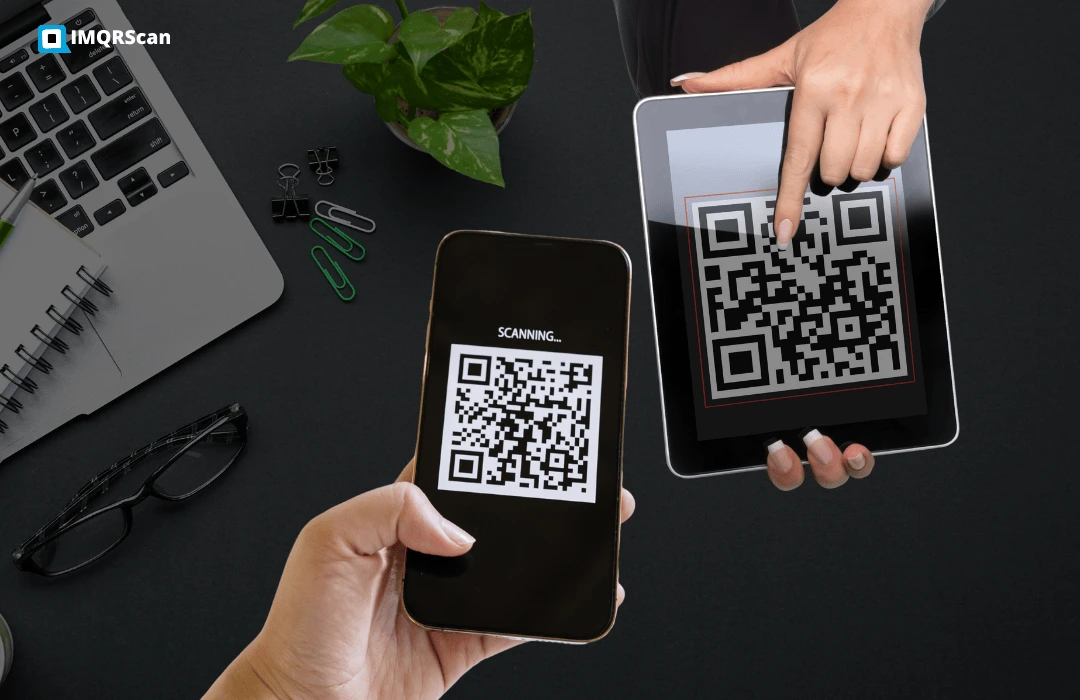
How to Scan a QR Code from a Screenshot?
Easily scan QR codes from screenshots on your phone or computer.
Read Guide
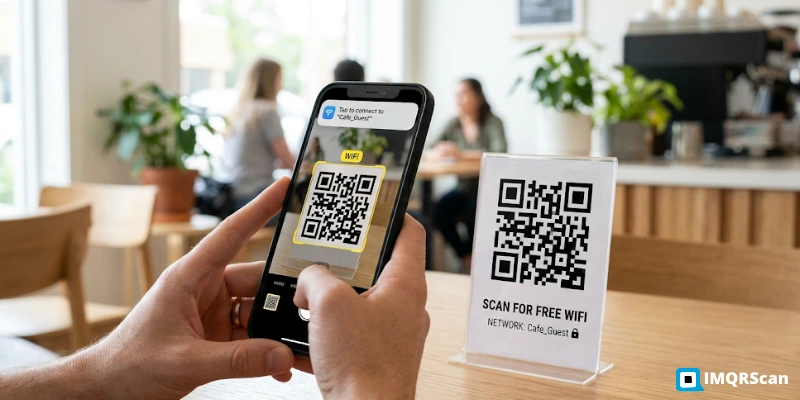
Scan WiFi QR Code on Phone
Scan a WiFi QR code on iPhone, Android or Samsung and join the network in one tap.
Read Guide