How to Make a QR Code Into a Link and Get the URL
Last updated: November 2026 · Written & Reviewed by the IMQRScan Editorial Team
To make a QR code into a link, scan it with your phone camera and copy the link from the preview. For a saved image, upload it to a free decoder such as ZXing to see the URL.
Quick Answer
iPhone: long-press the yellow link preview in the Camera app and tap Copy. Android: use Google Lens and tap the copy icon. Image file: upload it to zxing.org. Then read the domain before opening it.
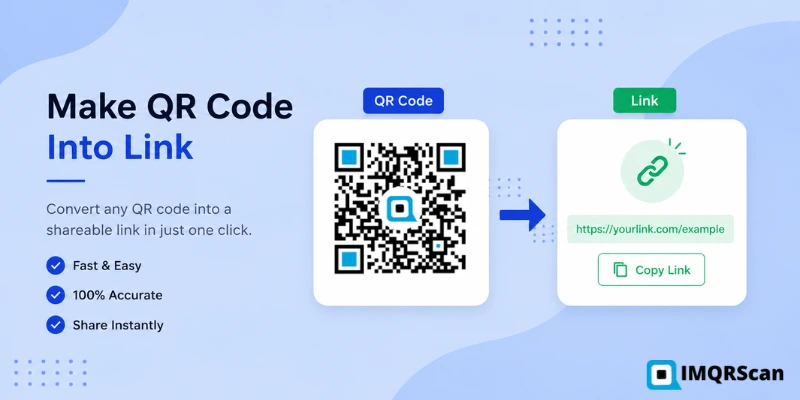
Table of Contents
- How QR Codes Store URLs
- Can You Turn a QR Code Into a Link?
- How to Extract a URL From a QR Code
- How to Upload a QR Code to Get the URL
- How to Check if a QR Code Is Safe
- How to Copy a QR Code Link
- Best QR Code Link Extractor Tools
- Comparison Table
- Common Problems and Fixes
- How to Make QR Code Into Link Safely
- QR Code to Link Converter vs QR Code Generator
- When You Should Not Open the Extracted Link
- FAQs
Create Your Own QR Codes
Create QR codes for email, websites, business cards, WiFi, PDFs, and forms with IMQRScan.
Start FreeNeed to create a link QR?
Turn any website URL into a clean QR code for print or digital sharing.
URL QR Code GeneratorUseful next reads
You have a QR code. Maybe it is on a flyer, a receipt, a screenshot, or a saved image. You do not want to visit the page blindly. You want the link itself. This guide shows you how to make a QR code into a link you can read, check, and copy.
That skill matters more than people think. A QR code hides its destination. You cannot see the URL by looking at the squares. Pulling the link out first lets you verify where the code goes before you tap anything. It also lets you save the link, share it, or paste it into a document.
We will cover every method: scanning with your camera, uploading a QR image to a decoder, using Android and iPhone built-in tools, and desktop options. We will also cover safety checks, common problems, and the reverse task, which is turning a link back into a QR code with our URL QR code generator.
Definition
A QR code link extractor is any tool that reads the data inside a QR code and shows it as text. When the data is a web address, the tool lets you view, copy, or open that URL without guessing where the code leads.
Key Takeaway
Every URL QR code is just text in disguise. Any camera app or decoder can turn the pattern back into a readable link. Extract first, verify the domain, then open. This one habit protects you from almost every QR scam.
How QR Codes Store URLs
A QR code is a grid of black and white squares called modules. Each square is a bit of data. The pattern encodes plain text, and a URL is simply text that starts with https:// or http://.
The format was invented in 1994 by Denso Wave, a Japanese company that needed a faster way to track car parts. The company published the format openly, which is why every phone can read it today. The full technical story is documented on the Wikipedia QR code page.
Three parts of the code matter for links:
- The data modules. These hold the actual characters of the URL.
- The finder patterns. The three big squares in the corners tell the scanner which way is up.
- Error correction. Extra data lets the code survive damage. A code can lose up to 30 percent of its surface and still decode.
If you want a deeper walkthrough of the mechanics, read our guide on how a QR code works.
The name QR stands for Quick Response. Denso Wave chose the design so a scanner could read the code from any angle in a fraction of a second. QR Code is a registered trademark of Denso Wave Incorporated.
Static and dynamic codes store links differently
A static QR code stores the full destination URL inside the pattern itself. What you extract is the final address.
A dynamic QR code stores a short redirect link instead. The short link points to a server, and the server forwards the scan to the real destination. This is how a dynamic QR code generator lets owners change the destination later without reprinting. When you extract a dynamic code, you will see the short link first, not the final page. We cover how to trace that redirect below.
Can You Turn a QR Code Into a Link?
Yes. Anyone can turn a QR code into a link. You do not need special software or a paid account. If the QR code contains a URL, every modern phone camera will show it, and free decoders will print it as text you can copy.
People usually mean one of two things when they ask how to make a QR code into a link:
- Extract the link from an existing QR code. You have the code and want the URL. That is what most of this guide covers.
- Convert a link into a QR code. You have the URL and want the code. That is the reverse job. Our URL QR code generator does it in seconds, and our guide on creating clickable QR codes explains how to make codes that work in both print and digital documents.
Both directions are useful. Say you want to create a QR code to link to a project page. You paste the project URL into the generator and download the code. Later, a teammate finds the printed code and wants the raw link back. They scan it, copy the URL, and paste it into their notes. Same data, two directions.
If you only need the code type identified, most decoders label the content for you. A result starting with https:// is a link. WIFI: means network credentials. BEGIN:VCARD means contact details. MAILTO: means an email address.
How to Extract a URL From a QR Code
The fastest method depends on where the QR code is. Here is the right approach for each situation.
Method 1: Scan with your phone camera
Use this when the QR code is printed or on another screen.
- Open the camera app on your iPhone or Android phone.
- Point it at the QR code. Hold steady for one second.
- A link preview appears near the code or at the top of the screen.
- Do not tap it yet. On most phones, a long press on the preview opens a menu with a copy option.
- Copy the link, then paste it somewhere you can read the full address.
Google documents the Android flow in its official Google Camera help pages. The iPhone flow is nearly identical through the built-in Camera app.
Method 2: Decode a QR code image you already have
Use this when the code is a screenshot, a saved photo, or an image in a document. You upload the file to a decoder and it returns the text. The next section covers this step by step.
Method 3: Use your phone's photo scanner
Both platforms can decode QR codes from your photo library:
- iPhone: open the photo, then tap the Live Text indicator in the bottom corner, or use the visual look up icon. iOS highlights the QR code and offers the link.
- Android: open the photo in Google Photos and tap the Lens icon. Lens decodes the code and shows the URL with a copy button.
Method 4: Trace a dynamic QR code to its final destination
If the extracted link is a short redirect, you can see where it leads without visiting it. Paste the short URL into a redirect checker, and it will list every hop until the final page. This matters for safety, and it also shows you how QR code tracking works: the redirect server logs the scan before forwarding it.
How to Upload a QR Code to Get the URL
This is the most reliable way to get a URL from a QR code image. It works on any device with a browser.
- Save the QR code as an image file. A screenshot works fine. PNG or JPG are both accepted.
- Open a trusted online decoder. The ZXing online decoder is a long-running open source option with no signup.
- Upload the image file or paste the image URL.
- Click decode. The tool prints the raw content of the code.
- If the content is a URL, select it and copy it as plain text.
ZXing, pronounced zebra crossing, is the open source barcode library behind many scanning apps. Because it shows raw output, you see exactly what the code contains, with no preview page in between. That makes it a good habit for codes you do not fully trust.
Crop the screenshot before uploading. A tight crop around the QR code with a small white border decodes more reliably than a full-page screenshot with other graphics around it.
Only upload QR images to decoders you trust. The image itself can reveal the link to the site you upload it to. For sensitive codes, use an offline app or your phone's built-in photo scanner instead.
How to Check if a QR Code Is Safe
Extracting the link is the first safety step. Check it is the second. Follow this order every time you check a QR code URL from an unknown source.
- Read the domain. The domain is the part between https:// and the next slash. That is the real destination, no matter what the rest of the link says.
- Watch for lookalikes. Scammers register domains like paypa1.com or amazon-support.net. One wrong letter changes everything.
- Expand short links. Links from bit.ly, tinyurl, or unknown shorteners hide the destination. Use a redirect checker before visiting.
- Check for HTTPS. A missing https:// is a warning sign for any page that asks for input.
- Question the context. A QR sticker slapped over another QR code on a parking meter or menu is a classic tampering trick.
Never enter passwords or payment details on a page you reached through a QR code from an unknown source. If a code claims to be from your bank, type the bank's address into your browser yourself instead.
Treat every unknown QR code like a link in a spam email. Extract, read the domain, and only then decide to visit. The thirty seconds this takes is the whole defense.
How to Copy a QR Code Link
Once the URL is visible, copying works a little differently on each device:
- iPhone camera: long-press the yellow link preview, then choose Copy from the menu.
- Android camera or Lens: tap the copy icon next to the decoded link, or long-press the text.
- Online decoder: select the text output and copy it like any other text.
- Desktop browser: if the decoded link is shown as a hyperlink, right-click it and choose Copy Link Address.
After copying, paste the link into a note before using it. This gives you a clean text version you can inspect, store, or share. It also converts the QR code into a link permanently, so you never need to scan that code again.
Best QR Code Link Extractor Tools
You do not need to install anything for occasional use. For regular work, a dedicated tool saves time. Here are the best options by platform.
Online
- ZXing Decoder: open source, no signup, shows raw content. Best for verifying suspicious codes.
- Browser-based scanner pages: many QR platforms offer an upload-and-decode page. Check the privacy policy before uploading sensitive codes.
Android
- Google Lens: built in, decodes from camera or photo library, offers copy and search options.
- Camera app: most Android 9 and newer phones decode QR codes natively in the default camera.
iPhone
- Camera app: iOS 11 and newer decode QR codes natively. The Code Scanner in Control Center gives a larger view.
- Live Text on photos: decodes QR codes inside saved images without any extra app.
Desktop
- ZXing in the browser: upload the image file and copy the output.
- Screenshot plus phone: take a screenshot, point your phone at the monitor, and copy from the camera preview. Crude but fast.
Comparison Table
| Method | Works Offline | Free | Fast | Safe for Unknown Codes |
|---|---|---|---|---|
| Phone camera scan | Yes | Yes | Fastest | Good, if you copy before opening |
| Google Lens / Live Text on photos | Mostly | Yes | Fast | Good |
| ZXing online decoder | No | Yes | Fast | Best, shows raw text only |
| Redirect checker for short links | No | Yes | Medium | Best for dynamic codes |
| Desktop screenshot + phone | Yes | Yes | Medium | Good |
Common Problems and Fixes
-
The QR code will not scan
Low contrast, glare, damage, or a missing quiet zone are the usual causes. Try more light, a flatter angle, or a tighter crop if it is an image. If the code is physically damaged past its error correction limit, no tool can recover it.
-
The extracted URL is broken
Sometimes the link decodes but the page returns an error. The site may have moved or shut down. Static codes cannot be fixed after printing. If it is your own code, this is exactly the problem a dynamic code solves. See our guide on how to edit a QR code for what can and cannot be changed.
-
You got a short link instead of the real URL
That means the code is dynamic. The short link is real and it works, but the destination lives behind a redirect. Expand it with a redirect checker if you want the final address. Owners use this setup for editing and for scan analytics.
-
Static code, wrong link forever
A static code with a typo in the URL is permanent. The only fix is generating a new code. Do QR codes stop working on their own? Static ones do not. Our article on whether QR codes expire explains the details.
-
Hidden redirects
Some links pass through several hops before landing. Each hop is a chance for tracking or, rarely, for a bait and switch. A redirect checker exposes the full chain so nothing is hidden.
-
Tracking links
Links with long tails like utm_source=flyer are marketing tags, not threats. They tell the site which campaign brought the visit. You can delete everything after the question mark and the page will normally still load.
Best Practices
- Copy the link before opening it. Reading beats trusting.
- Keep a tight crop and white border when uploading QR images to decoders.
- Expand every short link from an unknown source before visiting.
- For your own codes, test the extraction yourself. If your printed code decodes to a messy 300-character URL, consider a cleaner link.
- When you create codes, use a trusted platform. Our best QR code generator comparison explains what separates reliable tools from ad-supported ones.
Security Tips
- Read the domain out loud. Lookalike domains fail this test surprisingly often.
- Be extra careful with QR codes in public places: parking meters, ATMs, and posters are common sticker-swap targets.
- Never log in or pay through a QR link from an unverified source.
- On a work device, follow your company policy. Some organizations require all QR links to be checked first.
- If a decoded link looks like random characters with no readable domain, do not visit it.
How to Make QR Code Into Link Safely
To make QR code into link safely, do not open the link right away. First, scan the QR code and copy the URL. Then check the domain, expand short links, and make sure the page looks real.
Always copy the QR code link before opening it. This helps you check where the code goes.
- Scan the QR code.
- Copy the link preview.
- Read the domain name.
- Check short links with a redirect checker.
- Open the link only if it looks safe.
QR Code to Link Converter vs QR Code Generator
A QR code to link converter reads an existing QR code and shows the URL inside it. A QR code generator does the opposite. It turns a link into a new QR code.
| Tool | What it does | Best for |
|---|---|---|
| QR Code to Link Converter | Extracts the URL from a QR code | Checking, copying, or verifying a QR link |
| QR Code Generator | Creates a QR code from a URL | Sharing a website, menu, form, or project link |
Use a converter when you already have the QR code. Use a generator when you already have the link.
When You Should Not Open the Extracted Link
Do not open the extracted link if the domain looks strange, the QR code is in a public place, or the link asks for private details.
- The domain has spelling mistakes.
- The link uses a strange short URL.
- The QR sticker looks pasted over another code.
- The page asks for bank details or passwords.
- The QR code came from an unknown email or message.
If a QR code link asks you to log in or pay, open the official website manually instead.
Conclusion
Getting a URL from a QR code takes seconds once you know the moves. Scan and copy for printed codes. Upload and decode for images. Expand short links before trusting them, and always read the domain before you open anything.
And when you need to go the other way, from link to code, the IMQRScan URL QR code generator turns any web address into a clean, scannable QR code with your logo and colors. If the destination might change later, start with a dynamic QR code so the printed code never goes stale.
Create a QR Code From Your Own Link
Need to go the other way, from link to code? Use IMQRScan to turn any web address into a clean, scannable QR code with your logo and colors.
Open URL QR Code GeneratorFrequently Asked Questions
Answers about extracting, copying, checking, and using QR code links.
Related URL QR Code Guides
Continue with URL QR creation, dynamic editing, tracking, expiration, and QR code basics.

URL QR Code Generator
Create a QR code from a website link, landing page, menu, form, or project URL.
Open Tool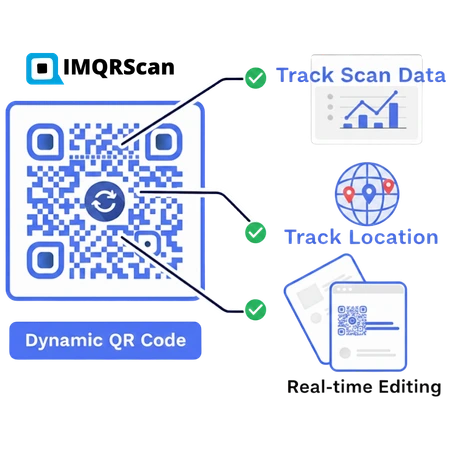
Dynamic QR Code Generator
Edit your QR link after printing and track scans from one dashboard.
Read Guide
How to Track QR Code Scans
Learn how dynamic QR codes collect scan data and campaign insights.
Read Guide
Do QR Codes Expire?
Understand static and dynamic QR code expiration, broken links, and plan status.
Read Guide