Create your QR code SVG

QR Code SVG Generator

Enter your link or content into IMQRScan, customize the design, and download as a scalable SVG file. Free, no account needed.

  • Scalable vector format: resize the QR pattern without pixelation
  • Built for printing: ideal for packaging, stickers, posters, signs, and banners
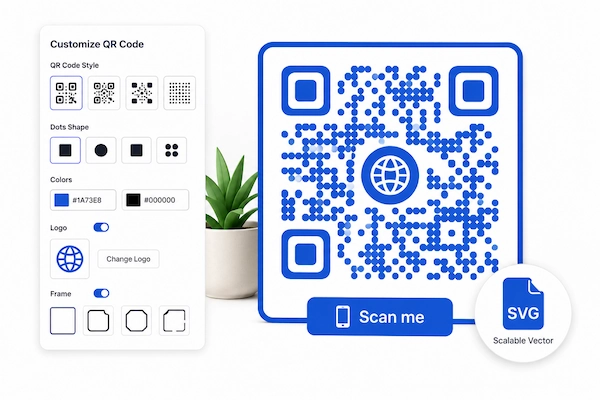
  • Customize the design: add colours, a logo, frames, labels, and dot shapes
  • Free SVG download: create a basic static QR code without an account

Free, no credit card required.

QR code sample SVG for a website link
Quick Answer

A QR code SVG is a QR code saved as a scalable vector file. It can be resized without pixelating the QR pattern, which makes it useful for packaging, stickers, business cards, posters, banners, and signs. Add your content to the IMQRScan QR Code SVG Generator, customize the design, and select SVG from the download options.

Create a Free QR Code SVG
Scalable QR code SVG vector pattern
Simple explanation

Vector instead of pixels

TL;DR: An SVG QR code uses scalable shapes instead of a fixed grid of pixels.

  • Remains sharp when resized
  • Works well in professional print layouts
  • Has no fixed pixel-resolution limit
Definition

What Is a QR Code SVG?

A QR code SVG is a scannable QR code saved in the Scalable Vector Graphics format. It stores the QR pattern as vector shapes instead of a fixed grid of pixels.

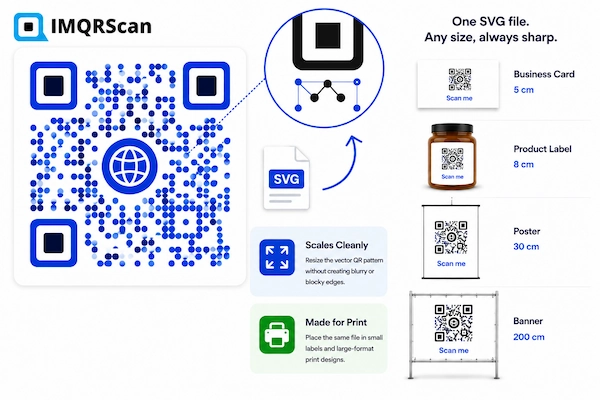
Because the QR pattern is built from mathematical shapes, it can be enlarged or reduced without becoming pixelated. The lines and edges remain clean when the file is resized for a business card, product label, poster, package, banner, or sign.

SVG is an open vector-image format standardized by the World Wide Web Consortium. It is supported by modern browsers and many professional design applications.

Scales Cleanly

Resize the vector QR pattern without creating blurry or blocky edges.

Made for Print

Place the same file in small labels and large-format print designs.

The practical result is that an SVG QR code can be resized from a few millimetres to several metres wide while the vector edges remain crisp. There is no fixed resolution ceiling because there is no pixel grid to run out of.

Key takeaway: SVG keeps the QR pattern sharp when resized, but the printed code must still use the right physical size, contrast, quiet zone, and scanning distance.
Online SVG QR Generator

Create a QR Code SVG Online

IMQRScan lets you create a QR code and export it as an SVG vector file.

You can create QR codes for supported content types, including:

Website links
Plain text
WiFi details
Contact information
Phone numbers
WhatsApp links
Social media profiles
Digital menus

The SVG download process is the same for all supported QR code types.

After downloading the file, you can place it inside a business card, packaging design, poster, sticker, label, sign, or other layout.

The vector QR pattern remains sharp when resized. If your design includes a PNG or JPG logo, the logo itself may still lose quality when enlarged.

One File, Many Layouts

Export once and reuse the same SVG QR code across small and large designs.

  • Business cards and labels
  • Packaging and stickers
  • Posters and banners
  • Signs and professional layouts

Logo quality: The QR pattern remains scalable, but a PNG or JPG logo inside the design may become blurry when enlarged.

Good to Know

Does SVG Guarantee Scanability at Any Size?

No. SVG keeps the QR pattern visually sharp, but it does not remove normal scanning requirements.

The code still needs:

Enough physical size
Strong contrast
A clear quiet zone
Suitable print quality
A reasonable scanning distance
A working mobile destination
Practical rule: Use SVG to protect visual quality, then test the final QR code at its actual printed size and expected scanning distance.
3 Easy Steps

How to Create a QR Code SVG

1
Step 1

Add Your URL or Content

Enter the link, text, WiFi details, contact information, or other content you want the QR code to hold.

2
Step 2

Customize the QR Code

Set colours, add a logo, choose a frame with a label, and adjust the dot shape. Every customisation carries through into the final vector file, not just the basic QR pattern.

3
Step 3

Download the QR Code as SVG

Select SVG from the download options and save the vector file. The QR pattern remains sharp when resized, although raster logos and final print quality still depend on their source resolution and production settings.

Ready to create your SVG QR code?

Add your content, customize the design, and download a scalable vector file.

Create SVG QR Codes
SVG Download

Download QR Code as SVG

The SVG download from IMQRScan includes the full design, colours, logo, frame, and dot shape, as part of the vector file.

Open it in any design or vector editing tool and the QR pattern, frame, and vector design elements can remain scalable. If you upload a raster logo, such as a PNG or JPG, that logo may still lose quality when the SVG is enlarged.

For normal design work, the downloaded SVG is ready to place in a layout. Professional printers may still request a specific colour profile, PDF, EPS, outlined text, or another print-ready format. Generate the code, customize it, and the SVG download is ready to drop directly into a print layout, a packaging template, or a signage file.

Included in the file

Your Complete QR Design

Colours
Logo
Frame
Dot shape

Raster logo note: A PNG or JPG logo may still lose quality when the SVG file is enlarged.

Sizing Guide

What Size Should an SVG QR Code Be?

An SVG file does not have a fixed pixel resolution. However, the printed QR code still needs the right physical size.

A vector QR code can look sharp at a very small size but still be difficult for a phone to scan. The right size depends on the amount of data in the code, the print quality, the viewing distance, and the surface where it appears.

The sizes below are practical starting points. They are not fixed rules.

Use Practical starting point Important note
Business card Around 2 to 3 cm Test the printed card before producing a large batch
Small product label Around 2.5 to 4 cm Codes with more data may need more space
Menu or table card Around 3 to 5 cm Keep a clear margin around the code
A4 flyer Around 3 to 6 cm Consider how far away people will scan it
Poster Larger than normal flyer use Test it from the expected viewing distance
Sign or banner Based on viewing distance Ask the printer for a physical proof

SVG Size for Business Cards

A QR code on a business card is normally scanned from close range. A physical size of around 2 to 3 cm is often a useful starting point.

Keep a clear white or empty margin around the code. Do not allow text, logos, or borders to touch the outer edge.

Print one sample and test it with more than one phone.
SVG Size for Product Labels

Product labels often have limited space. Avoid shrinking the QR code only to make it fit.

A code that contains a long URL or a large amount of data may have a denser pattern. Dense codes usually need more physical space.

A dynamic QR code can sometimes create a less dense pattern because it stores a shorter redirect URL.

SVG Size for Posters and Signs

A QR code on a poster or sign must be large enough for the expected scanning distance.

A code that works on a table card may be too small on a shop window. Increase the physical size as the viewing distance grows.

Test the printed code from the same distance that customers are likely to use.

Print Preparation

How to Prepare an SVG QR Code for Printing

An SVG QR code is a strong choice for print because the vector pattern stays sharp when resized. You still need to prepare the design carefully before sending it to a printer.

1

Keep the Quiet Zone Clear

The quiet zone is the empty margin around the QR code. It helps a phone camera detect where the code begins and ends. Do not crop this margin. Keep text, borders, logos, and other graphics away from it.

2

Use Strong Contrast

Dark modules on a light background are the safest choice. Black on white offers the strongest contrast. Other colour combinations can work, but the code and background should remain clearly different. Avoid light QR codes on light backgrounds or dark codes on dark backgrounds.

3

Confirm the Final Physical Size

Check the size of the QR code inside the final print layout. Do not judge size only from the design screen. A code can appear large on a monitor but become very small after printing.

4

Use a Vector Logo When Possible

The QR pattern may be vector, but an uploaded PNG or JPG logo is still a raster image. That logo may look blurry when the SVG is enlarged. Use an SVG logo where possible, or upload a high-resolution image.

5

Do Not Stretch the Code Unevenly

Always keep the width and height in the same proportion. Stretching a QR code horizontally or vertically can distort the pattern and make it harder to scan.

6

Avoid Busy Backgrounds

Place the QR code over a plain area with strong contrast. A photo, detailed pattern, or changing colour behind the code can interfere with scanning. Add a simple light panel behind it when needed.

7

Ask the Printer About File Requirements

Some printers accept SVG files directly. Others may ask for PDF, EPS, or another production format. Confirm the required file type, colour settings, bleed, and final dimensions before sending the artwork.

8

Check the Final Destination

Scan the QR code and confirm that the destination:

  • Opens correctly
  • Works on mobile devices
  • Uses HTTPS
  • Loads quickly
  • Shows a clear next step
9

Print a Proof

Always test a printed proof before approving a large order.

Best Practice

Test the final printed proof, not only the SVG file on your screen. Scan it with more than one phone from the expected viewing distance before approving a large print order.

SVG Benefits

Why Use SVG for QR Codes?

Reliable print quality at scale: because print quality at scale is the one thing a standard image format cannot guarantee, and SVG removes that risk completely.

Sharp Vector QR Pattern

The vector QR pattern stays sharp when resized. Whether the final output is a 2 cm sticker or a 2 metre banner, the code prints with sharp, clean edges.

Small File Size

SVG files are often compact because the QR pattern is stored as shapes. File size may increase when the design contains complex elements or an embedded logo.

Print-Shop Friendly

Vector files are commonly used in professional print workflows because they remain sharp when resized. Ask your printer whether they accept SVG directly or prefer PDF, EPS, or another production format.

Future-Proof for Resizing

If the same QR code design needs to go on a small label today and a large poster next month, one SVG file covers both without regenerating anything.

Professional Printing

QR Code Vector SVG for Printing

Print is where the vector format earns its keep. A QR code that will only ever appear on a screen rarely needs SVG, but the moment a code is heading to a printer, especially for anything larger than a standard flyer, vector becomes the safer choice.

Professional designers and print providers commonly use vector artwork for packaging, signage, labels, and large-format layouts. Some printers accept SVG directly, while others require PDF, EPS, AI, or another production format.

This matters most in three specific situations: packaging that gets printed at industrial scale, signage that will be viewed from a distance and therefore printed large, and any design file that a print shop will scale up or down without your direct involvement.

Best print uses

Where SVG Matters Most

Industrial Packaging

Keep the QR pattern clear across packaging templates and production sizes.

Large Signage

Scale the QR code for signs and banners viewed from a distance.

Printer Resizing

Let the print shop resize the design without softening the QR pattern.

Printer check: Confirm whether the printer accepts SVG directly or requires PDF, EPS, or another production format.

Format Comparison

QR Code SVG vs PNG

SVG and PNG can contain the same QR code. The difference is how each format stores the image and behaves when resized.

Feature SVG PNG
Image type Vector, shape-based Raster, pixel-based
Quality when enlarged QR pattern stays sharp May become blurry
Best for Packaging, signs, banners, stickers, and professional layouts Websites, email, presentations, and normal printing
File size Often compact for simple designs Increases with pixel dimensions
Editing Can be edited in compatible vector tools Limited to pixel editing
Platform support Good, but not universal Widely supported
Uploaded raster logo May still pixelate Limited by its original resolution
Recommended use Resizing and print design Everyday digital use
Choose SVG

For Print and Resizing

Choose SVG when the QR code will be resized, edited, or used in a professional print layout.

Choose PNG

For Everyday Digital Use

Choose PNG for websites, email, social media, presentations, and normal-size printing.

Key Takeaway: SVG is the better choice for packaging, signs, banners, stickers, and designs that may be resized. PNG is simpler for digital use and standard print sizes.

Some printers request PDF or EPS instead of SVG. In that case, place the SVG QR code inside the complete design and export the finished artwork in the printer's preferred format. For a full comparison, read our QR Code Format Guide.

Choose SVG when the code is intended for resizing or professional print. For websites, email, presentations, and social media, the QR Code PNG Generator is usually more convenient.

QR Code Types

Static vs Dynamic SVG QR Codes

SVG describes the image format. It does not decide whether the QR code is static or dynamic.

An SVG file can contain either type.

Fixed Content

Static SVG QR Code

A static QR code stores the final content directly in the pattern.

This may include:

  • A website address
  • Plain text
  • WiFi details
  • A phone number
  • Contact information

The content cannot be changed after the code is created. You must generate a new QR code if the information changes.

Static SVG QR codes work well when the content is fixed and scan tracking is not required.

Editable and Trackable

Dynamic SVG QR Code

A dynamic QR code usually stores a short redirect link. The final destination can be changed without replacing the printed QR code.

You can download a dynamic QR code as an SVG file just like a static code.

Dynamic SVG QR codes are useful when:

  • Packaging may stay in use for a long time
  • The destination may change later
  • You want to measure scans
  • You manage several printed campaigns
  • You want to avoid reprinting signs or labels

The file format controls how the image scales. The dynamic QR code controls whether the destination can be edited and tracked.

Need to update the link later?

Create a Dynamic QR Code
Design Tool Support

Using SVG QR Codes in Design Tools

SVG files can be used in many design tools. Import and editing options may vary by platform, plan, and file structure.

Canva

Using an SVG QR Code in Canva

Upload the SVG through the Canva Uploads panel when SVG uploads are supported by your account. Place it in the design and resize it from a corner. Keep the width and height proportional. Do not crop the quiet zone. Export the final design and scan the exported version before printing. If Canva does not accept the SVG file, use a high-resolution PNG copy for that design.

Figma

Using an SVG QR Code in Figma

Drag the SVG into the Figma canvas or use the Place Image option. Figma can usually preserve vector shapes, but the exact layer structure depends on how the SVG was created. Keep the code square and avoid modifying individual modules. Export a test version and scan it before using it in production.

Illustrator

Using an SVG QR Code in Adobe Illustrator

Open or place the SVG in Illustrator. Keep the QR pattern proportional and avoid changing individual squares. You can place the QR code inside a larger packaging, label, or poster design. Ask the printer whether the final file should be delivered as PDF, EPS, AI, or another format.

Microsoft Office

Using an SVG QR Code in Microsoft Office

Some recent versions of Word and PowerPoint can insert SVG files. Use Insert, Pictures, and select the SVG. Keep the image proportions locked when resizing it. Older versions may have limited SVG support. Use PNG when the application does not display the file correctly.

Website

Using an SVG QR Code in a Website

Modern browsers can display SVG images, but some website builders restrict SVG uploads for security reasons. Only upload trusted SVG files. Use a PNG version when the platform does not allow SVG uploads.

Before export

Important Design Tips

Keep the aspect ratio locked
Preserve the quiet zone
Avoid editing individual modules
Use strong contrast
Check whether an embedded logo is raster or vector
Test the final exported design
Samples and Examples

QR Code SVG Samples and Examples

These QR code SVG samples show how vector codes can be used for websites, WiFi access, contact cards, menus, packaging, and professional print designs.

Each sample stays sharp when resized, but the final printed code must still be tested for size, contrast, and scan distance.

SVG behaves the same way regardless of what the QR code holds. Here is how it applies across a few common content types.

QR code sample SVG for a website link

Website QR Code SVG

A QR code linking to a website or landing page, exported as SVG, is the safer choice when the same code needs to appear on both a small flyer and a large storefront poster. One file, no quality compromise at either size.

See the URL QR Code Generator

WiFi QR Code SVG

A QR code that connects guests to a WiFi network without typing a password works well as an SVG when it is going onto laminated signage or a printed welcome board that needs to stay sharp for months of handling.

See the WiFi QR Code Generator for setup details
Practical Applications

Best Uses for SVG QR Codes

01

Business Cards

Premium card stock and high-resolution printing reveal softness in a low-quality image far more easily than a standard office printout would. An SVG QR code helps keep the edges sharp in a business-card layout. Print quality still depends on the printer, paper, ink, physical code size, and contrast.

02

Posters and Banners

Large-format printing can expose the limits of a low-resolution raster image. SVG is safer when the final print size may change or when the source image resolution is unknown. The same file scales from a small flyer mock-up to a full-size banner without any loss of sharpness.

03

Product Packaging

Packaging files often get resized multiple times across different product variants and pack sizes. A vector QR code means the same source file works across every size the packaging design goes through, without regenerating a new image each time.

04

Stickers and Labels

Stickers are printed at a wide range of sizes depending on the product or surface they are applied to. SVG ensures the code stays sharp whether the sticker is 2 cm or 10 cm across, without needing a separate file for each size variant.

05

Print-Ready Design Files

Designers preparing a full print-ready file in Illustrator, Figma, or a similar tool benefit from a QR code that behaves like every other vector element in the layout. It is fully scalable, fully editable, and consistent with the rest of the file.

06

Storefront Signs and Displays

Retail windows, exhibition displays, and in-store signs are often produced in several sizes. An SVG QR code can be reused across countertop displays, window graphics, and larger promotional signs while keeping the QR pattern sharp and consistent.

Best use: Choose SVG when the QR code may be resized, placed in a professional design file, or printed in more than one physical size.
Why IMQRScan

Why Use IMQRScan's QR Code SVG Generator?

Create, customize, and download a scalable QR code from one simple online tool.

True Vector Output

The QR pattern, vector frame, and vector design elements remain scalable. An uploaded PNG or JPG logo is still limited by its original resolution.

Supported Content Types

Works with supported content types, including links, WiFi details, contact information, text, selected social profiles, and more, all exported in the same reliable way.

PNG Export Available

PNG export is available in the same tool for anyone who only needs a standard image format for screen use.

Scan Tracking Available

QR codes with scan tracking are available for anyone who wants to update the destination or measure scans over time.

Free SVG Downloads

Free SVG downloads with no account required and no limit on basic static codes.

Custom Design Options

Customize colours, dot shapes, frames, and logos before downloading the QR code as a scalable SVG file.

Troubleshooting

Common QR Code SVG Problems

Use these practical checks when an SVG QR code does not scan, upload, print, or display as expected.

Problem 1

Why Will My SVG QR Code Not Scan?

The code may be physically too small, have weak contrast, lack a clear quiet zone, use too much customization, or contain a logo that covers important modules.

Fix: Try a standard dark QR code on a light background. Increase its size and test it without the logo or custom pattern.

Problem 2

Why Does My SVG Look Blurry?

The vector QR pattern should remain sharp. However, an embedded PNG or JPG logo may still appear blurry when enlarged.

Fix: Replace the logo with a vector version or upload a higher-resolution image.

Problem 3

Why Will a Website Not Upload My SVG?

Some platforms restrict SVG uploads because SVG files can contain code or other active content.

Fix: Use a trusted SVG file and check the platform’s current upload rules. Export a PNG copy when the website does not accept SVG.

Problem 4

Why Did My Printer Ask for PDF or EPS?

The printer may use a production workflow that does not accept SVG directly.

Fix: Place the SVG inside the full design and export the final layout in the format requested by the printer, such as PDF or EPS.

Problem 5

Why Did the SVG Colours Change?

The design tool or print workflow may use a different colour system. Screens commonly display RGB colours, while some printers work with CMYK or specific spot colours.

Fix: Confirm the printer’s colour requirements before production.

Problem 6

Why Is the White Margin Missing?

The empty margin is the QR code’s quiet zone. A design tool or cropping setting may have removed it.

Fix: Restore the margin and keep text, borders, and graphics away from the outer edge.

Final Check

Test the final exported or printed QR code with more than one phone. Check it at the actual size, background, and scanning distance that customers will use.

FAQ

QR Code SVG FAQs

A QR code SVG is a QR code saved as a scalable vector file. SVG stores the QR pattern as shapes instead of a fixed grid of pixels. This allows the vector pattern to stay sharp when it is enlarged or reduced.

Enter your link or content, customize the colours, logo, and frame if needed, and select the SVG download option. The file is ready to use immediately in any print or design workflow.

Yes. IMQRScan generates a downloadable SVG file for a basic static code. The file includes the full design, not just the underlying QR pattern.

It depends on the use. SVG is the better choice for anything printed at a large size because it scales without losing quality. PNG is simpler and works just as well for screens, email, and standard print sizes. For day-to-day digital use, a PNG QR code usually covers the need. For packaging, posters, signage, and large-format printing, SVG is the safer and more reliable choice.

Yes. SVG is suitable for printing because the vector QR pattern stays sharp when resized. The code still needs the right physical size, contrast, quiet zone, and print quality. Your printer may request the final design as PDF, EPS, or another production format.

Yes. Many design tools can import SVG files, including Figma, Illustrator, and supported Canva workflows. Available editing and upload options may vary by platform and plan. Test the imported file and confirm that the QR pattern, logo, colours, and quiet zone remain correct.

Yes. A dynamic QR code can be exported as SVG because the code type and image format are separate choices. The SVG format controls how the image scales. The dynamic QR code controls whether the destination can be updated and whether scan tracking is available.

A basic QR pattern is often compact, but file size can increase when the design contains a raster logo, detailed frame, complex shapes, or extra metadata. To fix this, remove unnecessary elements or use a simpler design when file size matters.

The logo may be a raster image embedded inside the vector file. SVG does not automatically convert a PNG or JPG logo into true vector artwork. Use an SVG logo or a higher-resolution image when the design will be enlarged.

The design application may interpret fonts, masks, filters, or embedded images differently. Compare the imported version with the original file. Check the colours, frame, logo, and quiet zone before approving the design.
Create Free

Create Your QR Code SVG Free

Enter your content, customize the design, and download a scalable SVG file ready for any print size.

Free, no credit card required.

Related Features

Use the specialist feature page when you need a different image format, more design control, a transparent background, or an editable QR code destination.

QR Code PNG Generator

Create and download a sharp PNG QR code for websites, email, social media, documents, presentations, and normal-size printing.

Explore feature

QR Code Customization

Customize colours, logos, frames, labels, shapes, and other design elements to match your brand or campaign.

Explore feature

Transparent QR Code

Create a QR code with a transparent background for branded layouts, product images, coloured designs, and marketing materials.

Explore feature

Dynamic QR Code

Update the destination after printing, measure scans, and manage changing links without replacing the visible QR code.

Explore feature