QR Code Generator with Customization for Branded Designs
Use our QR code generator with customization to create a unique design for your business, product, event, or campaign. Add your logo, apply brand colors, change shapes, include a frame, and make a custom QR code that looks professional and remains easy to scan.
You can start with a simple black-and-white code or build a branded design from the beginning. The tool gives you control over the parts people see, while the QR pattern still carries the link or content you want to share.
- Add a logo: place a business or personal mark in the center
- Match your brand: use colors, gradients, shapes, and frames
- Create for print: download sharp PNG and SVG files
- Keep it scannable: preview and test before publishing
Last updated: July 16, 2026 · Reviewed by the IMQRScan Editorial Team
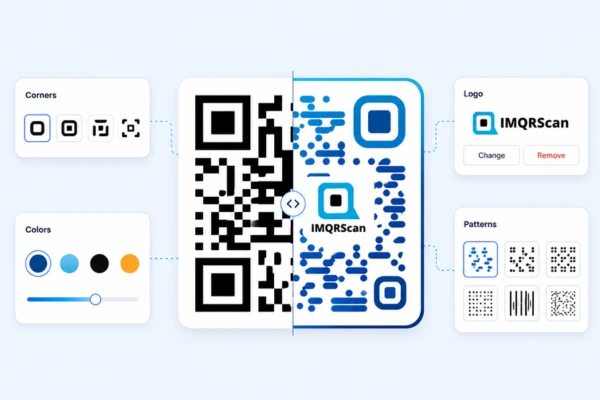
Quick Answer
A QR code generator with customization lets you add a logo, colors, shapes, frames, backgrounds, and text. The best design stays clear, on-brand, and easy to scan.
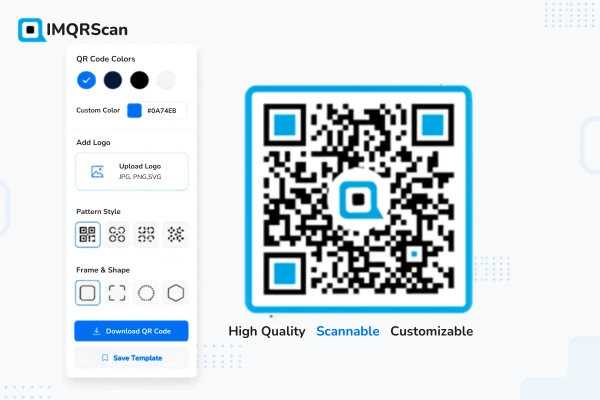
TL;DR: Customize the parts people see, but protect the parts phone cameras need to read.
- Use: a clear logo and strong contrast
- Avoid: pale colors and crowded backgrounds
- Test: the final digital and printed versions
What Is a QR Code Generator with Customization?
A QR code generator with customization is an online tool that creates a scannable QR code and lets you change its visual design. You can edit the logo, colors, dot style, corner style, frame, background, size, and download format.
A normal QR code uses black squares on a white background. It works well, but it may look out of place on a menu, package, poster, invitation, or business card.
A custom design can match the rest of your material. It can use your company colors, logo, and a short message such as “Scan to View Menu” or “Scan to Book.”
The goal is not to add every effect. The goal is to create a code that fits the page or product around it.
A good QR code generator with customization should help you make visual changes without hiding the parts a phone camera needs to read.
Why Customize a QR Code?
Customization can make a QR code easier to notice, easier to understand, and more consistent with the material around it.
Match business colors
Use a dark version of your brand color so the code fits your visual identity without losing contrast.
Add a trusted logo
A clear logo can help people connect the code with your company, event, product, or personal brand.
Complete the layout
A custom code can feel like part of a package, menu, poster, business card, or invitation.
Explain the scan
A short frame message tells people whether the code opens a menu, booking page, review form, or download.
Keep campaigns consistent
Use the same logo, color palette, and frame style across related digital and printed campaign materials.
Prepare for print and digital
Create files that fit both online placements and print work such as cards, labels, posters, and packaging.
Create a Branded QR Code with Your Logo
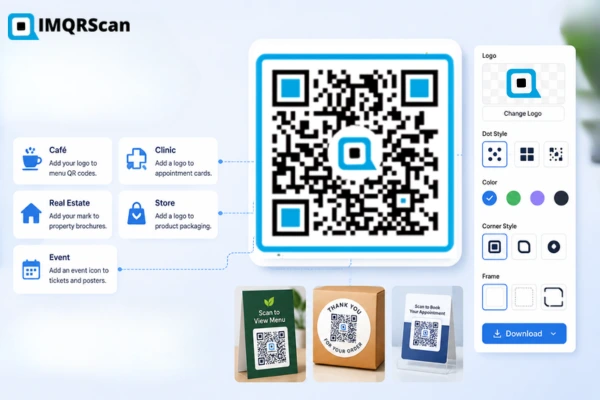
A logo is often the first design change people make. The QR code generator with customization lets you place a business logo, personal mark, event icon, or product symbol in the center of the code.
This can help people connect the QR code with your business before they scan it.
A café can add its logo to a menu QR code.
A dentist can add a clinic logo to an appointment card.
A real estate agent can add a personal mark to a property brochure.
A store can add a product logo to packaging.
An event team can add an event icon to tickets and posters.
How to Add a Logo Safely
- Upload a clear PNG, JPG, or supported logo file.
- Keep the logo centered.
- Use a simple version of the logo.
- Avoid very small text inside the logo.
- Leave enough QR pattern visible around it.
- Test the final code before downloading.
Use Brand Colors Without Losing Contrast
Color helps a QR code fit your visual identity, but the pattern still needs a clear difference from its background.
Useful Color Pairings
| QR pattern | Background | Suitable use |
|---|---|---|
| Black | White | General use |
| Dark navy | White | Corporate and technology |
| Deep green | Cream | Cafés, food, and natural brands |
| Dark purple | Pale pink | Beauty and lifestyle |
| Burgundy | Ivory | Weddings and events |
| Dark brown | Beige | Handmade and premium products |
| Charcoal | Light gray | Professional services |
Color Choices to Avoid
- Light yellow on white
- Pale gray on cream
- Bright red on dark orange
- Blue on purple
- Very light gradients
- Transparent dots over a detailed photo
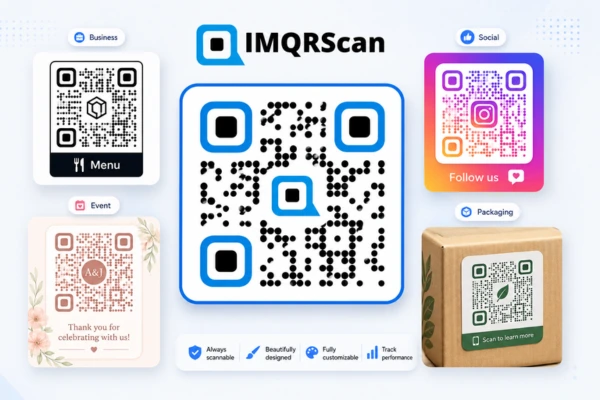
Make Beautiful and Pretty QR Codes That Still Work
A beautiful QR code should feel balanced. It should not look crowded or forced.
You can use the QR code generator with customization to create a clean business design, a pretty event code, or a colorful campaign code. The right style depends on where the code will appear.
QR Code Generator with Customization Options
A strong QR code generator with customization gives you control over the parts that affect appearance and use.
| Customization option | What you can change | Best use |
|---|---|---|
| Logo | Add a business or personal image | Brand recognition |
| Foreground color | Change the main QR pattern | Match brand colors |
| Background | Choose a light or transparent area | Fit the page design |
| Gradient | Blend two suitable colors | Modern campaigns |
| Dot pattern | Use square, round, or soft modules | Change visual style |
| Corner eyes | Change the three finder patterns | Add a distinct look |
| Frame | Add a border around the code | Make the code stand out |
| Custom text | Add a short scan message | Explain the action |
| Size | Set image dimensions | Web and print use |
| Format | Download PNG or SVG | Digital and print output |
How to Create a Custom QR Code
Follow these steps to use the QR code generator with customization.
Choose the QR Code Type
Decide what the code should open, such as a website, PDF, digital menu, contact card, Wi-Fi details, social profile, video, map, review page, or app download.
Add the Content
Enter the URL, text, contact details, file, or other information. Check the destination before moving to the design stage.
Upload Your Logo
Choose a clear image that still looks good at a small size. Avoid long taglines or detailed photos inside the logo area.
Select Brand Colors
Choose a dark foreground and a lighter background. Use official brand colors when they provide enough contrast.
Change Shapes and Corners
Select a dot style and corner design that fit the brand. For more pattern-focused options, use the dot QR code generator.
Add a Frame and Text
Use a short call to action such as Scan to View Menu, Scan to Book, Scan to Review, Scan for Details, Scan to Download, or Scan to Connect.
Test the QR Code
Scan it on more than one phone. Test it at the final size and expected distance.
Download the File
Use PNG for websites, email, and social media. Use SVG for cards, packaging, menus, posters, and signs.
Quick Answer
To create a custom QR code, add your content, upload a logo, choose colors and shapes, add a frame, test it, and download the final file.
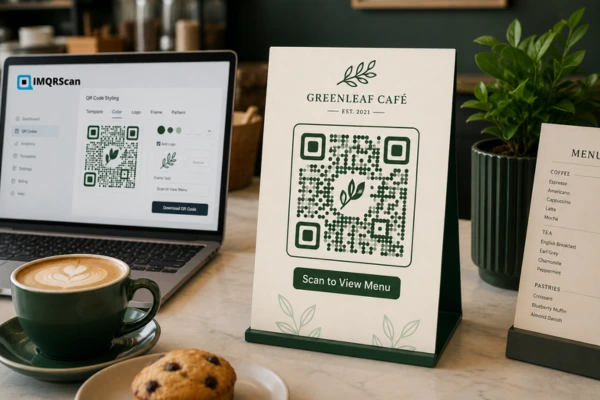
Real Example: A Café Uses a QR Code Generator with Customization
A small café wants to replace printed menus that become outdated each month. Its brand uses dark green, cream, and a simple leaf logo.
The owner opens the QR code generator with customization and selects a dynamic URL QR code. The destination points to the café’s online menu.
- Uploads the leaf logo.
- Uses dark green for the main pattern.
- Selects a cream background.
- Chooses rounded dots.
- Adds a frame that says “Scan to View Menu.”
- Tests the code on an iPhone and Android phone.
- Downloads an SVG for table cards.
- Downloads a PNG for social media.
The café later changes the menu URL. Because the owner used the dynamic QR code generator, the destination can be updated without printing new table cards.
Where to Use a QR Code Generator with Customization
A custom QR code can support business and personal projects wherever the design will be seen by customers, guests, or the public.
Business Cards
Link to a website, contact card, portfolio, booking page, or LinkedIn profile. Keep the code away from the edge of the card.
Restaurant Menus
Use a clear frame such as Scan to View Menu. A dynamic QR code is useful when menu links may change.
Product Packaging
Link to product instructions, ingredients, warranty registration, support, authenticity details, or reorder pages.
Posters and Flyers
Use a larger code when people will scan from a distance. Add a message that tells people what they will get.
Events
Link to registration, tickets, maps, schedules, speaker details, feedback forms, or photo galleries.
Review Requests
Add a branded code to receipts, table cards, counters, or service documents. Use a message such as Scan to Review Us.
Real Estate
Place a custom QR code on signs, brochures, window cards, or listings. Link to photos, videos, floor plans, or booking pages.
Social Media
Send visitors to one profile or a multi-link page. Use a frame such as Scan to Follow or Scan to Connect.
How to Keep Customized QR Codes Easy to Scan
The QR code generator with customization gives you design freedom, but scanning must come first.
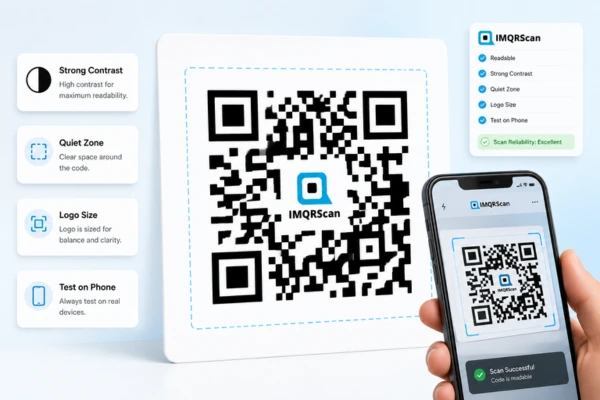
Use Strong Contrast
The pattern should be darker than the background.
Keep the Quiet Zone Clear
Do not place text, artwork, or a border inside the empty area around the code.
Control the Logo Size
A large logo can cover too much QR data. Keep it centered and test the finished code.
Avoid Busy Backgrounds
Use a clear box or light area instead of placing the code directly over a detailed photo.
Choose the Right Size
Increase the size when the expected scanning distance grows.
Test the Final Format
Test on iPhone, Android, in different light, at the final print size, and from the expected distance.
Good Customization vs Risky Customization
| Good choice | Risky choice |
|---|---|
| Dark pattern on a light background | Light pattern on a light background |
| Small, clear logo | Large logo covering the code |
| Simple frame text | Long text around the QR code |
| One or two brand colors | Many unrelated colors |
| Plain quiet zone | Artwork touching the code |
| SVG for print | Screenshot enlarged for print |
| Tested final design | Untested design sent to print |
A QR code generator with customization should make it easy to preview these choices before download.
Static vs Dynamic Options in a QR Code Generator with Customization
A custom design can be used with both static and dynamic QR codes.
| Feature | Static QR code | Dynamic QR code |
|---|---|---|
| Change destination later | ||
| Scan analytics | ||
| Redirect link | ||
| Best for | Fixed content | Campaigns and changing links |
| Design customization | ||
| Account or plan may be needed | Usually no | Often yes |
Static Custom QR Code
Use a static QR code when the destination will not change.
Static codes can use logos, colors, frames, and custom shapes, but the stored content stays fixed.
Dynamic Custom QR Code
Use the dynamic QR code generator for menus, promotions, packaging, events, and campaigns that may need updates.
Add QR code tracking when you need scan time, location, device, and campaign data.
Download Files from a QR Code Generator with Customization
Choose the output format based on whether the custom QR code will appear online or in print.
PNG
Best for: Websites, & social media
Easy to upload and share
SVG
Best for: Cards, posters, & packaging
Stays sharp when resized
JPG
Best for: Basic online images
Widely supported
Best for: Print sharing
Easy to send to a printer
Free QR Code Generator with Customization Features
A free QR code generator with customization should explain what users can create without payment.
Before downloading, check:
- Whether the code is static or dynamic
- Whether the destination can be changed later
- Whether scan tracking is included
- Whether the QR code expires
- Which download formats are available
- Whether logo upload is included
- Whether there are scan or campaign limits
- Whether an account or subscription is required
Static QR codes often have fewer service limits because the data is stored inside the pattern.
Dynamic tools may require an active plan because the platform manages redirects, editing, analytics, security, and other hosted features.
Use full customization when you want to control:
Common Custom QR Code Design Mistakes
Making the Logo Too Large
The logo should support the code, not cover it.
Using Weak Contrast
Pale colors may look attractive but fail after printing.
Removing the Quiet Zone
The camera needs empty space around the QR pattern.
Adding Too Many Effects
A gradient, large logo, complex frame, and unusual background can make the design feel crowded.
Stretching the Image
Never pull the QR code wider or taller. Keep the square ratio.
Using a Screenshot for Print
Screenshots may blur when enlarged. Download the original PNG or SVG.
Forgetting the Scan Message
Tell people what the code opens. A clear message often works better than a generic Scan Me.
Who Should Use a QR Code Generator with Customization?
The feature is most useful when the QR code appears in front of customers, guests, or the public.
Build a Custom QR Code That Looks Good and Scans Well
Create a branded QR code for your business, product, event, or personal project without making it difficult to scan.
Add Your Logo
Place a clear business or personal logo in the center.
Match Your Brand
Customize colors, shapes, corners, frames, and text.
Download for Any Use
Use SVG for print and PNG for websites or social media.
Keep It Scannable
Use strong contrast, clear spacing, and a controlled logo size.
Best practice: Test your final QR code on both iPhone and Android before sharing it or sending it to print.
Ready to Create?
Build a branded QR code that fits your design and stays easy to scan.
- Logo and brand colors
- Custom shapes and frames
- PNG and SVG downloads
QR Code Generator with Customization FAQs
Direct answers to common questions about custom, branded, beautiful, and pretty QR codes.
Create a Custom Branded QR Code
Add your logo, brand colors, shapes, frame, and text. Then test the final design and download it for digital or print use.
Create Custom QR CodeExplore Related QR Code Features
Use the specialist feature page when you need deeper control over a specific QR code task.
Dynamic QR Code
Edit the destination after printing and use analytics for changing campaigns.
Explore featureQR Code Tracking
Review scans, devices, locations, and campaign activity where supported.
Explore featureTransparent QR Code
Remove the fixed background for flexible layouts with strong contrast.
Explore feature