Bulk QR Code Generator from Excel and CSV
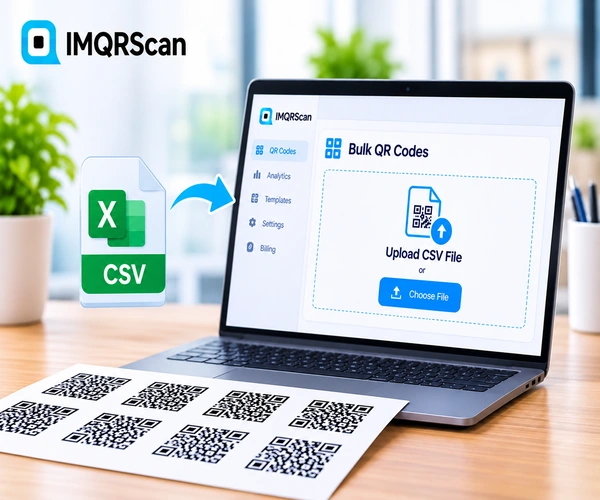
This bulk QR code generator turns a spreadsheet into many QR codes at once. Fill in one row per code, upload the CSV, apply one design with your logo, and download every code as PNG or SVG in a single ZIP.
Free on every plan • Upload from Excel or Google Sheets • Editable codes with scan tracking • Your logo on every code • Download all at once
What the Bulk QR Code Generator Does
Making QR codes one by one is fine for three codes. For a print run of product labels, event badges, or room cards, it is slow and easy to get wrong. Here is exactly what bulk creation in IMQRScan does.
- Input: a CSV file, with a sample file for every QR type
- Types: 54 types, from website links and WiFi to social profiles, payment links, and Google Docs
- Kind: Smart codes (editable and tracked) for 49 types, or static codes
- Design: copy the design of any code you made, logo included
- Safety net: every row is checked before anything is created
- Output: one ZIP of PNG (512 to 2048 px) or SVG files
What Is a Bulk QR Code Generator?
A bulk QR code generator creates many QR codes in one step from a list, usually a spreadsheet with one row per code. Each row becomes its own QR code with its own content and file name. It is also called a mass QR code generator or batch QR code generator.
The idea is simple: you prepare the data once in Excel or Google Sheets, and the tool does the repetitive part. A shop with 200 products gets 200 label codes. A hotel with 80 rooms gets 80 WiFi codes. A sales team of 15 gets 15 contact card codes.
The difference between bulk tools is what happens around that core: which types they support, whether the codes can be edited later, whether one design applies to all of them, and how they handle mistakes in the file.
How to Create Bulk QR Codes from Excel or CSV
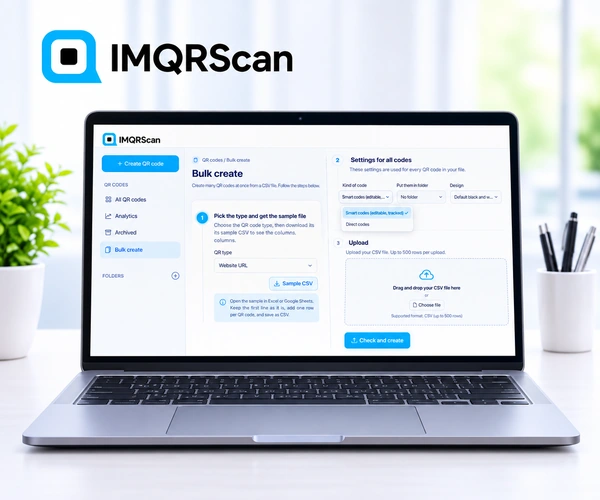
These steps match the Bulk create screen in your IMQRScan dashboard. A free account is needed.
Pick the QR code type
Open Bulk create in your dashboard and choose the type, such as Website URL, WiFi, or Contact card (vCard).
Download the sample CSV
Download the sample file for that type. Its first line holds the exact column names the tool expects.
Fill in one row per code
Open the sample in Excel or Google Sheets, keep the first line as it is, and add one row for every QR code.
Save as CSV
Save the file as CSV UTF-8, so names with accents or Arabic letters stay correct.
Choose kind, folder, and design
Pick Smart codes (editable and tracked) or static codes, shown as Direct codes in the form. Choose a folder and copy the design of an existing code.
Upload and check
Upload the CSV. Every row is checked first. If a row has a problem, nothing is created and the problem rows are listed.
Download all as a ZIP
Download every code at once as PNG (512, 1024, or 2048 px) or SVG, packed in one ZIP file.
Then open Bulk create in your free IMQRScan account and copy that design to every code.
The CSV Format for Bulk QR Codes
Every type has its own columns. The sample file always starts with them, so you never have to guess. The name column becomes the code's name and file name.
| QR type | Columns in the first line | Example row |
|---|---|---|
| Website URL | name, url | Blue mug, https://example.com/blue-mug |
| WiFi | name, ssid, password, encryption, hidden | Room 101, Hotel-101, sunrise2026, WPA, 0 |
| Contact card (vCard) | name, first_name, last_name, phone, email, company, job_title, website, address | Sara card, Sara, Khan, +971 50 123 4567, sara@example.com, ... |
name, phone, message | Store 3, +971 4 123 4567, Hi, I have a question |
Keep the first line as it is
The column names tell the tool what each value means. Renaming or deleting them breaks the upload.
Save as CSV UTF-8
Plain CSV from Excel can garble accents and Arabic letters. Choose CSV UTF-8 when you save.
Split very long lists
Each upload has a limit by plan. Split a long list into several files and upload them one by one.
Every Row Is Checked Before Anything Is Created
The worst bulk mistake is finding out after printing that row 87 had a broken link. IMQRScan avoids that by checking the whole file first.
- Every row is validated the same way as a code made by hand: links, phone numbers, emails, and required fields.
- If any row has a problem, nothing is created. You never end up with half a batch.
- Each problem is listed with its row number, such as "Row 14: enter a valid web address", so you can fix the file and upload again.
Smart vs Static Bulk QR Codes
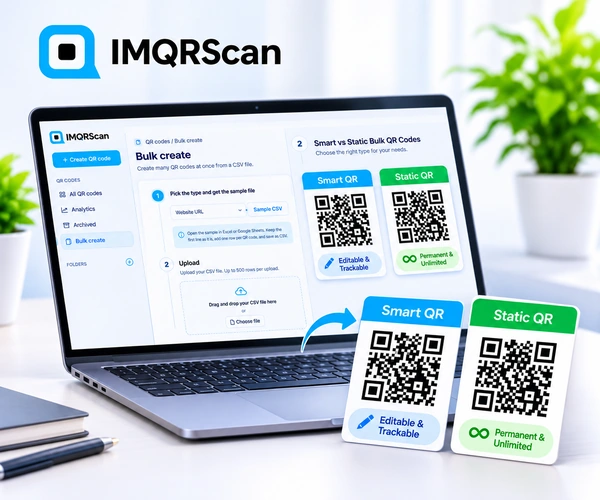
When you upload, you choose the kind of code for the whole file. For anything printed in large numbers, Smart codes are usually the safer choice, because a typo or a changed link can be fixed without a reprint.
| Feature | Smart codes | Static codes |
|---|---|---|
| Edit after printing | Yes | No |
| Scan tracking | Yes | No |
| Pattern | Simple short link | Holds all the data |
| Counts toward plan allowance | Yes | No, unlimited |
| Expires | Works while your plan is active | Never |
In the bulk form, static codes are labeled Direct codes. Five types are static only, because phones read their data straight from the pattern: Text, WiFi, Contact card (vCard), Crypto payment, and Brazilian PIX.
Read more about the difference on the dynamic QR code generator and static QR code pages.
How Many Bulk QR Codes Can You Create?
Two numbers matter: how many rows one upload can hold, and how many Smart codes your plan includes in total. Static codes are unlimited.
| Plan | Codes per bulk upload | Smart codes in total | Good for |
|---|---|---|---|
| Free | 5 | 5 | Trying bulk creation |
| Starter | 50 | 30 | Small batches and print runs |
| Professional | 250 | 250 | Product labels, events, and teams |
| Plus | 1,000 | 500 | Agencies and large campaigns |
Need more Smart codes? Extra codes are an add-on on any plan. See pricing.
Bulk QR Codes with Your Logo and Colors
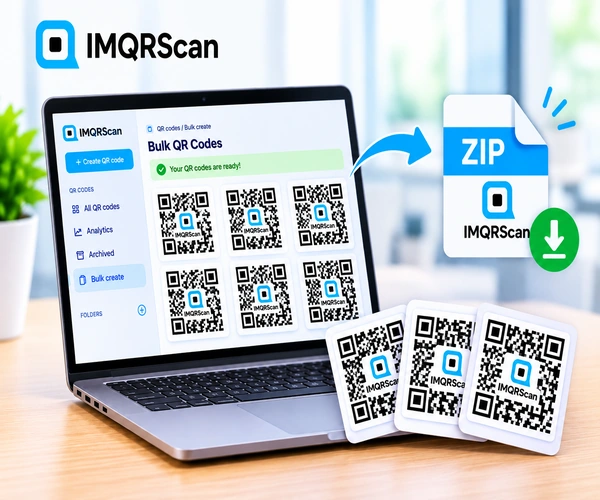
Bulk codes do not have to be plain black and white. Design one code first, with your logo, colors, dot style, and frame. When you upload the CSV, choose Copy the design of that code, and every new code gets the same look.
- Create one code with the QR code generator with logo or the custom QR code generator.
- Scan it on two phones to make sure the design works.
- Pick it in the Design menu when you upload your bulk file.
Download formats
After the upload, download everything at once: PNG at 512, 1024, or 2048 pixels for screens and simple print, or SVG for sharp print at any size. All files arrive in one ZIP.
Which QR Code Types Work in Bulk?
Bulk creation supports 54 QR types, every type whose content fits in one row of a spreadsheet. 49 of them can be Smart codes; the five static-only types are marked with an asterisk.
- Basic (4): Website URL, Text*, WiFi*, Location
- Contact (12): Contact card (vCard)*, WhatsApp, Email, SMS, Phone call, Telegram, Viber, Facebook Messenger, Slack, FaceTime, Zoom meeting, Skype
- Social (15): Instagram, TikTok, X (Twitter), LinkedIn, Facebook, YouTube, Snapchat, Twitch, Threads, Reddit, Pinterest, Discord, Vimeo, SoundCloud, Patreon
- Payments (7): PayPal, UPI payment, Cash App, Venmo, Stripe payment link, Crypto payment*, Brazilian PIX*
- Business (11): Google Business, Tripadvisor, Yelp, Booking.com, Airbnb, Amazon, Etsy, Shopify store, Eventbrite, Calendly, GS1 Digital Link
- Work files (5): Google Form, Google Drive, Dropbox, Google Docs, Google Sheets
* Static only: phones read the data straight from the pattern, so these cannot be edited after printing.
IMQRScan vs a Typical Free Bulk QR Code Tool
Many free bulk tools run in the browser and turn a list of links into a ZIP of images. That works for simple jobs. Here is an honest comparison.
| What matters | IMQRScan bulk creation | Typical free browser bulk tool |
|---|---|---|
| Account needed | Yes, free | Often no |
| QR types | 54, including WiFi, vCard, and payment links | Usually links or plain text |
| Edit links after printing | Yes, with Smart codes | No |
| Scan tracking | Yes, with Smart codes | No |
| Logo and design for all codes | Yes, copied from one code | Sometimes |
| Checks every row first | Yes | Rarely |
| Excel file upload | No, save as CSV first | Some accept XLSX |
| Best for | Printed codes you may need to change or measure | One-off static link codes |
Real Example: A Home Store Labels 180 Products
A home store wants a QR code on every shelf label, linking to each product's page with care instructions and reviews. It sells 180 products and is on the Professional plan.
- The manager exports product names and page links from the online store into a spreadsheet.
- She downloads the Website URL sample CSV and pastes the data into the name and url columns.
- She designs one code with the store logo in dark green and saves the file as CSV UTF-8.
- She uploads it as Smart codes, into a folder called Shelf labels, copying that design.
- The check flags rows 41 and 112, where links were missing https. She fixes them and uploads again.
- All 180 codes are created. She downloads SVG for the label printer.
Best Practice for Bulk QR Code Projects
Test with three rows first
Upload a small file before the full list. It confirms the format and the design in minutes.
Use clear names
The name column becomes the code name and file name. Use product codes or room numbers you can match later.
Choose Smart for print
Printed codes outlive links. Smart codes let you fix a link without reprinting.
Use one folder per batch
A folder per campaign keeps hundreds of codes easy to find, edit, and report on.
Scan a sample of the output
Print a few labels and scan them on two phones before printing the full run.
Use SVG for printers
SVG stays sharp on labels and signs. Use PNG for email and screens.
Common Bulk QR Code Upload Problems
| What you see | Likely cause | Fix |
|---|---|---|
| Nothing was created | At least one row has a problem | Read the listed row numbers, fix them, and upload again |
| "The file has no rows" | Only the header line is filled in | Add one row per code under the first line |
| Strange characters in names | Saved as plain CSV, not UTF-8 | Save again as CSV UTF-8 |
| File will not upload | Saved as XLSX | Save as CSV from Excel or Google Sheets |
| Plan limit message | More rows than your plan allows per upload | Split the file, or upgrade your plan |
| Columns not recognized | Header line renamed or deleted | Copy the first line from the sample CSV again |
Where Bulk QR Codes Save the Most Time
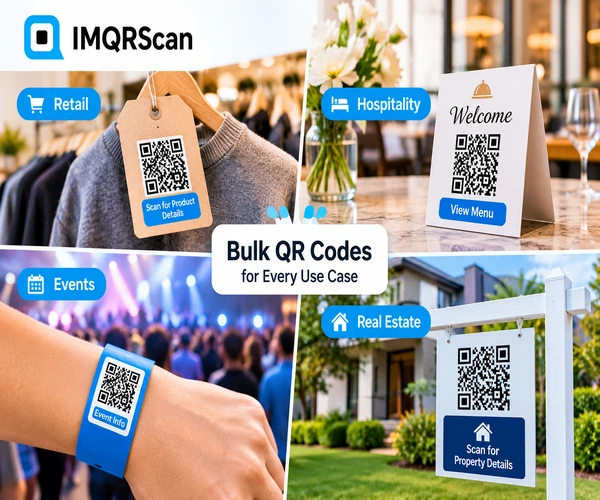
Product labels
One Website URL code per product, linked to its page.
Hotel rooms
One WiFi code per room or floor network.
Team business cards
One vCard code per employee.
Event badges
One link code per attendee or session.
Property signs
One code per listing, editable when it sells.
Asset tags
One code per device or machine for maintenance pages.
Creating codes from your own software instead of a spreadsheet? The QR Code API, on the Professional plan and up, does that.
What Else Can You Do With Bulk QR Codes?
Bulk creation is the start. IMQRScan adds tools to manage, protect, and measure every code in the batch.
Built-in QR Templates
Start from a ready-made design, then copy it to every code in your batch.
Folders
Keep each batch in its own folder, so hundreds of codes stay easy to manage.
Scan Analytics
See which Smart codes in a batch get scanned, where, and on which devices.
More Tools in IMQRScan
Free Print Templates
Flyers, posters, and table tents with your code already placed.
QR Stickers
Print-ready stickers for packaging, doors, and windows.
Schedule and Scan Limits
Set start and end dates, or cap the number of scans.
Country Rules
Send each country to a different destination from one code.
Retargeting Pixels
Meta, GA4, Google Ads, TikTok, and LinkedIn pixels on every scan.
PIN Protection
Ask for a PIN before the content opens.
Custom Domain
Use your own domain for the short link behind the code.
QR Code API
Create and manage codes from your own software.
Free on every plan
- Bulk creation
- Logo and all design options
- Built-in QR templates
- Free print templates
- QR stickers
Free plan includes
- Unlimited static QR codes
- 5 Smart (dynamic) QR codes
- Bulk creation, 5 per upload
- 15 tracked scans
- 14 days of scan analytics
Professional plan and up
- 250 codes per bulk upload (1,000 on Plus)
- PIN protection
- Schedule and scan limits
- Country rules and retargeting pixels
- QR Code API
- Team management and roles
Bulk QR Code Generator FAQs
Answers about bulk and mass QR codes, CSV files, limits, and downloads.