WhatsApp QR Code Generator
IMQRScan’s WhatsApp QR Code Generator is an online tool that converts a WhatsApp number, wa.me link, pre-filled message link, or WhatsApp group invite link into a downloadable QR code.
Sharing your WhatsApp number on a poster, a business card, or a packaging label is awkward. People have to save the number first, then open WhatsApp, then find the contact, then start a chat. Most do not bother.
A WhatsApp QR code skips all of that. One scan opens a chat with you directly, with the message already typed if you want it. No number to copy, no manual contact saving, no back and forth.
- Phone number
- wa.me chat link
- Pre-filled message link
- Group invite URL
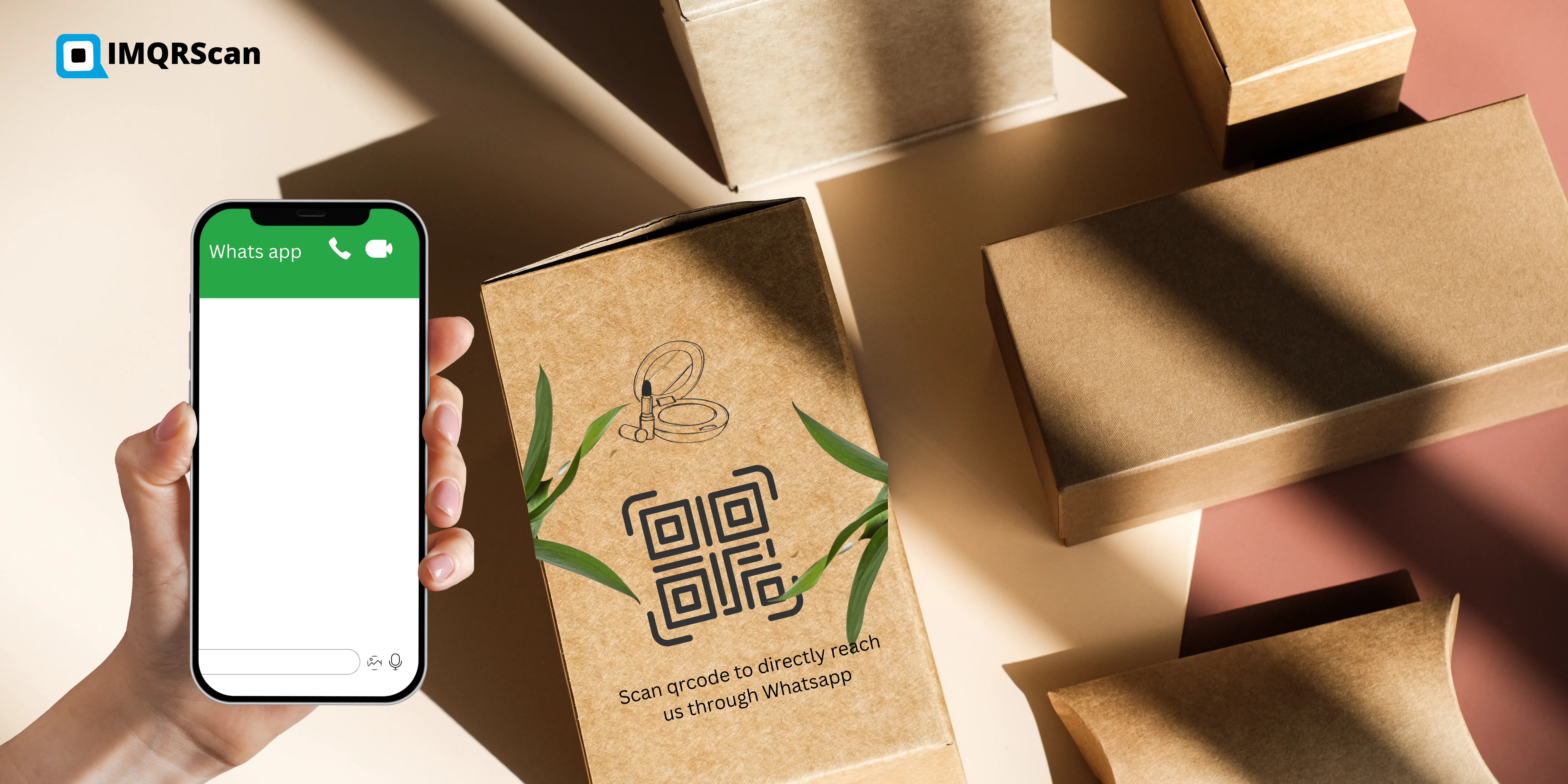
Create your WhatsApp QR code
To generate a WhatsApp QR code, enter your WhatsApp number with the country code, or wa.me link into IMQRScan's WhatsApp QR Code Generator, add an optional pre-filled message, customize the QR code with colors or a logo, then download it as PNG, SVG, or PDF.
IMQRScan lets you create a free static WhatsApp QR code, or use a dynamic QR code if you want to update the number, message, or destination later. The generator runs in your browser; there is nothing to install, and the output is a real QR code file you can take to print or share digitally.
What Is a WhatsApp QR Code?
It is a scannable image that holds a WhatsApp link. When a customer or contact points their phone camera at it, WhatsApp opens automatically with a chat to your number ready to go. On Android and iPhone, no separate scanner app is needed, the built-in camera handles it.
What the scan does depends on the link inside the code:
Number only
opens a blank chat to your number
Pre-filled message
opens a chat with a message already typed in, the customer just taps send
Group invite
It takes the scanner straight to the WhatsApp group join screen
WhatsApp Business
opens a chat with your Business account, with or without a pre-filled message
The QR code itself does not require WhatsApp to be involved in its generation. It is simply a URL encoded as a pattern. IMQRScan builds the correct wa.me link format and turn it into a scannable image.
How to Generate a WhatsApp QR Code
Choose WhatsApp QR Code Type
Decide what the scan should do. A number-only code works for most businesses, it opens a chat, and the customer types their own message. A pre-filled message code works better when you want to prompt a specific action, like a support request, a booking inquiry, or a product question. A group invite code is for communities, teams, or event groups.
Enter Your WhatsApp Number with Country Code
Include the full international dialing code without the leading plus sign or any spaces. A UK number would start with 44, a US number with 1, and a Pakistan number with 92. The format IMQRScan uses builds the wa.me link correctly from this, so the generated QR code works on any phone, regardless of the scanner's country. wa.me/447911123456 (UK example)
Add an Optional Pre-Filled Message
Type the message you want to appear in the chat when the code is scanned. Keep it short and specific. Something like “Hi, I’d like to book an appointment” or “Please send me your menu”, whatever prompts the action you are looking for. The customer can edit or delete it before sending, but most will just tap send if the message already says what they need.
Customize Your WhatsApp QR Code
The default output is a plain black-and-white code. It works fine. But if the code is going on branded print material or a business card, a few minutes of customization makes it look like yours: Colors, change the module colour to your brand palette; keep it dark enough for reliable contrast. Logo, place your business logo or the WhatsApp icon in the centre of the code. Frame, add a short label. “Scan to chat with us” or “WhatsApp us here." tells the scanner what to expect before they commit. Shape, swap the default square dots for rounded patterns for a cleaner look.
Download PNG, SVG, or PDF
PNG, digital use only: social media, email, presentations, website embeds. SVG, for all print use. Scales to any size without blurring. Use this for cards, flyers, posters, and signs. PDF, print-ready file, send directly to a printer or sign maker without extra setup.
Test Before Printing or Sharing
Scan the code yourself before it goes anywhere. Open your camera, aim at the code, and confirm it opens the right WhatsApp number and the correct pre-filled message if you added one. Do this on both a printed copy and the screen version if you plan to use both.
Ready to generate?
Open IMQRScan’s QR Code Generator: paste your number, customize, download in under two minutes.
Generate WhatsApp QR CodeGenerate QR Code for WhatsApp Number
The most common use. Enter your WhatsApp number with its international code, generate the code, and anyone who scans it lands in a chat with you.
This type of code works for personal WhatsApp and WhatsApp Business accounts. The difference is what the scanner sees when the chat opens, with a business account, your business name, logo, category, and profile information appear rather than just a phone number contact.
If your number ever changes, a static code becomes useless. A dynamic code solves this, update the number in your dashboard, and the printed code starts routing to the new number immediately.
Common use
Best for business cards, posters, packaging labels, counter cards, invoices, and direct customer inquiries.
WhatsApp Message QR Code Generator
A message QR code builds the pre-filled text directly into the link. When scanned, WhatsApp opens with that message sitting in the chat box, ready to send with one tap.
Where it genuinely saves friction:
A restaurant table card where the message says, "Table 7, please send our order"
A hotel room card where the message says "Room 214, I need assistance"
A product insert where the message says "I'd like help setting up [product name]"
A business card where the message says, "Hi, I'd like to discuss a project."
The customer can change or delete the message before sending. But in practice, most people tap send on whatever is already there, especially if the message is polite and relevant.
WhatsApp Group QR Code Generator
A WhatsApp group QR code holds the group's invite link rather than a phone number. When scanned, the scanner sees the group name and description and can join with one tap.
To generate this type of code: open your WhatsApp group, go to Group info, tap Invite to the group via the link, and copy the invite URL. Paste that URL into IMQRScan and generate the code exactly as you would for a number or message code.
Note that WhatsApp group invite links can expire or be reset by a group admin. A dynamic QR code is strongly recommended for group codes used on any printed material, if the link is revoked, you update the destination in your dashboard rather than reprinting.
Detailed guide
For a detailed step-by-step walkthrough, see the WhatsApp group QR code guide.
Read Group QR GuideWhatsApp Business QR Code Generator
A WhatsApp Business QR code works exactly like a personal number code, the difference is the account it connects to. When someone scans a business account code, they see your business name, category, description, and profile image in the chat header rather than a personal contact.
For businesses that handle customer inquiries, bookings, or orders over WhatsApp, the business account code creates a more professional first impression. The generation process is identical: your WhatsApp Business number, an optional pre-filled message, design, and download.
WhatsApp Business also generates its own in-app QR code, but it offers no design customization and no scan analytics. IMQRScan gives you a branded code you can actually match to your printed materials, plus the option to track how many people use it.

WhatsApp QR Code Generator with Logo
Adding a logo to a QR code does two things. It makes the code recognizable before the scan, a customer who sees the WhatsApp icon in the center of the code knows exactly what will happen. And it makes the code look like part of your branding rather than a generic square dropped onto a business card.
IMQRScan's logo placement sits at the center of the code. The error-correction level is set high enough that up to 30% of the code's data area can be obscured, by a logo, by minor print damage, or by design elements, and the code will still scan correctly.
You can upload your own business logo or use the WhatsApp icon directly. Either works. If you use a light-colored logo on a light background, add a solid white or colored backing circle behind it so it stays visible against the code pattern.
How to Generate Your WhatsApp QR Code on Mobile
IMQRScan runs in a mobile browser, Safari on iPhone, Chrome on Android, so you do not need to switch to a desktop to generate your code.
- Open your mobile browser and go to imqrscan.com/whatsapp-qr-code-generator
- Enter your WhatsApp number with the country code, or paste a wa.me link
- Add a pre-filled message if needed
- Use the customisation panel to adjust colours or add a logo
- Download as PNG for immediate digital use, or SVG if you plan to send it to a printer
WhatsApp app option
If you want to generate the code directly from your WhatsApp app, open WhatsApp, go to Settings, and tap your profile name. Your personal WhatsApp QR code appears there. This is useful for sharing in person but offers no design options and no way to add branding. For printed or business use, the IMQRScan generator gives you a code you actually own.
Static vs Dynamic WhatsApp QR Codes
Both work for WhatsApp links. The difference matters only after the code is out in the world.
| Feature | Static | Dynamic |
|---|---|---|
| Change number after printing | Not possible | Yes, from the dashboard. |
| Update pre-filled message | Not possible | Yes, any time |
| Scan analytics | None | Date, location, device |
| Group link expired? | Must reprint | Update destination instantly |
| Cost | Free | Free plan available |
| Best for | One-off personal use | Business use, print runs, campaigns |
Where to Use WhatsApp QR Codes
Restaurants and Cafes
Table cards, menus, and receipt footers. A pre-filled message code saying "Hi, I'd like to make a reservation" on a table card turns a diner into a direct conversation before they leave. Takeaway packaging with a code linking to your WhatsApp order line lets repeat customers reorder without a phone call.
Salons and Clinics
A WhatsApp QR code on the checkout counter lets a client book their next appointment while they are still in the chair. A pre-filled message, "Hi, I'd like to book with [stylist name]", sends them to exactly the right person without having to explain themselves.
Real Estate Agents
A QR code on a property listing board, a for-sale sign, or a brochure takes an interested viewer straight to a WhatsApp chat with the agent. When at the moment someone is standing outside a property, they have questions. A code that connects them in under ten seconds closes that moment rather than losing it.
Retail Stores
A code on a product label or shelf tag that opens a chat with a pre-filled message, "I'd like to ask about [product name]", handles questions during off-hours without a phone line. On business cards at trade shows, a WhatsApp code keeps the conversation going after the event ends.
Events and Trade Shows
Booth banners, lanyards, and printed materials with a WhatsApp QR code let visitors start a conversation while they are still standing in front of you, or after they have moved on and want to follow up. A pre-filled message with the event name and a short question prompt works especially well here.
Customer Support and Sales
A WhatsApp QR code in email signatures, on invoices, and in order confirmation documents gives customers a direct line without having to navigate a contact form. For sales teams, a code on every printed piece of collateral means an interested prospect can reach the right person in one scan.
Best Practices Before Sharing Your WhatsApp QR Code
Common Mistakes to Avoid
Entering the phone number without the country code
The wa.me link will not work for people in other countries and may not work domestically on some networks.
Using a screenshot of the in-app WhatsApp QR code and reprinting it
Screenshots are low resolution and often fail when printed at any useful size.
Linking a static code to a WhatsApp group invite URL
Group links get revoked. Use a dynamic QR for group codes on any printed material.
Printing too small
Business cards have limited space but the code still needs to be at least 1.5 to 2 cm. Test the printed card before ordering a full run.
Writing a pre-filled message that is too long or too formal
It reads as robotic. Keep it to one short, natural sentence.
Why Use IMQRScan's WhatsApp QR Code Generator?
Several generators produce a working WhatsApp QR code. The differences show up when you need the code to do more than just exist.
All WhatsApp QR types in one tool
The generator handles number codes, pre-filled message codes, group invite codes, and WhatsApp Business, all from one tool, not separate pages.
Branded design options
Design options include logo placement, color customization, frames with label text, and dot shape changes, without needing a separate design tool.
Print-ready exports
SVG and PDF exports mean the code stays sharp at any print size, from a receipt footer to a trade show banner.
Dynamic codes and QR scan analytics
Dynamic codes with QR scan analytics are available from the same dashboard, no second platform needed.
Free tier
The free tier is genuinely free: no card required and no watermark on downloads.
WhatsApp QR Code FAQs
Direct answers about creating, editing, scanning, and using WhatsApp QR codes.
Create Your WhatsApp QR Code Free
Paste your WhatsApp number into IMQRScan QR Code Generator, customize the design, and download. Free, no account needed for a basic code.
Sign up free for dynamic codes with scan tracking, or see pricing plans for business and team options.