Free WiFi QR Code Generator
Generate a free WiFi QR code with WPA3 support, logo upload, and print-ready PNG and SVG downloads. Free signup, no watermark, and works on desktop or mobile.
Quick answer: A WiFi QR code generator creates a scannable QR code that stores your SSID, password, and encryption type so users can connect without typing the WiFi password manually.
Preview popular free QR types below. IMQRScan also supports 33+ advanced QR formats including vCard, Crypto, restaurant menu, Google Review, business profile, file upload, product catalogue, lead form and more.
This free preview tool supports popular QR types. For advanced business QR codes, create a free account and unlock editable, branded and trackable QR formats.
Switch to IMQRScan dynamic QR codes for campaigns, tracking, and advanced controls.
Explore Dynamic QRAI Overview Summary
A WiFi QR code generator creates a scannable QR code that stores wireless network credentials such as SSID, password, and encryption type. When scanned, devices automatically connect to the network without manual input. These QR codes are widely used in hotels, cafes, offices, and homes to simplify internet access.
Create a Practical WiFi QR Code in Minutes
Most WiFi QR code generators are built the same way. You type in your network name and password, the QR code is created, and you download it for sharing or printing. IMQRScan makes that process simple, fast, and practical for real use.
You can create a WiFi QR code for your home, restaurant, office, Airbnb, event, clinic, salon, hotel, or guest network in minutes.
What this generator supports
- SSID and WiFi password
- WPA3, WPA2, mixed mode, WEP, and open networks
- Logo upload and brand colors
- PNG, SVG, and PDF download options
In plain English: scan → connect → go online.
What Is a WiFi QR Code?
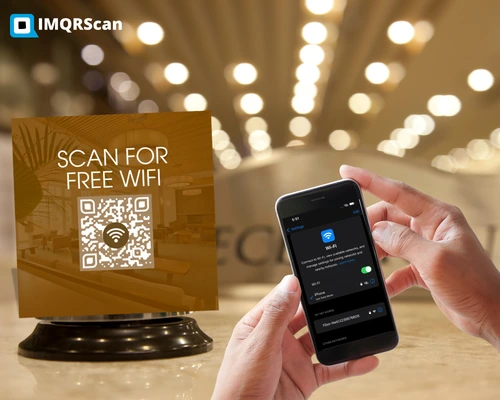
WiFi QR code definition: A WiFi QR code is a QR code that contains the information needed to join a wireless network. It stores your network name, password, and security type so users can join your WiFi by scanning instead of typing credentials manually.
A WiFi QR code is designed to remove friction. Instead of asking people to manually search for the correct network and type a long password, you give them one quick action: scan and connect.
This is especially useful in places where many visitors need internet access quickly.
Faster Access
Guests connect in seconds without typing credentials manually.
Fewer Mistakes
Reduces login errors caused by uppercase letters, symbols, and confusing characters.
Better Guest Experience
Creates a smoother, more professional WiFi sharing experience for visitors.
Important: the QR code itself does not create internet. It only makes the connection process easier by packaging your existing network details into a scannable format.
Create a WiFi QR Code in Four Steps
Enter Your Network Name
Enter your network name, also called SSID. Spelling and case must match your router exactly. WiFi names are case-sensitive.
Enter the WiFi Password
Enter the WiFi password. If your network has no password, leave it blank and select "None" as the encryption type.
Choose Encryption
Choose WPA3 for newer routers, WPA2 for most home networks, WEP only for legacy hardware, or WPA2/WPA3 mixed mode if unsure.
Customize and Download
Add a logo, pick brand colors if you want, then download as PNG for digital sharing or SVG/PDF for crisp printing.
Need a more detailed walkthrough? Read our step-by-step guide to making a WiFi QR code with setup tips, device checks, and print-ready best practices.
Why Use a WiFi QR Code?
A WiFi QR code lets people connect to your network without typing a long password manually.
A Faster Way to Share WiFi Access
Instead of reading out credentials, printing them on a wall, or sending them again and again by message, you can place one QR code where guests will see it. They scan it, tap the connection prompt, and join the network.
This is useful for homes, businesses, and public-facing spaces where people regularly ask for WiFi access. It reduces staff interruptions, avoids typing errors, and creates a more professional guest experience.
- Faster guest onboarding
- Less staff interruption
- Cleaner signage than printing the raw password
- Useful for homes, Airbnb, hotels, cafes, offices, and waiting rooms
- Works well with branded print material
Built for WPA3 and Modern Routers
WiFi Protected Access 3, or WPA3, is the newer security standard used by many modern routers. If you bought a router from TP-Link, Netgear, ASUS, eero, or your internet provider in recent years, there is a good chance it supports WPA3 or WPA2/WPA3 mixed mode.
IMQRScan supports WPA3 as a first-class option. When you select it in the encryption dropdown, the generator writes the correct authentication type into the QR payload.
If you are not sure which encryption your router uses, the safest default for many newer networks is WPA2/WPA3 mixed mode, which works on both older and newer client devices.
How to Find Your Encryption Type in 30 Seconds
- On Android: Settings → Connections → WiFi → tap the connected network → look for Security.
- On iPhone: Settings → WiFi → tap (i) next to the network. iOS does not always display the encryption type, so check the router itself if needed.
- On the router: sign in to the admin page, usually 192.168.1.1 or 192.168.0.1, and look under Wireless → Security.
Logo Upload That Keeps Your QR Code Scannable
Adding a logo to the center of a WiFi QR code is one of the most requested features on any generator. It is also one of the easiest ways to break a QR code if it is done badly.
Design tips that keep it scannable
A QR code is made of data modules, and every part covered by a logo reduces the amount of pattern a scanner can read.
IMQRScan uses high error correction for logo QR codes and keeps the logo within a safe size range. This helps preserve scan reliability while still allowing your QR code to look branded and professional.
- Keep strong contrast between foreground and background
- Keep the logo small and centered
- Do not remove the quiet zone around the QR code
- Test before printing in bulk
Print test recommended
Before ordering hundreds of stickers, print one sample at the size and material you intend to use. Scan it with three different phones, including at least one older Android, from one to two metres away in normal indoor lighting. If all three connect cleanly, the rest of the print run is much safer.
Good logo use cases
- Restaurant logo on table WiFi cards
- Airbnb property name on guest cards
- Event logo or sponsor mark
- Office or coworking brand mark
Where Teams Use the IMQRScan WiFi QR Code Generator
WiFi QR codes have moved from a novelty to standard practice across hospitality, retail, events, rentals, and professional services.
Restaurants and Cafes
Print one branded WiFi QR sticker per table and another at the host stand. Customers connect in one tap without flagging down a server. Use it on a separate guest network, never your main private network. We have a dedicated guide for wifi qr code for restaurants and hospitality with print specifications and example placements.
Airbnb and Short-Term Rentals
A laminated WiFi QR card on the kitchen counter is one of the easiest guest amenities to set up. Hosts who manage multiple properties can generate one QR per unit, branded with the listing name.
Offices and Coworking Spaces
Use WiFi QR codes at reception desks, meeting rooms, visitor areas, and coworking zones. Combined with a guest VLAN or guest network, this gives visitors and contractors quick network access.
Events and Conferences
WiFi QR codes can be printed on lanyards, programme inserts, table cards, and venue signage. With logo upload, the access point can also carry the event organizer's logo or sponsor mark.
Schools, Clinics, Salons, and Waiting Areas
Anywhere visitors stay for more than a few minutes, a WiFi QR code can reduce the number of "what is the password?" interruptions.
Retail Stores
Useful for malls, showrooms, salons, and stores where customers often spend time and need internet access while browsing.
Print Specifications for Reliable Scanning
Use the right size, contrast, quiet zone, and file format to keep your WiFi QR code easy to scan.
Minimum Size
Use 2 × 2 cm for close-range scanning at arm's length. Use 4 × 4 cm or larger for counter signs and stickers. Use 8 × 8 cm or larger for wall posters and signs scanned from one to two metres.
Quiet Zone
Keep at least 4 mm of clean white space around the QR pattern. Decorative borders that touch the modules can reduce scan reliability.
Contrast
Dark on light is required. Black on white is the safest option. Colored QR codes can work, but the dark pattern must be significantly darker than the background.
File Format
Download SVG or PDF for printed material because they scale cleanly. PNG is fine for digital use, email, WhatsApp, and web pages.
Material
Matte or satin laminate scans better than glossy. Glossy stickers can reflect light and fail.
Should You Use Main WiFi or Guest WiFi?
Use a guest network whenever the QR code will be printed or shown to visitors, customers, contractors, or guests.
A WiFi QR code contains the password in the QR data. That is how phones connect. Because the password is recoverable from the QR code, a guest network is safer than sharing your main private network.
Safer setup checklist
- Prefer a guest network for public areas
- Use WPA3 or WPA2/WPA3 mixed mode where available
- Update and reprint the QR code if the password changes
- Only display internal network access where appropriate
- Test that the QR does exactly what you expect before publishing
Simple rule: if strangers can see the sign, assume strangers can scan the sign.
What Data Is Stored in a WiFi QR Code?
A WiFi QR code follows a standard format that includes the network name, password, and encryption type so phones can connect automatically.
SSID
Your wireless network name.
Password
The WiFi password used to authenticate devices.
Encryption
The security protocol such as WPA3, WPA2, WPA2/WPA3 mixed mode, WEP, or none.
WIFI:T:WPA;S:NetworkName;P:Password;;
Ready to Create Your Free WiFi QR Code?
Generate a professional WiFi QR code with IMQRScan for free, customize it with your branding, download print-ready files, and make WiFi access easier for every guest.
No awkward password sharing. Just scan and connect.
About this page: IMQRScan publishes documentation and guides reviewed by the product team. This page is written to help users create WiFi QR codes safely, understand how WiFi QR data works, and choose the right setup for homes, guest networks, restaurants, offices, events, and rentals.
Last reviewed: May 2026. The product team updates this page when the generator, supported formats, or WiFi QR best practices change.
WiFi QR Code Generator FAQs
Answers to common questions about creating, using, printing, and securing WiFi QR codes.
A WiFi QR code is a two-dimensional barcode that stores a WiFi network name, password, and encryption type in a standard format. When scanned by an iPhone, Android phone, or QR scanner app, the device offers a one-tap option to join the network without manually typing the credentials.
Yes. You can create WiFi QR codes on IMQRScan with free signup. Downloaded QR codes are clean, with no IMQRScan watermark.
Yes. WPA3 is available as an encryption option in the generator. If your router uses WPA2/WPA3 mixed mode, choose the mixed option for better compatibility with both older and newer devices.
Yes. IMQRScan supports logo upload and branded styling. Keep the design simple, use strong contrast, and test the final QR code before printing it in bulk.
Use a guest network whenever the QR code will be printed or shown to visitors, customers, contractors, or guests. A WiFi QR code contains the password in the QR data, so a guest network is safer than sharing your main private network.
Yes. Native cameras on iOS 11 and newer and Android 9 and newer can scan WiFi QR codes without an app. The visitor points their camera at the QR, taps the connection prompt, and joins the network. For older devices, a QR scanner app can usually read the WiFi format.
Standard WiFi QR codes are static. They encode the network name and password directly into the QR pattern. If your password changes, you will need to generate and reprint the QR code. If you expect frequent changes, a guest network with a stable password is the cleanest workaround.
Only in some cases. On many Android phones, the system can export a QR code for the currently connected network from WiFi settings. iPhone does not offer this as a built-in QR feature. We cover both cases in detail at WiFi QR code without revealing the password.
You can use PNG for digital sharing, SVG for printed material at any size, and PDF for handover to print shops. SVG or PDF is recommended for any printed deliverable because it stays sharp at every scale.
Yes. The password is encoded in the QR data and can be read by any QR scanner that decodes the WiFi format. This is how phones connect. The password must be present for the connection to work. If a QR will be visible in a public space, generate it from a guest network rather than your main private network.
Use 2 × 2 cm for close-range scanning at arm's length, 4 × 4 cm for table signs, and 8 × 8 cm or larger for posters and signs scanned from a distance. Keep a clean quiet zone around the QR and avoid glossy laminate.
Yes, you can create one using a browser-based generator like IMQRScan. The iPhone does not have a native WiFi QR generator because Apple uses proximity-based sharing between Apple devices. To create a printable WiFi QR from an iPhone, open the IMQRScan generator in Safari or Chrome.
No. The downloaded QR is clean, with no IMQRScan logo, footer, or watermark. The optional logo in the center is whatever you upload, and you can leave it blank for a plain QR.
Related WiFi QR Code Resources
Use these supporting guides for password privacy, step-by-step setup, restaurant use cases, and scanning instructions.
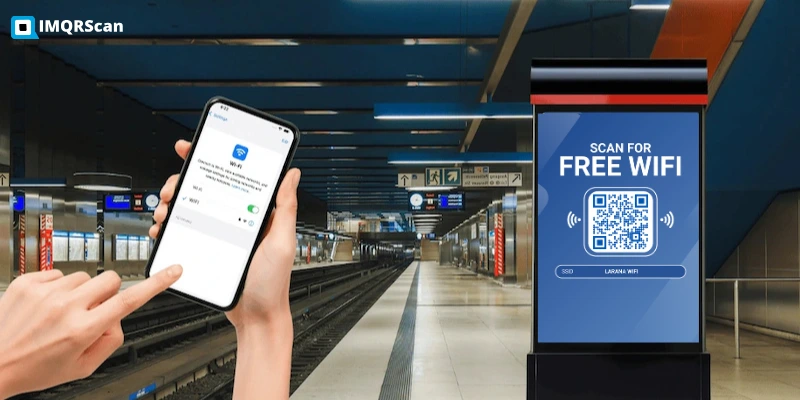
How to Make a QR Code for WiFi in 4 Steps
Follow a step-by-step tutorial to create a printable WiFi QR code for your network in 4 easy steps.
Read Guide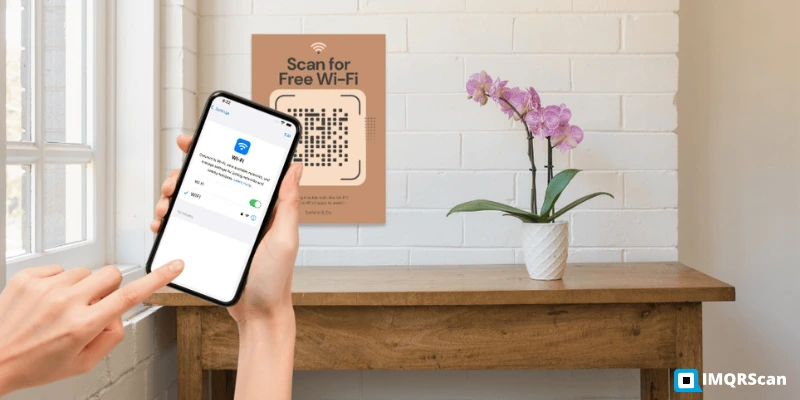
WiFi QR Code Without Password
Learn what is possible, what is not, and how guest networks help with sharing safely.
Read Guide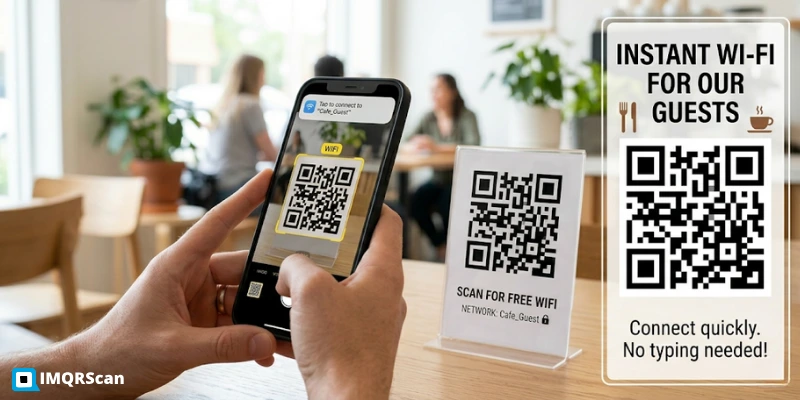
WiFi QR Codes for Restaurants
A hospitality walkthrough for WiFi QR codes in cafes, restaurants, hotels, and guest areas.
Read Guide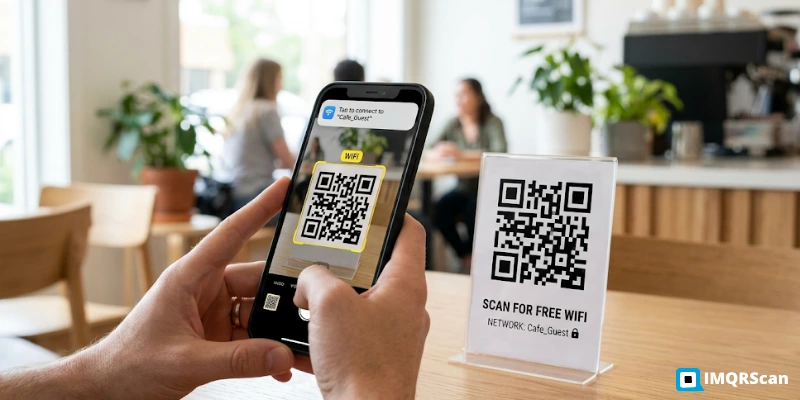
Scan WiFi QR Codes
Learn how to scan WiFi QR codes on iPhone, Android, Samsung, and laptops.
Read GuideFor broader discovery, browse all QR solutions and compare static vs dynamic QR codes.