How to Scan a WiFi QR Code on Your Phone
Step-by-step guide to scanning WiFi QR codes on iPhone, Android, and Samsung. Plus how to find and share your phone's WiFi QR code. No app required.
Quick Answer
Most phones scan WiFi QR codes natively. Open the camera app, point it at the QR code, wait for the WiFi notification to appear, and tap it. No app is required on iOS 11+ and Android 9+.
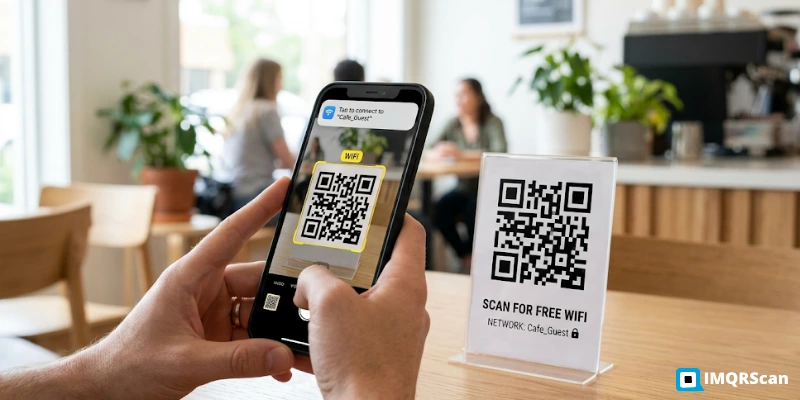
Table of Contents
Create a WiFi QR Code
Create a printable WiFi QR code for guests, cafes, offices, events, and home networks.
Create a WiFi QR CodeKey Takeaways
- iPhone and Android phones can usually scan WiFi QR codes directly from the default camera app.
- Samsung Galaxy phones can both scan and share WiFi QR codes from WiFi settings.
- iPhone can scan WiFi QRs, but it cannot create printable WiFi QRs natively.
- A WiFi QR code contains the SSID, password, and encryption type, so treat it like the password itself.
- If scanning fails, check print quality, camera permissions, encryption type, password changes, and hidden network settings.
Scanning a WiFi QR code is one of those small interactions that has quietly become a daily background habit. You sit down at a cafe, point your camera at a sticker, tap a notification, and you are online. Most of the time it works without thinking. But the moment it does not, the camera does nothing, the notification never appears, or the connection times out, there is no obvious next step.
This guide covers the working method on iPhone, Android, and Samsung, plus what to do when it does not work, plus how to share the WiFi QR back from your own phone for someone else.
This is the IMQRScan device hub: not a tool page, but an explainer for the four most common things people want to do with WiFi QR codes from their phone.
Quick Answer: Most Phones Scan WiFi QR Codes Natively
Open the camera app, point it at the QR code, wait for the WiFi notification to appear, and tap it. This works on iOS 11 and newer, which covers every iPhone from the iPhone 5s onward, and Android 9 and newer, which covers every reasonably current phone. No app to download. No setup. The connection prompt usually appears within a second of pointing the camera at the QR.
If the notification does not appear, the troubleshooting section near the bottom of this page covers the few common reasons: camera permissions, focus distance, low contrast prints, or older device firmware.
Device Support Table
| Device | Can I scan WiFi QR natively? | Can I create WiFi QR natively? |
|---|---|---|
| iPhone | Yes, iOS 11+ | No |
| Android | Yes, Android 9+ | Yes, many Android 10+ phones |
| Samsung | Yes | Yes |
| Laptop | Usually no | Use a browser generator |
How to Scan a WiFi QR Code on iPhone
iPhone scanning is the most polished of the major platforms because Apple integrated WiFi QR detection directly into the Camera app from iOS 11 onwards. There is no separate scanner app and no menu to navigate.
Step-by-step on iPhone
- Open the Camera app, the same one you take photos with. No need to switch to a special mode.
- Point the camera at the WiFi QR code. Hold the phone roughly 15 to 30 cm away from the QR.
- A yellow notification banner will appear at the top of the screen showing the network name. Tap it.
- Tap "Join Network" on the prompt. The phone connects.
On older iPhones running iOS 10 or earlier, such as the iPhone 5 and older, the Camera app does not detect QR codes natively. Install a well-reviewed QR scanner from the App Store. Any scanner that supports the WiFi QR format should work.
Where iPhone Differs from Android
The iPhone does not have a native WiFi QR code generator built into iOS. Apple's design choice was to use proximity-based password sharing between Apple devices instead. When an iPhone or Mac near you tries to join a network you are already on, you get a banner asking if you want to share. Elegant for Apple-to-Apple, but not useful for Android guests or for a printed sign.
To create a printable WiFi QR from an iPhone, use the IMQRScan's wifi QR code generator in Safari or Chrome. The tool runs in your phone's browser and works the same on iOS as on desktop.
How to Scan a WiFi QR Code on Android
Android scanning is broadly similar to iPhone but with manufacturer variation. Most modern phones, including Pixel, Samsung, OnePlus, Xiaomi, and Oppo, support QR detection in the default camera app from Android 9 onwards. Older devices may need Google Lens or a dedicated scanner app, both of which are free.
Step-by-step on Android
- Open the Camera app.
- Point the camera at the QR code. On most modern Android phones, the camera will recognise the QR and show a tap-to-connect prompt.
- If the camera does not auto-detect, swipe out of the camera and open Google Lens. It is built into recent Android versions, or available as a free download. Point Lens at the QR.
- Tap the WiFi notification or the connect prompt. Confirm to join the network.
Manufacturer-specific Notes
Pixel, Google
Native camera detects WiFi QRs from Android 9 onward. No setup required.
Samsung Galaxy
Native scanning works in the Camera app. Some older models had QR detection in a separate "Bixby Vision" mode. Modern models have moved it to the main camera.
OnePlus, Xiaomi, Oppo, Vivo
Native scanning is supported on most recent models. If it is not working, Google Lens is the universal fallback.
Older Android, 8 and below
Install any free QR scanner from the Play Store. "QR Code Reader" and "QR Scanner" are both reliable.
How to Share Your WiFi QR Code from a Samsung Phone
Samsung is the manufacturer with the cleanest built-in WiFi QR sharing. If you are connected to a network and want to give someone else access, you can export a QR for that network in five seconds, without needing to remember the password. This works on Samsung Galaxy phones running One UI 2.0 and later, which covers virtually every Galaxy device sold in the past several years.
Step-by-step on Samsung
- Open Settings.
- Tap Connections.
- Tap Wi-Fi.
- Tap the connected network, which is the one at the top with the connected indicator.
- Tap the QR code icon, usually labelled "QR code" or shown as a small QR symbol next to a Share button.
- Show the screen for someone to scan, or tap "Save as image" to send the QR by message or share to another app.
The QR generated this way contains the SSID, password, and encryption type pulled from your saved networks list. It is a regular WiFi QR. Anyone with a QR scanner can extract the credentials, including the password. Share it the same way you would share the password itself.
How to Share Your WiFi from an iPhone
Apple does not provide a native WiFi QR generator on iOS. The intended sharing method is proximity-based: a nearby Apple device that tries to join the network triggers a notification on your phone asking whether to share the password. This works elegantly between iPhones, iPads, and Macs that share an iCloud account or are in each other's contacts. It does not produce a QR, and it does not help an Android guest.
To produce a printable WiFi QR from an iPhone, retrieve your saved password and generate the QR with a browser-based generator. From iOS 16 onwards, go to Settings → WiFi → tap (i) next to the connected network → tap the password row to reveal it. Once you have it, open WiFi QR code generator in Safari and enter the SSID, password, and encryption type. The QR is ready in seconds and works the same on every device that scans it.
If Your iPhone Is Older Than iOS 16
Saved passwords were not exposed in WiFi settings before iOS 16. Retrieve the password from your router's admin page, usually 192.168.1.1, or from a saved note in your password manager. Once you have it, the QR generation flow is the same.
Can a Laptop Scan a WiFi QR Code?
Most laptops cannot scan QR codes from their webcam directly the way a phone can. The webcams are positioned to face you, not the world, and the resolution is rarely tuned for close-up barcode scanning. There are a few workarounds depending on the operating system.
On macOS
Use the iPhone's Continuity Camera feature: scan with iPhone, then accept the WiFi join on the iPhone. The Mac itself does not need to scan the QR. If you want the QR's contents on the Mac, for example to copy the SSID, AirDrop the password from the iPhone.
On Windows
The built-in Camera app on Windows 10 and 11 can detect QR codes if your laptop's webcam can focus close enough. Many cannot. The more reliable approach is to take a screenshot or photo of the QR and decode it with a free online QR decoder, or scan it from a printed copy with your phone.
On Linux and ChromeOS
Generally, it is easiest to scan with a phone. ChromeOS has a built-in scanner in newer versions. On Linux, command-line tools like "zbarcam" can decode QRs from a webcam, but the use case is rare.
For a dedicated walkthrough, read IMQRScan's guide on how to scan QR code on computer.
Can I See the WiFi Password from a QR Code?
Yes. The password is part of the encoded data in any standard WiFi QR. Free QR scanner apps that decode the WiFi format will display the SSID and password as plain text on screen. This is not a hack and not a flaw. The password has to be in the data because the phone needs it to join the network.
The practical implications: do not photograph and post a WiFi QR on social media unless you are happy publishing the password as text. Do not print a QR for your main private network on a sign that visitors can see. For shared spaces, generate the QR from a guest network whose password you would not mind being public. We cover this in detail.
Troubleshooting: When WiFi QR Codes Do Not Work
If a WiFi QR scan is failing, the issue is almost always one of six things. Walk through them in order:
The QR is too small or low-contrast
Move closer, around 15 to 30 cm, make sure the lighting is good, and try with a better-printed copy if available.
Camera permissions are off
On iPhone, go to Settings → Camera and make sure the app you are using has access. On Android, go to Settings → Apps → Camera → Permissions.
The encryption type is wrong
If the QR was generated with WPA2 selected but the network is now WPA3-only, the join attempt will fail. Regenerate the QR with WPA2/WPA3 mixed selected.
The password is out of date
If the WiFi password has changed since the QR was made, the QR is no longer valid. Generate a new one.
The hidden network flag is missing
For hidden SSIDs, the QR needs an explicit hidden flag or it will not connect.
Older firmware or non-default camera app
Update the camera app, or install a free QR scanner as a fallback. Google Lens works as a universal Android fallback.
For QR codes saved as images, screenshots, or PDFs, read the related guide on how to scan QR code from screenshot.
Need a printable WiFi QR code?
Use IMQRScan to create a WiFi QR code for guests, restaurants, offices, events, rentals, and cafes. Add your SSID, password, encryption type, and download a clean PNG, SVG, or PDF.
Create a WiFi QR CodeAbout this Article
Reviewed by IMQRScan's editorial team. Step-by-step instructions in this guide are reviewed against recent versions of iOS, Android, and Samsung One UI at the time of writing.
Manufacturer-specific instructions cover the dominant Android brands by global market share. Where the user interface has changed across versions, the article notes the version range that applies.
Last reviewed: May 2026.
Frequently Asked Questions
Quick answers about scanning WiFi QR codes on iPhone, Android, Samsung, laptops, and older phones.
Want to create a WiFi QR code for your home, cafe, office, or restaurant?
Create a Free WiFi QR Code →Related WiFi QR Code Guides
Continue with WiFi QR generation, safe sharing, screenshot scanning, and computer scanning guides.
Generate a WiFi QR Code
Create a printable QR for your WiFi network using the IMQRScan generator.
Open Tool
How to Make a QR Code for WiFi
A step-by-step guide to creating a WiFi QR code for home, office, or guest access.
Read Guide
WiFi QR Code Without Revealing Password
Learn what is possible, what is not, and how guest networks help with sharing safely.
Read More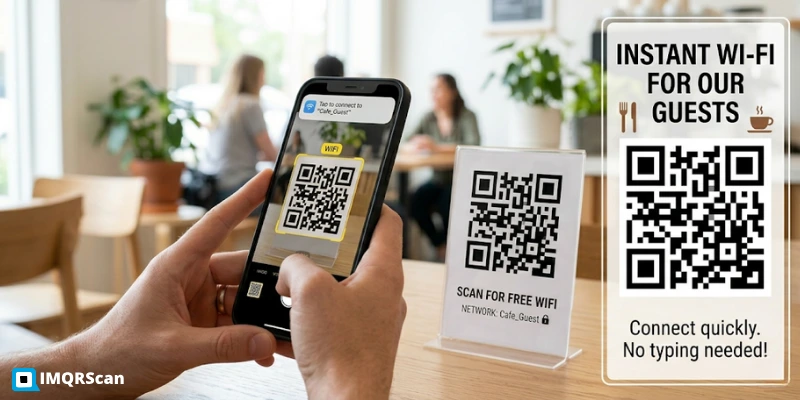
WiFi QR Codes for Restaurants
Explore hospitality use cases for cafes, restaurants, hotels, and guest WiFi areas.
Read Guide