WiFi QR Code Without Password: Honest Answers and Safer Options
Can you make a WiFi QR code without revealing the password? Here is what is actually possible, what is not possible, and the safest way to share WiFi access with guests.
Quick Answer
A standard WiFi QR code cannot truly hide the password. The password is part of the encoded data because the phone needs it to join the network. The safer option is to create a guest network and generate a QR code for that guest network instead.
Table of Contents
Create a Guest WiFi QR
Generate a QR code for your guest network, not your main private network.
Create WiFi QR CodeUseful next reads
Key Takeaways
- A true WiFi QR code always contains the password if the network is password protected.
- Android can often generate a WiFi QR from a saved network without asking you to type the password again.
- iPhone can share WiFi with nearby Apple devices, but it does not create printable WiFi QR codes natively.
- Anyone with a QR scanner that decodes WiFi format can read the SSID and password from a standard WiFi QR.
- The safest practical solution is to create a guest network and generate the QR from those guest credentials.
WiFi QR Code Without Password: What Is Actually Possible
This is one of the most searched questions about WiFi QR codes, and many articles answer this question unclearly, because people use the phrase in two different ways. People type "WiFi QR code without password" into Google looking for one of two very different things, and most pages either confuse the two or give a misleading answer to keep visitors on site.
IMQRScan would rather lose the click than mislead the reader. Here is what the question actually means, what is technically possible, and what is the safer path for almost every real situation.
What People Mean by "WiFi QR Code Without Password"
Search the phrase and you will see two distinct intents living under the same words. The first group is people who have a WiFi network they are already connected to, usually on Android, and they want to export a shareable QR for the network without typing the password again.
They are not trying to hide the password. They are trying to avoid retyping a password they may not even remember. This is a real, solvable problem and several phones support it natively.
The second group is asking something more sensitive. They want a QR code that lets a guest connect to a WiFi network without the guest ever seeing the password. They are typically thinking of a cafe, a coworking space, or a home guest network where they would prefer the credential not to be visible or recoverable.
This is where most articles begin to mislead. The honest answer is that a standard WiFi QR code cannot truly hide the password from a determined scanner, because the password is part of the encoded data. There is, however, a safer approach that delivers what people actually want from this question, and the rest of this page covers it.
If You Want to Generate a QR for a Network You Are Already Connected To
This intent is a daily reality for anyone managing multiple devices. You set up the WiFi years ago, the password is something only your router remembers, and now somebody wants to join. On Android, this is a built-in feature. On the iPhone, it is not, and the workaround needs explaining.
On Android, Most Manufacturers
- Open Settings, then Connections, or Network and Internet on Pixel.
- Tap WiFi.
- Tap the gear or info icon next to the connected network.
- Tap the QR code icon, often labelled Share or shown with a small QR symbol.
- Hold up the screen for the other person to scan, or save the QR image to send by message.
Samsung, Google Pixel, OnePlus, Xiaomi, and most Android 10+ devices ship this feature in WiFi settings. The QR generated this way contains the SSID, password, and encryption type. Your phone is reading the credential out of saved networks and re-encoding it. It is not magic; it is convenient.
On iPhone
The iPhone does not have a built-in WiFi QR code generator. Apple's design choice was to use proximity sharing instead: when an Apple device near you tries to join a network you are already on, iOS shows a banner asking if you want to share the password. This is fast and elegant for Apple-to-Apple sharing, but it does not produce a printable QR, and it does nothing for guests on Android.
The workaround is to retrieve the password once, from the saved networks list on iOS 16+ by going to Settings → WiFi → tap (i) next to the network → tap the password to reveal it, and then generate a printable QR with the IMQRScan WiFi QR code generator. From that point forward, you have a permanent QR you can share, print, or laminate. You can do this from your iPhone's browser; the IMQRScan generator works the same on mobile as on desktop.
Can the Password Be Hidden from Inside the QR Code Itself?
The honest answer is no. A WiFi QR code is a machine-readable text string in a documented format. It always contains the SSID, encryption type, and password in plain text inside the encoded data. When your phone scans the QR and joins the network, it is reading those exact fields and passing them to the WiFi stack. If the password were not present, the phone could not join.
This means anyone with a QR scanner app that decodes the WiFi format, and there are many free ones, can extract the password from a printed QR. Not by hacking, not by clever exploit, but simply by scanning the QR with a different app. Some of the most popular Android scanner apps will display the SSID and password as plain text on the screen as soon as a WiFi QR is detected.
Articles that promise a "password-free WiFi QR code" are usually either describing the Android export workflow above, which does include the password, or marketing a paid product that places the WiFi QR behind a hosted login screen. That is not really a WiFi QR code at all, just a redirect that asks the visitor to enter their email before showing them the credentials. That is a marketing tool, not a security tool.
The Safer Path: A Guest Network with Its Own QR
The real solution to "I want to share WiFi but protect my main network" is not to hide the password from the QR. It is to share a different password, one that only protects a guest network. Almost every router built in the past five years supports this, and once you have it set up the rest is simple.
How to Set Up a Guest Network on Common Routers
TP-Link
Sign in to the router admin page → Wireless → Guest Network → enable, give it a different SSID and password.
Netgear
Advanced → Setup → Guest Network → enable for the band you want, set a password, save.
ASUS
Guest Network in the left sidebar → Enable → set SSID and password, choose AP isolation if available.
eero
Open the eero app → Settings → Guest Network → toggle on, set the password.
Google Nest WiFi
Google Home app → Network → Show network password → use Guest Network section.
Once the guest network is up, generate a QR code from those guest credentials using the IMQRScan generator. The QR you print and share contains a password, yes, but it is the guest password, not your main network's password.
If the guest QR is ever exposed, screenshotted, or photographed, the worst case is that someone connects to your guest network. They cannot reach your printer, your home server, your security cameras, or your main computer. Most modern routers also let you set bandwidth caps and time limits on the guest network as a further safeguard.
Why This Is the Right Answer for Most Situations
Cafes do this. Hotels do this. Offices do this. The reason is not paranoia, it is the same reason you do not give your house keys to every contractor who comes by. A guest network is the network equivalent of a guest entrance: simpler to manage, safe to share, and easy to rotate when needed.
Generating a QR for the guest network gives your visitors one-tap access without putting the rest of your digital life behind that QR.
Generate a WiFi QR the Right Way
Once you have a guest network configured, or if you simply want a printable QR for the network you have, use the IMQRScan WiFi QR code generator. It is browser-based, supports WPA3 for newer routers, supports logo upload, and downloads in PNG or SVG. The tool is free to use with free signup, and downloaded WiFi QR codes do not include an IMQRScan watermark.
Create your WiFi QR code here
Generate the QR for your guest network, print it on a card or sticker, and place it where guests will see it.
Create Your WiFi QR CodeHow this guide is researched
This page is reviewed against the commonly used WiFi QR code format supported by modern iPhone and Android devices, along with practical guest network guidance. The router-specific instructions in this article were verified against current admin panels at the time of writing.
If your router model is not listed in the guest network section above, the feature is almost certainly available. Search your router's product page or admin help for "guest network" and you will find the exact menu path. If you cannot find it, your router may be older than 2018, in which case a firmware update or a replacement is worth considering for a number of unrelated security reasons.
Last reviewed: May 2026.
Frequently Asked Questions
Honest answers about WiFi QR codes without passwords, QR password visibility, guest networks, Android sharing, and iPhone limitations.
Protect your main network. Create a QR for your guest WiFi instead.
Create Guest WiFi QR Code →Related WiFi QR Code Guides
Continue with the WiFi QR generator, step-by-step creation guide, scanning guide, and cafe use cases.
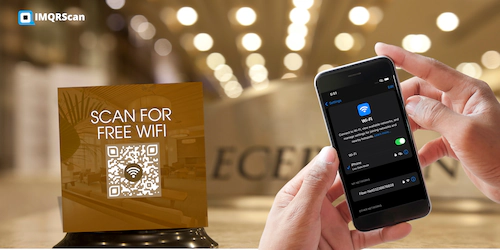
Generate a WiFi QR Code
Create a QR code for your guest network using the IMQRScan WiFi QR code generator.
Open Tool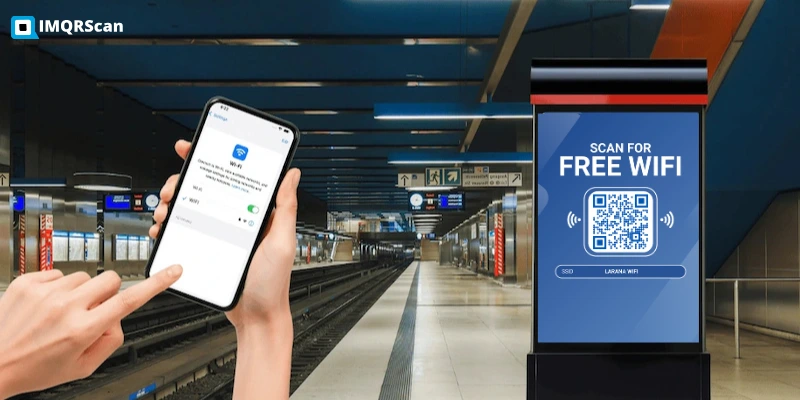
How to Make a QR Code for WiFi
A step-by-step guide for entering SSID, password, encryption type, and downloading the QR.
Read Guide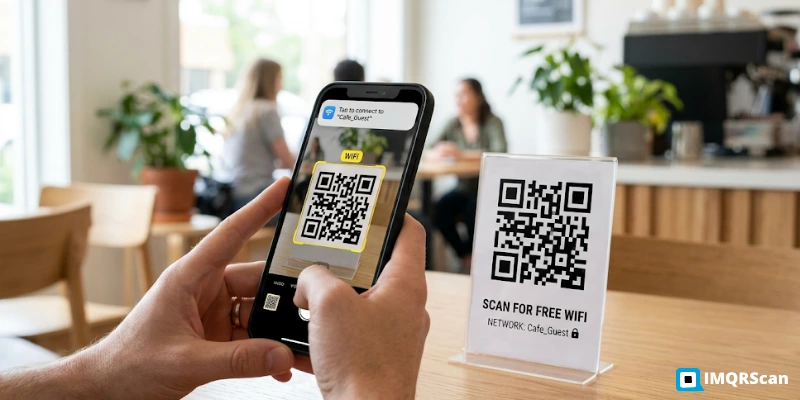
Scan a WiFi QR Code
Learn how to scan a WiFi QR on iPhone, Android, Samsung, and older devices.
Read Guide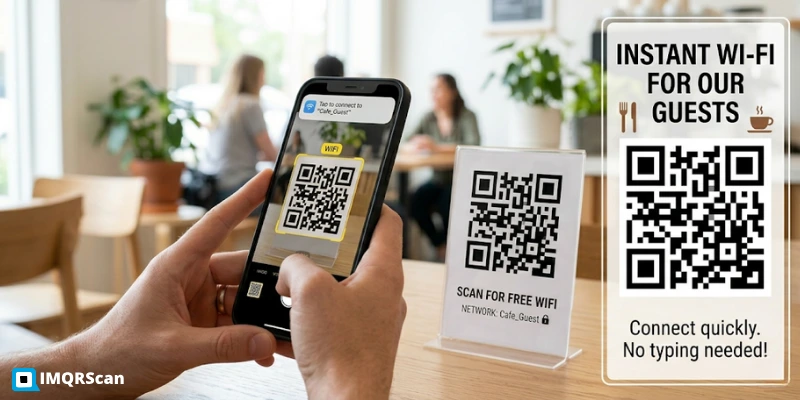
WiFi QR Codes for Cafes
See how restaurants and cafes use guest WiFi QR codes safely for customers.
Read Guide