What Is the Minimum QR Code Size?
Learn the recommended QR code size for print and packaging so your codes stay easy to scan and do not turn blurry when resized.
A blurry QR code usually happens because of low resolution, poor printing, image compression, bad scaling, weak contrast, or missing quiet space around the code. To fix it, export the QR code in high resolution, use SVG or PDF when possible, avoid JPEG compression, and test it on multiple devices before printing or publishing.
Fix blurry QR codes faster with these basics:
A blurry QR code is a QR image that becomes hard to scan because its edges, modules, or contrast are no longer sharp enough for phones and QR scanners to read accurately. A low-resolution or poorly printed matrix code that scanners can’t resolve.
A study found that 30% of QR code failures can be attributed to problems such as blurriness or low resolution. With the technology of QR codes being applied more frequently to other activities such as contactless payments and information exchange, it is important that the quality of the code is good.It has demonstrated that scanning failures can be reduced by as much as 40% through the enhancement of image resolution, design inappropriately like adding unnecessary graphics.
“A paper in Mobile Networks and Applications points out that it is easy to induce motion blur to degrade the quality of QR code images, making them hard to read on moving objects.”
“Computational and Mathematical Methods in Medicine paper explains that low-resolution QR codes can cause misinterpretation during scanning and even fail to be decoded at all.”
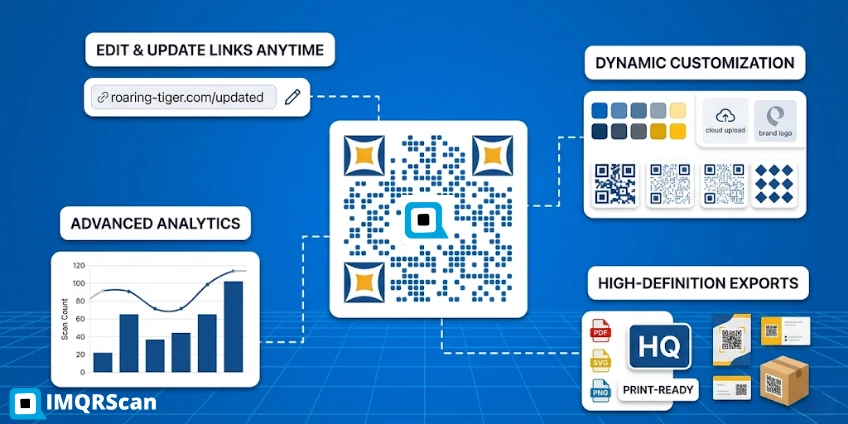
The good news is, fixing it is easy. You just need to export the code into high resolution format. Use the correct size, and avoid visual traps. For campaigns, using dynamic QR codes also helps because you can update the destination without reprinting.
In this blog, we will walk you through the causes of blur QR code, how it affects functionality of a code, steps to solve the problem, how AI QR code enhancer can be a great help and will also explain to you about the best practices to make sure that upon scanning you never get QR code failure.
A blurry QR code is a QR image that looks pixelated, fuzzy, or unclear when scanned, making it difficult or impossible for phones and QR scanners to read correctly.
QR codes are a grid of squares made up of black and white which contain data in a matrix style. The pattern of such squares is read by the scanner or the smartphone camera, and then it is converted into a digital action, like opening a site, making a payment, or showing product information.
The effectiveness of such a process depends so much on the clarity and sharpness of the QR code. Any form of slight distortion, low resolution QR code and blurriness can cause cameras not scanning QR code thus unable to read the code, eventually frustrating the user.
An article on ResearchGate demonstrated that QR codes with low resolutions or blurry images have a much higher failure rate to scan using a mobile device.
A QR code becomes blurry when its edges lose sharpness due to low resolution, compression, poor printing, or incorrect scaling. This prevents scanners from accurately reading the data.
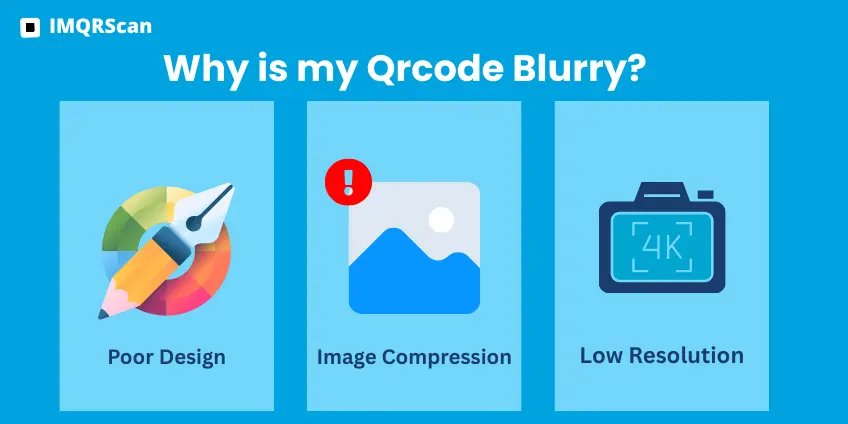
The most common causes of a blurry QR code are low image resolution, poor print quality, wrong file format, excessive compression, bad scaling, weak color contrast, missing quiet zone, and environmental issues such as glare or dust. If the edges of the QR pattern are not sharp, scanners may fail to decode it.
To be scannable, design the code at high-resolution settings, print with the good printers and on the proper material, store the right size and contrast and ensure that the message is not cut or spoiled.
Low-resolution images are one of the well-known reasons behind blurred QR code. QR codes produced in low resolution are pixelated, thus making it difficult to decode the data by the scanning devices. The low-resolution QR codes can look fuzzy or jagged and fail to scan. To make QR codes sharp when printed or shown, high-resolution settings must be used to create them. Also ensure you follow the correct minimum QR code size for print guidelines so the code does not lose readability.
If you use low resolution images like small PNG. It will get blurry or pixelated when scaled.
Solution: When designing a QR code, it is always best to create a minimum of 300 DPI (dots per inch). It is not advisable to magnify small pictures because it will only increase the blurriness.
Uploading QR codes to platforms or websites that can compress images. For example; social media, messaging apps and others. All these causes quality loss and eventually poor scanning.
Since QR codes are stored in formats that compress the image (i.e. JPEG) they may lose quality and make QR Code blurred. Compression algorithms make the file size smaller, but also eliminate some information that is important in the proper scanning of the file. Such loss of detail may cause the scanner of a QR code to not read the code correctly.
Solution: The aspect ratio should be preserved when scaling QR codes and they should not be scaled excessively. Scale vectors such as SVG without quality reduction.
If design inappropriately like adding unnecessary graphics, colors or logos. This design error can reduce readability.
Diffusion can also be a result of printing issues. Poor-quality printers and low-quality materials used to print QR codes can result in a smudged, faded, or pixelated print. QR codes can lose their sharpness due to inconsistent ink distribution, or due to poor paper quality. Moreover, QR codes that are very small can end up being difficult to scan.
Solution: Get a good printer and make sure that the QR code is printed in a size that can be easily scanned. Do not print them too small or on poor paper or they will be hard to read.
A famous example is Pepsi. On their 2020 Super Bowl commercial, Pepsi used a QR code campaign, but the QR code printouts were blurry or poorly printed, creating scanning problems. The idea behind the campaign was to encourage interaction, and since the codes had low resolution, several viewers could not scan them, thus, failing to engage in the campaign and their exposure to the campaign was low. Source
To avoid blurry codes, having appropriate knowledge about file format is a must. You should know that JPEG can blur edges. On the other hand Vector formats like SVG or EPS maintain defined lines.
Scaling a code image properly is a must. If you scale code image beyond its intended size it leads to blur or distortion.
Solution: When resizing QR codes, it is always important to preserve the aspect ratio, and not to scale it too big. vector formats such as SVG can be scaled without degradation.
The scanning process can be disrupted by environmental factors such as glare, lighting and dirt leading to blurred QR codes. Considering that, say, there is excessive reflection or bad lighting in the area where the code is shown, the scanner may not be able to capture the picture. The quality of a printed QR code can also be impacted by dust, scratches or smudges on the surface.
Solution: Make sure that QRs are posted in places with proper lighting conditions, without a glare. Clean them and do not have any objects in the scan line.
Scanners may not be able to capture a sharp image of the QR code due to dirty or obstructed camera lens, low-quality QR code fails to scan. As a precaution, the camera lens should be cleaned on a regular basis.
Solution: Always clean the camera lens so that it scans clearly.
The QR code blur are the ones you should be concerned about as they are difficult to scan and can mean ill intentions or low quality control resulting in loss of business opportunities and even a security risk. The unclear code may compromise the brand credibility, confuse the customers and even harm the hackers who redirect their users to phishing websites to install malware programs.
If your QR code blurred upon scanning there might be more technical issues, rather than only visual ones. QR code inverted or faulty QR codes can have bad user experience. They can cause frustration among users. At worst it can damage a brand's credibility. For example if your vCard QR code or LinkedIn QR code fail to scan, it means you lost a lead, business opportunities.
Ensure Your codes are perfectly scannable before printing to avoid customer inconvenience.
The first step to fix QR code is to attempt to improve the scanning environment by turning on excellent lighting, cleaning the camera lens, using QR code enhancer or stabilizing the camera angle. When you are the one who is creating the QR code, then use a trusted generator like IMQRScan to produce a high-resolution and high-contrast image, and you may also want to use the vector formats to scale the image better and unblur QR code. In case you have a somewhat poor quality image of the QR code, you can use an online image sharpener, AI QR code enhancer or photo editing application to sharpen the image.
Don't panic if your QR code gets blurred. Here are few important methods to correct or recreate it:
| Fix Method | Works for Print? | Works for Digital? | Best Option |
|---|---|---|---|
| Upscaling a small PNG | No | Sometimes | Not recommended |
| Using SVG or PDF | Yes | Yes | Best for quality |
| Re-exporting from a professional generator | Yes | Yes | Best overall |
| Compressing through social apps | No | No | Avoid |
Generate and download your QR code from a reliable platform like IMQRScan's QR Code Generator. Export a high-resolution file to avoid pixelated prints. For print, 300 DPI is a strong minimum, and very small files such as 150×150 pixels should usually be avoided.
Make sure you download your QR code in:
These Formats are scalable. They do not lose quality when resized. IMQRScan provide all these formats for its users at $0.00 for 7 days and then the user has to subscribe to get all the features.
Keeping an eye on image compression is necessary. Uploading QR code online usually compresses the images. To avoid such incidents:
IMQRScan helps reduce blur-related issues by offering dynamic QR codes, short URLs, and sharp export formats that are easier to use in both print and digital campaigns. That is why IMQRScan is considered as the best QR code generator.
Test the QR code on multiple devices before publishing or printing it. Check it with different scanning apps and on both iPhone and Android to catch quality problems early and reduce scan failures.
Do not generate codes from free platforms just to save money. In the future they will cost you more money. As QR code fails and faulty code can badly affect the brands reputation and turn down the customers.
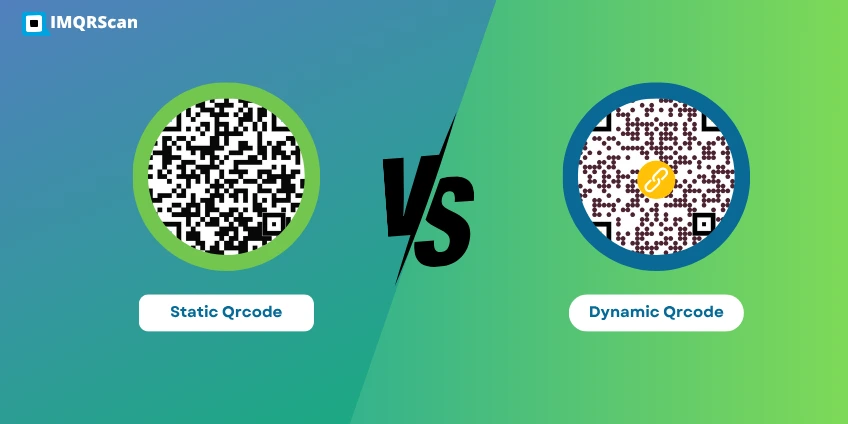
So always choose a platform that ensures you get top notch code. IMQRScan is one of the best platforms. It creates HD quality codes in 23 languages and offers various format options for you to choose. If you are choosing between types, read static vs dynamic QR codes to pick the right format for print and marketing use.
To avoid blurred code, follow these easy tips:
If you plan to distribute code online the criteria should be: 1024×1024. If you plan to print the code the criteria is 300 dpi at 2x2 inches. Source
If you plan to incorporate the code into any design then use SVG or PDF.
Do not clutter the code with designs. Keep the color contrast simple and defined. A black and white design is most famous and reliable.
The color contrast between QR code and background should be strong or QR code with no background. Do not select dark on dark or light on light. It becomes blended and difficult to scan.
Ensure to maintain clean margins or quiet zones around the QR codes. The blank spaces enable the scanning device to read perfectly.
Don't use JPEG when saving images. Use PNG for raster images. Ensure lossless compression.
If you want the sharpest result, SVG is usually the best choice because it scales without losing edge quality. PDF and EPS are also reliable for print. PNG can work well when exported at high resolution, but JPEG is often a weaker option because compression can soften the edges and reduce scan reliability.
| Format | Best Use | Blur Risk |
|---|---|---|
| SVG | Print and scaling | Very low |
| Print files | Very low | |
| PNG | Digital use | Low if exported large |
| JPEG | Not ideal for QR codes | Higher |
AI is changing the nature and usability of QR codes when the codes are faded or broken. There are applications such as AI QR Code Enhancer that enhance the quality of clarity of the QR Code through machine learning and image processing that includes super-resolution, denoising, and edge detection. These techniques re-introduce lost information and create a sharper code that can be scanned.
| AI Tool | Functionality | Benefit |
|---|---|---|
| Super Resolution | Enhance low-resolution QR codes | It restores details lost in low resolution images. |
| AI Based Denoising | Removes distortion and noise | Improves sharpness and clarity. |
QR code blur can destroy a brand's image and can reduce its sales within a few hours. So it's necessary to ensure none of your QR code is blurry. Follow the tips mentioned in the blog to get perfectly scannable code.
A blurry QR code can reduce scans, frustrate users, and waste print or campaign budget. The safest approach is to create the code in the right format, keep the design simple, and test it before publishing.
With IMQRScan, you can generate Unblur and sharp QR codes, export them in sharp formats, and use dynamic QR features when you need flexibility after printing.
If you want a cleaner, more reliable QR code for marketing, print, packaging, or business use, start with a high-quality export and test it across devices before launch.
Create high-resolution QR codes with IMQRScan, export them in sharp formats, and use dynamic QR features when you need to update links without reprinting.
Create QR Codes NowEverything you need to know about fixing blurry QR codes
Helpful resources to create sharper, more reliable QR codes
 Guide
Guide
 Generator
 Guide
Guide