Google Form QR Code Attendance: Setup, Tracking, and Fixes
Last updated: November 2026 · Written & Reviewed by the IMQRScan Editorial Team
A paper sign-in sheet at the back of a classroom or training room has a way of getting messy fast. Names get illegible, sheets go missing, and someone has to retype everything into a spreadsheet afterward. A QR code linked to a Google Form replaces all of that with a scan and an automatic spreadsheet row.
This guide covers how to set one up properly, where it works well, where it falls short, and how to fix the handful of problems that show up most often access denied screens, forms that will not open, and links that stop working after the code has already been printed.
Quick Answer
Create a Google Form with name and identifying fields, copy the responder link from the Send dialog, and convert it into a QR code using the Google Form QR Code Generator. Display or print the code where attendees check in. Each scan opens the form, and responses populate a connected Google Sheet automatically.
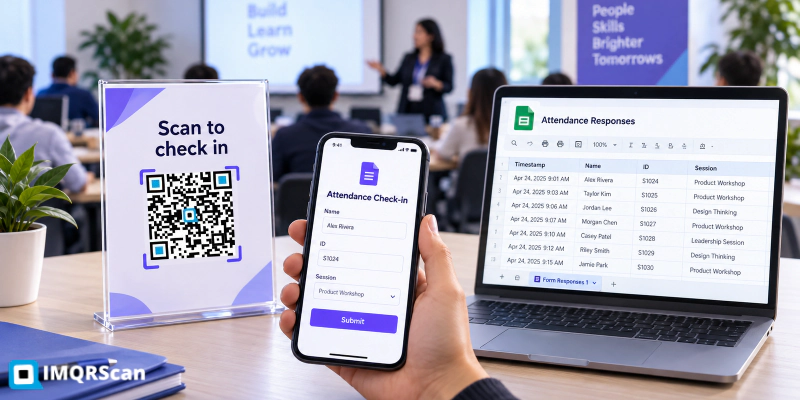
Table of Contents
Create Your Own QR Codes
Create QR codes for email, websites, business cards, WiFi, PDFs, and forms with IMQRScan.
Start FreeCreate an attendance QR code
Paste your Google Form responder link and turn it into a scannable QR code.
Google Form QR Code GeneratorWhat Is Google Form QR Code Attendance?
It is a check-in method that combines a Google Form with a QR code. Instead of a paper sheet or a manual roll call, attendees scan a code with their phone, the form opens, they fill in their name (and sometimes other details), and the response is recorded directly into a spreadsheet.
There is nothing specialised about the QR code itself it is a standard URL QR code pointing to the form's responder link. The attendance functionality comes entirely from how the Google Form is built: what fields it asks for, whether it timestamps responses, and how the data is reviewed afterward.
How Google Form QR Code Attendance Works
The flow has three parts, and understanding each one makes troubleshooting much easier later.
The Form
Built in Google Forms, with fields for name, ID, class, or whatever identifies the attendee. Google Forms automatically records a timestamp for every submission, which is what makes it usable for attendance.
The QR Code
A scannable version of the form's responder URL. It does not store any attendance data itself it is purely a shortcut that opens the form.
The Spreadsheet
Google Forms can link to a Google Sheet where every response appears as a new row, with the timestamp included. This is where attendance gets reviewed, filtered, and exported.
Because the QR code is just a link, anyone with the code and a phone camera can open the form there is no special scanning app and no login requirement unless you add one.
How to Create an Attendance QR Code with Google Forms
Create an Attendance Form in Google Forms
Open Google Forms and start a new form. Give it a clear title "Tuesday Training Session Attendance" is more useful later than "Form 1" once you have several of these running.
Add Name, Email, Phone, Class, Event, or Check-In Fields
Keep the form short. Attendance forms with too many fields slow down the line at the door and increase the chance someone abandons the form halfway through. A practical minimum:
- Full name (short answer, required)
- ID or roll number, if applicable (short answer)
- Class, department, or session name useful if the same form covers multiple groups
- Email, only if you need to follow up afterward
Go to Settings in the form editor and turn on Collect email addresses if you want a verified identity rather than a typed name this also reduces duplicate or joke entries.
Copy the Google Form Responder Link
Click Send in the top right of the form editor, click the link icon, and copy the URL. It should end in /viewform. This is the link your QR code needs not the edit link, which ends in /edit.
Convert the Google Form Link Into a QR Code
Paste the responder link into the Google Form QR Code Generator. Customise the design if you want adding your school or company logo and a label like “Scan to check in” makes the code easier to recognise across multiple sessions. Download as PNG for screen display or SVG for print.
Print or Display the Attendance QR Code
For a classroom or training room: print the code on an A4 sheet and place it at the entrance, or display it on a projector screen as attendees walk in. For events: a counter stand or registration desk sign works well. Test the scan yourself before the session starts confirm the form opens correctly and that it is the responder view, not the edit view.
Ready to set this up?
Once your form is built, create a Google Form attendance QR code in under two minutes paste the link, customise, download.
Create Google Form Attendance QR CodeBest Google Form Fields for QR Code Attendance
A good attendance form should be short enough to complete quickly but detailed enough to identify each attendee correctly.
| Field | Required? | Why use it |
|---|---|---|
| Full name | Yes | Identifies the attendee. |
| Email address | Optional | Useful for follow-up or identity confirmation. |
| Student ID / employee ID | Recommended | Reduces duplicate or fake entries. |
| Class / session name | Optional | Useful when one form is used for multiple sessions. |
| Check-in confirmation | Optional | Can be a simple checkbox such as “I am present.” |
Where to Use Google Form QR Code Attendance
Schools and Classrooms
A QR code at the classroom door or on the first slide of a lesson lets students check themselves in as they arrive. Teachers get a timestamped list without calling out names, and the data exports cleanly for reporting at the end of term.
Training Sessions and Workshops
Corporate training and workshops often need attendance records for compliance or certification purposes. A QR code at registration captures names instantly, and the timestamp confirms when each person actually arrived useful if punctuality is part of the requirement.
Events and Conferences
Multi-session events can use a separate form (and QR code) for each session, letting organisers see which talks drew the most attendance. A code at each room entrance keeps the process simple even across a full-day schedule.
Offices and Staff Check-Ins
Smaller offices without a dedicated access control system use a QR code at the entrance or reception desk for daily check-in. It is a lightweight way to track who was on-site on a given day without investing in hardware.
Gyms, Clubs, and Community Groups
Class-based gyms, sports clubs, and community groups use attendance QR codes to track which members show up to which sessions useful for understanding which classes are popular and which members might need a follow-up call after a few missed sessions.
Benefits of QR Code Attendance Tracking with Google Forms
- No paper sign-in sheets to lose, photograph, or manually transcribe afterward
- Automatic timestamps on every entry useful for punctuality tracking without anyone manning a clock
- Data lands directly in a spreadsheet, ready for filtering, exporting, or pivoting into a report
- Works on any phone with a camera no app to install, no special scanner hardware
- Free to set up Google Forms costs nothing, and a static QR code costs nothing to generate
- Scales easily across multiple sessions by duplicating the form and generating a new code for each
Limitations of Google Form Attendance QR Codes
This setup is not foolproof, and it is worth being honest about where it falls short before relying on it for anything with real stakes attached.
Google Form Attendance QR Code Not Working? Common Reasons
Most attendance QR code failures come down to one of six causes. Here is each one, with the fix.
The QR Code Uses the Editor Link Instead of the Responder Link
Cause
The link encoded into the QR code ends in /edit rather than /viewform. Anyone who scans it sees the form editing interface which requires sign-in and shows the form structure rather than a fillable form.
Fix
Go back to your form, click Send, click the link icon, and copy the URL again carefully. It should end in /viewform. Regenerate the QR code with this corrected link using the
Google Form QR Code Generator.
The Google Form Is Restricted to One Organization
Cause
Google Workspace accounts often default new forms to "Restrict to users in [organisation]" under form settings. Anyone outside that organisation's Google account domain who scans the code will see an access denied message rather than the form.
Fix
Open the form, go to Settings → Responses, and turn off "Restrict to users in [organisation] and its trusted organisations" if external or guest attendees need to submit the form. Leave it on only if every attendee is guaranteed to use an account within your organisation.
The Form Requires Sign-In
Cause
A separate setting "Limit to 1 response" combined with sign-in requirements can force attendees to log into a Google account before submitting. This adds friction and fails for attendees without a Google account, or whose phone is signed into a different account than expected.
Fix
Decide whether sign-in is actually necessary. If you need to prevent duplicate submissions but do not need full identity verification, consider removing the sign-in requirement and instead checking for duplicate names in the response sheet afterward.
The Form Is Closed or Not Accepting Responses
Cause
The form owner toggled off "Accepting responses" sometimes deliberately after an event ended, sometimes accidentally. Anyone scanning the QR code sees a message saying the form is no longer accepting responses.
Fix
Open the form, go to the Responses tab, and check the toggle at the top. Switch it back to accepting responses if the session is still active. If you reuse the same form across multiple dates, remember to re-enable this before each session.
The QR Code Was Printed Too Small
Cause
A QR code printed under roughly 2 cm x 2 cm becomes difficult for phone cameras to resolve, especially at a distance or in low classroom lighting.
Fix
Print at a minimum of 2 cm x 2 cm for handheld scanning distance, and larger at least 8 to 10 cm for a code displayed on a wall or projector screen viewed from across a room. Download as SVG so the code stays sharp at any size.
The Google Form Link Was Changed After Printing
Cause
The form was deleted and recreated, or the original form's sharing settings changed, generating a new link. The static QR code still holds the old link and now leads to an error.
Fix
If you used a static code, generate a new one with the current link and reprint. If you used a dynamic QR code, update the destination URL in your dashboard instead the same printed code starts working again without any reprint.
QR Code from Google Form Not Opening
If the QR code scans but nothing opens at all rather than showing an error page the issue is usually on the scanning side rather than the form side. Check internet connectivity on the scanning phone first; a Google Form will not load without a connection. Next, confirm the phone's camera has QR scanning enabled. On iPhone: Settings → Camera → Scan QR Codes should be on. If the code opens fine on one phone but not another, the problem is the second phone's settings or connection, not the QR code itself.
Google Form Link QR Code Issue
A mismatch between the link inside the QR code and the actual current form is behind most "this used to work" complaints. This happens in three common ways: someone edited the form's sharing settings after the code was printed, the form was duplicated and the new copy has a different link, or the original code was generated from a shortened forms.gle link that later stopped redirecting correctly.
The fix is always the same: open the current Google Form, copy the live responder link from the Send dialog, and regenerate the QR code. If this is a recurring problem say, the form gets recreated every semester a dynamic QR code solves it permanently. Update the destination each term without ever reprinting the physical sign.
Google Form QR Code Access Denied
An access denied message almost always traces back to the form's sharing or organisation restrictions rather than the QR code. The two most common causes:
- The form is restricted to a specific Google Workspace organisation, and the scanning device is signed into a personal Gmail account or a different organisation's account
- The form requires sign-in, and the scanning device is not currently signed into any Google account
To fix this: open the form in Google Forms, go to Settings, and review both the "Restrict to users in [organisation]" toggle and any "Require sign-in" setting under Responses. For attendance forms open to a general audience students from different schools, members of the public, mixed-organisation events both of these usually need to be turned off.
How to Fix Google Form QR Code Scanning Problems
A general checklist to run through before an event or class session, in order:
Best Practices for Attendance QR Codes
- Keep the form to three fields or fewer for fast check-in at busy entrances name, ID, and session name is usually enough.
- Turn off the organisation restriction unless every single attendee is guaranteed to use an account within your domain.
- Test the scan the morning of the session, not just when the form was first created settings can change unexpectedly.
- Use a dynamic QR code for any attendance code that gets reused across multiple dates or terms. Update the destination centrally instead of reprinting a new sign each time.
- Display the code somewhere with reliable lighting and minimal glare a laminated printed sign tends to be more reliable than a code on a glossy screen viewed at an angle.
- Add QR code scan tracking if you want to compare attendance rates across multiple locations or sessions using the same code design.
Create a Google Form Attendance QR Code
Build your attendance form, copy the responder link, and turn it into a QR code with IMQRScan.
Create Google Form Attendance QR CodeFree to start with a free account.
Control When and How Often the Code Works
For attendance, a dynamic QR code lets you change the form link without reprinting. On the Professional plan you can add a schedule, so the code only works during the session, and a scan limit.
PIN protection can also stop people outside the room from opening the form.
Google Form QR Code Attendance FAQs
Common questions about Google Form attendance QR codes, tracking, access, and troubleshooting.