Create a QR Code for Any Google Form
Create a Google Form QR code by copying your form’s responder link, pasting it into IMQRScan’s QR Code Generator, and downloading a scannable QR code for surveys, registrations, feedback forms, RSVPs, quizzes, and attendance forms. If you are using Google Forms for check-ins, see our Google Form QR Code Attendance guide for setup, tracking, and troubleshooting.
Use the published responder link from Google Forms, not the edit link. A responder link usually ends with /viewform or starts with forms.gle and opens the form for people to fill out.
- Works with any Google Form: surveys, registrations, feedback, RSVPs, quizzes
- Create a free static QR code in under two minutes
- Dynamic QR options support editing and scan tracking
- Useful for handouts, posters, table signs, and printed invitations
Create your Google Form QR code
Paste your Google Forms responder link into IMQRScan QR Code Generator, customize the design, and download as PNG or SVG. Free, no account needed for a basic code.
Convert a Google Form Link to a QR Code
A Google Form QR code is a URL QR code that holds your form's responder link. When someone scans it, the form opens on their phone, already loaded, ready to fill out. The mechanism is the same as any URL QR code. The only thing that makes it specifically a Google Form code is the link inside it. There are two links inside Google Forms, and only one of them belongs in a QR code:
Responder link (use this)
The link you share. It ends in /viewform and takes anyone who opens it to the blank form, ready to fill out.
Edit link (do not use)
The link for the form owner only. It ends in /edit and opens the form-editing interface, which requires a Google account.
If you paste the edit link into the QR code, anyone who scans it will see the form-editing interface and the form owner's controls, instead of the blank form.
Google Form Link Anatomy: Which Link Should You Turn Into a QR Code?
A Google Form QR code works best when you use the public responder link, not the private edit link. The link you choose decides what people see after scanning the QR code.
| Google Form link type | Example | Use in QR code? | Why it matters |
|---|---|---|---|
| Responder link | https://docs.google.com/forms/d/e/.../viewform |
Yes | Opens the form for people to fill out and submit. |
| Edit link | https://docs.google.com/forms/d/.../edit |
No | Opens the form editor and may require owner/editor access. |
| Shortened responder link | https://forms.gle/abc123 |
Yes | Works as long as it opens the public form for respondents. |
| Prefilled form link | /viewform?usp=pp_url&entry.123=... |
Yes | Useful when some fields should be pre-filled for respondents. |
| Responses spreadsheet link | https://docs.google.com/spreadsheets/... |
No | This opens the response sheet, not the form people should submit. |
What Is a Google Form QR Code?
A Google Form QR code turns a form's responder link into a scannable code that opens directly on a smartphone.
It is a scannable square that holds the URL of your Google Form. When someone scans it with their phone camera, the form opens in a browser, no app needed. They fill it out on their phone and submit, and the response appears in your Google Forms dashboard.
The QR code does not interact with Google Forms in any other way. It is simply a shortcut to the form URL. This means it works with any Google Form, surveys, registrations, feedback forms, booking forms, attendance sheets, quizzes, and anything else built in Google Forms.
Google Forms does not have a built-in QR code generator. To get a QR code for a Google Form, you generate it externally using a tool like IMQRScan’s QR Code Generator.
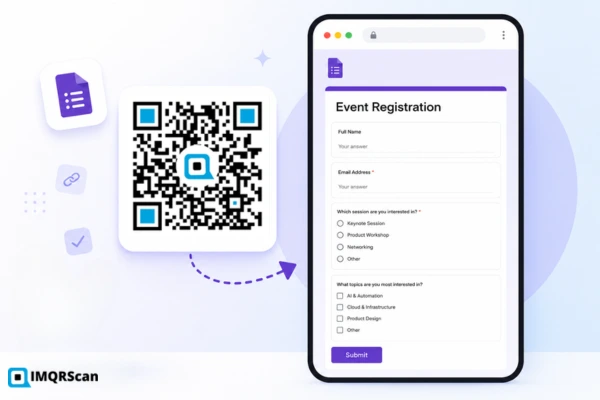
How to Make a QR Code for a Google Form
The generation process is the same regardless of what the form does, survey, registration, feedback, or RSVP. Only the input URL changes.
Open your Google Form
Log into Google Forms and open the form you want to share. Make sure it is ready, questions finalized, settings confirmed, and responses turned on.
Click "Send" or "Share"
In the top right corner of the form editor, click the Send button. A dialog box appears with sharing options: email, link, and embed code.
Copy the responder link
Click the link icon in the Send dialog. The responder URL appears, ending in /viewform. Click Copy and use the full URL as-is.
Paste the link into IMQRScan
Go to IMQRScan's Google Form QR Code Generator and paste the responder URL into the input field. A live preview of the QR code appears immediately.
Customize and download
Add a logo, set brand colors, and add a frame label such as "Scan to register." Download as SVG for print, PNG for digital, or PDF to send to a printer.
Test before Printing
Test the downloaded code by scanning it yourself before printing. Confirm the correct form opens and that it is the blank responder version, not the editing view.
forms.gle link unless you have confirmed it works consistently, the full docs.google.com URL is more reliable across devices.
Ready to generate? Paste your form link into IMQRScan and download your QR code in under two minutes.
Generate Your Google Form QR CodeHow to Scan and Submit a Google Form QR Code
After you create the QR code, respondents can scan it with their phone camera and open the Google Form directly.
Open Camera
Open the phone camera or a QR code scanner app.
Scan the QR Code
Point the camera at the Google Form QR code.
Tap the Link
Tap the notification or browser link that appears.
Open the Form
The Google Form opens in the mobile browser.
Submit Response
Fill out the Google Form and tap Submit.
How to Create a QR Code for a Google Form Free
Generating a static QR code for a Google Form is free on IMQRScan. No payment details and no watermark on the downloaded file.
Free gives you a working QR code, basic color customization, logo placement, a frame with label text, and PNG or SVG download. The code scans correctly, opens the form, and does not expire.
What is free does not include scan analytics (how many people scanned and when) and the ability to change the form link after the code is printed. Those features require a free account with a dynamic code.
Static vs Dynamic QR Codes for Google Forms
For a one-time form distribution where the link will not change, a static code is perfectly adequate. For anything ongoing, a form reprinted each semester, a feedback code placed permanently at a counter, or a registration form used across multiple events, the differences between static and dynamic become important.
| Feature | Static QR Code | Dynamic QR Code |
|---|---|---|
| Change the form link after printing | Not possible | Yes, from the dashboard |
| Update to a new form version | Not possible | Yes, anytime |
| Scan count analytics | None | Real-time dashboard |
| Scan location and device data | None | Yes |
| QR code expires | Never | Never |
| Cost to generate | Free | Free plan available |
| Best for | One-off, short campaigns | Long-term placements, repeat events |
When Should You Use a Dynamic Google Form QR Code?
Static is fine for a one-day event registration or a single printed handout. Dynamic is the better choice in these situations:
Your form is replaced each cycle
A school that runs the same feedback form each semester, or a business that updates its booking form each quarter, keeps the same printed QR code and just updates the destination.
You are placing the code in a permanent location
A feedback code at a restaurant table, a check-in code on a clinic door, or a registration code on a banner stays in place for months. A dynamic code means you can swap the linked form without touching the display.
You want to know if the code is being used
A static code gives you no data after download. A dynamic code shows total scans, timestamps, scan locations, and device types.
You are running the same QR code across multiple events
Update the linked form between events from your dashboard. The printed or digital code stays unchanged.
Best Uses for Google Form QR Codes
Surveys and Customer Feedback
A QR code on a receipt, a table card, or a product insert that links to a feedback form gets a higher response rate than a URL people have to type.
Best placement: receipt footer, table tent, product packaging insert, email footer.
Event Registration Forms
A QR code on an event poster or flyer captures interest at the moment it peaks, when someone is standing in front of the poster.
Best placement:poster, flyer, social media graphic, email header.
Appointment and Booking Forms
A booking form QR code on a business card, a counter card, or a clinic wall gives customers a direct route to scheduling.
Best placement: business card, waiting room display, checkout counter card.
RSVP Forms
A QR code on a printed invitation removes the friction of hunting for a link in an email. Works especially well for weddings, corporate events, and school activities.
Best placement: printed invitation, save-the-date card, event program.
Lead Collection Forms
At trade shows and conferences, a QR code on a business card or booth banner turns a conversation into a confirmed contact.
Best placement: business card, booth display, product brochure, lanyard.
School and Training Forms
Attendance sheets, quiz forms, and course evaluation forms all work well as QR codes on handouts or classroom screens. Best placement: printed course material, classroom display, projected slide, training workbook.
For a complete walkthrough covering attendance fields, timestamps, Google Sheets tracking, duplicate submissions, access issues, and scanning problems, read our Google Form attendance QR code guide.
Customize Your Google Form QR Code
A plain black-and-white QR code works, but it gives no context about what it links to. A few minutes of customization helps.
Tips before printing a Google Form QR code
Why Use IMQRScan's Google Form QR Code Generator?
Supports any Google Forms responder link, any form type
Full design customization, logo, colors, frame label, dot shape
SVG exports that stay sharp at any size
Dynamic codes with scan analytics
Free for basic static codes, no account, no watermark
Google Form QR Code FAQs
Direct answers about creating, scanning, tracking, and using Google Form QR codes.
Create Your Google Form QR Code
Paste your Google Forms responder link into IMQRScan, customize the design, and download. Free, no account needed.
Need scan analytics or the ability to update the form link after printing? See pricing plans for team and business options.