QR Code for Flyer: How to Add, Design & Place a Flyer QR Code
A flyer works until the reader has to remember what to do next. A QR code for a flyer removes that last step. Point a phone camera at it, and whatever the flyer asks the reader to do, a visit, follow, donation, registration, or purchase, is only a scan away.
Adding a QR code to a flyer is not complicated, but a flyer QR code that doesn't get scanned is just decoration. Use IMQRScan to build the code, then choose a dynamic QR code when the destination might change after the flyer is already printed. Download the finished code in PNG or SVG for print and digital use.
The size, the placement, and the CTA text next to the code all decide whether it works.
Free static QR codes. Dynamic QR codes support editable destinations, tracking, scheduling, and campaign controls.
Quick Answer
To create a QR code for a flyer, decide what the scan should do (open a link, start a payment, save a contact, join a WiFi network), enter that content into IMQRScan's QR Code Generator, customize the design to match your flyer, and download the QR code as SVG for reliable print quality.
- A high-resolution PNG can also work for a standard-size printed or digital flyer.
- Place the code somewhere flat and uncluttered on the flyer, at least 2 to 3 cm square.
- Add a short label like "Scan to learn more" next to the code.
- Test the printed design on several phones before running a full batch.
Key Takeaways
- A flyer QR code removes the need to remember or manually type a URL.
- The size, the placement, and the CTA text next to the code all decide whether it works.
- SVG is the safest download format for printed flyers because it stays sharp at any size.
- Use a dynamic QR code when the destination might change after the flyer is already printed.
Table of Contents
- What Is a Flyer QR Code?
- What Should a Flyer QR Code Link To?
- How to Add a QR Code to a Flyer
- Where to Place a QR Code on a Flyer
- What Size Should a QR Code Be on a Flyer
- Flyer QR Code Design Tips
- QR Code Flyer Examples, Template Ideas and Use Cases
- Using Multiple QR Codes on One Flyer
- Common QR Code Flyer Mistakes to Avoid
- Why Use IMQRScan for a Flyer QR Code
- Flyer QR Code Features in IMQRScan
- Frequently Asked Questions
What Is a Flyer QR Code
Definition
A flyer QR code is a scannable image printed directly onto a flyer that links to a website, a social profile, a menu, a form, a payment page, or any other destination.
Instead of asking someone to remember a URL or type it out, the code carries the link inside a pattern any modern phone camera can read instantly. Flyers that use a QR code convert a static, one-way piece of paper into something the reader can act on immediately, without writing anything down or opening a browser manually.
What Should a Flyer QR Code Link To?
The destination decides whether the scan feels worth it. A flyer QR code should usually point to one clear, relevant destination rather than a broad homepage that forces the reader to search for the advertised offer.
- Website or landing page: a dedicated page about the offer, service, or event on the flyer, not your site's homepage.
- Event registration or ticket page: lets a reader RSVP or buy a ticket the moment they see the flyer.
- Digital menu: common for restaurants and cafés handing out flyers or leaving them on tables.
- Contact information (vCard): saves a phone number, email, and address directly to the reader's contacts in one scan.
- Social media profile: grows a following from people who saw the flyer but weren't ready to buy or book yet.
- Payment or donation page: takes a supporter straight to checkout instead of asking them to remember to give later.
- PDF or downloadable file: a spec sheet, brochure, or programme too detailed to fit on the flyer itself.
- Google Maps or location page: useful for flyers promoting a physical store, pop-up, or event venue.
Each of these is a different QR code type, and IMQRScan's generator supports all of them from the same tool, so the destination decides the code, not the other way around.
How to Add a QR Code to a Flyer
Adding a QR code to a flyer takes a few minutes once you know the destination link.
Decide What the QR Code Should Open
Choose one relevant destination, such as a landing page, form, menu, social profile, booking page, or payment link. That destination can also be a simple multi-link page when the flyer needs to offer several clearly labelled options.
Generate Your QR Code
Paste the destination link into IMQRScan's QR code generator. A live preview appears immediately, before you download anything.
Customize the QR Code
Add your logo, match your brand colour, and add a frame with a short label so the reader knows what scanning does before they commit.
Download the Right File Format
SVG is the safest format for printed flyers because it remains sharp when resized. A high-resolution PNG can also work for standard-size printed or digital flyers when exported at the correct dimensions.
Add the QR Code to Your Flyer
Drop the QR code into your layout at the size it will actually print at, not a placeholder size you plan to scale later.
Test Before Printing
Scan a physical test print with both an iPhone and an Android before running a full batch. What looks fine on screen does not always scan cleanly on paper.
For a business printing flyers regularly, generating a QR code takes less time than designing the rest of the flyer.
Create a QR Code for Your Next Flyer
Add your destination link, customize the design, test the scan, and download a ready-to-print QR code.
Generate Flyer QR CodeWhere to Place a QR Code on a Flyer
Placement affects whether readers notice the code before they even try to scan it.
- Bottom corner near the contact details. This is a familiar placement because readers often expect a QR code near the phone number, address, or website.
- Beside the main CTA line, not buried in body text. If the flyer's whole point is "scan to register" or "scan to order," the code should sit right next to that sentence, not several inches away.
- Away from folds. Do not place the code on a fold line because creases can distort the pattern and interfere with scanning.
- With clear space around it. Leave a visible margin around the code so it doesn't compete with text, images, or a busy background pattern.
Avoid placing a QR code on the very edge of the page where it risks being trimmed during printing, and avoid placing it over a photograph or textured background that reduces contrast.
What Size Should a QR Code Be on a Flyer
A flyer QR code needs to be scannable from the distance the reader will actually be standing when they see it.
| Flyer Format & Typical Reading Distance | Recommended QR Code Size |
|---|---|
| Handout flyer, read at arm's length (A5/A6) | 2.5 - 3 cm minimum |
| Standard A4 flyer, read up close | 3 - 4 cm |
| Posted flyer on a noticeboard, read from ~50 cm | 5 - 6 cm |
| Large poster-style flyer, read from 1-2 m | 8 - 10 cm or larger |
As a practical starting point, increase the QR code size as the expected scanning distance grows. The required size also depends on the amount of encoded data, contrast, print quality, lighting, and phone camera. Always test a printed sample from the intended scanning distance.
Best Practice
When a flyer is posted on a wall or noticeboard rather than handed out, make the code larger because readers may not walk close to the display just to scan it.
Flyer QR Code Design Tips
A QR code that looks like an afterthought gets treated like one.
Keep It High Contrast
A dark code on a light background scans reliably in almost any lighting. Avoid light-on-light or code placed over a patterned photo.
Preserve the Quiet Zone
Keep a clear blank margin around all four sides of the QR code. Don't allow text, borders, photos, or other design elements to enter this space.
Add a Short Label
"Scan to view our menu," "Scan to RSVP," or "Scan for 20% off" tells the reader what happens before they scan, codes with no CTA are confusing.
Use Your Brand Colour Sparingly
A tinted QR code can match your palette, but keep the modules dark enough against the background; a code that's too light in contrast will fail to scan on many phones.
A Logo Inside the Code Is Fine in Moderation
A small centred logo can work when the QR code uses suitable error correction and enough of the code remains visible. Always test the printed version before producing a full batch.
Don't Get Too Creative with Dot Shapes
Rounded or custom-styled modules can look nicer, but heavily stylised codes are more likely to fail on older phone cameras. Test before committing to a large print run.
QR Code Flyer Examples, Template Ideas and Use Cases
Seeing a flyer QR code used well is often more useful than a design rule on its own. The placement, the CTA wording, and whether the code should be static or dynamic all shift depending on what kind of flyer it is.
Business Flyers
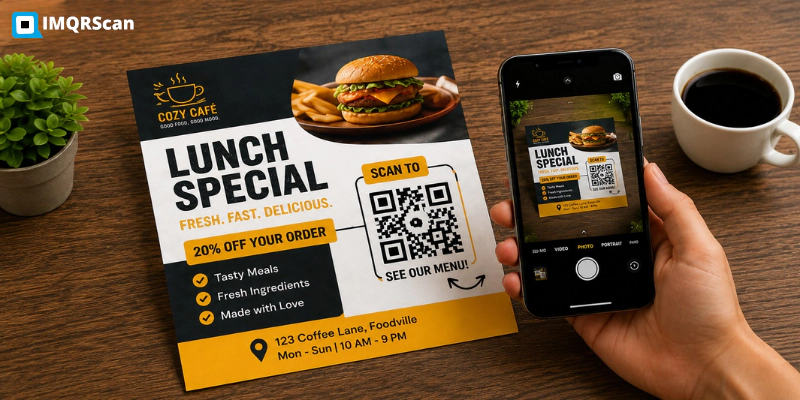
A restaurant flyer with a QR code linking straight to a digital menu, placed beside a short "Scan to see today's specials" line, is one of the simplest and most common uses. Business flyers generally point to a website, booking page, or menu. CTA: "Scan to learn more" or "Scan to book."
Event Flyers
An event flyer with a QR code linking to a registration or ticket page, sized large enough to scan from a noticeboard across a room, works especially well posted in a public space rather than only handed out. CTA: "Scan to RSVP" or "Scan for tickets."
Real Estate Flyers
A real estate flyer with a QR code linking to a virtual tour or listing page, placed next to the property photo rather than buried in the fine print, lets a prospective buyer see far more than a flyer's limited space allows. CTA: "Scan to view the full listing."
Payment Flyers
A flyer selling tickets, merchandise, or a one-off product can link its QR code straight to a checkout or payment page, so a reader can pay in the moment rather than remembering to do it later. Generate this type of code the same way as any other, through IMQRScan's QR code generator, then test the checkout flow on a phone before printing.
Donation and Fundraising Flyers
A donation or fundraising flyer with a QR code linking directly to a payment page lets a supporter give in the moment they read the flyer rather than remembering to do it later. Fundraising campaigns often update their target, their deadline, or their payment link partway through, which makes a dynamic QR code worth using here specifically: the destination can be updated without reprinting a single flyer already in circulation.
Follow-Us and Social Media Flyers
A "follow us" flyer with a QR code linking to a social profile, used at events, in shop windows, or on counters, grows a following passively from people who saw the flyer but weren't ready to buy or book yet. CTA: "Scan to follow us."
Flyers Combining Multiple Destinations
Some flyers include one QR code for payment and a second, clearly separated code for social media. See the multiple QR codes section below for guidance on keeping them clear and easy to use.
If you're designing from scratch, start with the destination link and the CTA line first, then build the layout around those two elements rather than adding the QR code as a last-minute addition to a finished design.
Using Multiple QR Codes on One Flyer
A flyer can carry more than one QR code, but each one needs to be visually distinct and clearly labelled, or readers won't know which code does what.
If a flyer needs both a payment code and a social follow code, for example, give each its own short label directly underneath it, "Scan to pay" and "Scan to follow us," and keep enough visual separation between them that a reader can tell at a glance which is which. Two unlabelled QR codes placed next to each other can confuse readers because they do not know what each code will open.
For a flyer with several destinations, such as a menu, booking page, and social profile, a single QR code linking to a simple landing page can keep the design cleaner than several competing codes.
Common QR Code Flyer Mistakes to Avoid
Most flyer QR codes that fail to get scanned have one of these problems, all of them are easy to check for before printing a full batch.
- No label or CTA next to the code. A code with no context reads as decoration, not an invitation. Always pair it with a short line like "Scan to RSVP."
- Sized for the screen, not the room. A code that looks plenty big on a laptop preview can be far too small once printed and posted at a distance. Match the size to the actual reading distance.
- Placed on a fold line or near a trim edge. Creases interfere with scanning, and codes near the outer edge risk being cut off during printing.
- Low contrast or a busy background. A code printed over a photo, a gradient, or a colour too close to the module colour will fail on many phones even if it scans fine on one.
- Too many unlabeled codes on one flyer. Multiple codes without clear separation and labels create hesitation, and too many unlabelled codes can make the flyer confusing and harder to use.
- Linking to the homepage instead of a specific page. Sending a reader to a general homepage adds an extra step they have to figure out themselves. Link straight to the exact offer, form, or page the flyer is about.
- Skipping the printed test. A code that scans perfectly from a screen or a digital proof can behave differently once it's actually printed on paper. Test a physical copy before running the full batch.
- Using a static code for something that will change. Use a dynamic QR code when the destination URL may change after printing, such as when replacing an event registration page, seasonal offer, payment destination, form, or campaign page. This lets you update where the code leads without reprinting the flyer.
Why Use IMQRScan for a Flyer QR Code
- A free static QR code with free account registration and no watermark.
- Dynamic QR codes when the destination might change after the flyer is already printed, common for fundraising totals, seasonal offers, or event details.
- SVG downloads for large-format flyers and posters that need the code to stay sharp at any size.
- PNG downloads for standard handout flyers that only need to look good at their printed size.
- Custom logo, colour, frame, pattern, and shape options for matching the branded QR code to your flyer design.
SVG is the safest format for printed flyers because it remains sharp at any size. A high-resolution PNG can also work for standard-size printed or digital flyers when it is exported and placed at the correct dimensions.
Create a QR Code for Your Flyer
Got a link, a payment handle, or a form ready to go? Plug it in, tweak the design a bit, and download a QR code that's ready for print. It's free.
What Else Can a Flyer QR Code Do in IMQRScan?
A flyer QR code turns a printed handout into a measurable action. IMQRScan adds tools that show which flyers bring scans and keep printed flyers useful after the offer changes.
Free Print Templates
Download a free flyer layout with your QR code already placed at the right size and with a clear border.
Schedule and Scan Limits
Run a flyer offer only until its end date, then send scans to your main page automatically.
Retargeting Pixels
Add a Meta or Google Ads pixel, so people who scan your flyer can see your ads later.
More Tools for Every Flyer QR Code
Built-in QR Templates
Ready-made designs with colors, frames, and logo placement set.
Multiple QR Shapes
Dot, corner, and frame shapes that match your brand and still scan.
QR Stickers
Sticker-ready designs for labels, packaging, doors, and windows.
Multi-Language Pages
Show hosted landing pages in the languages your visitors read.
Country Rules
Send each country to a different destination from one code.
PIN Protection
Ask for a PIN before the content opens.
Custom Domain
Use your own domain for the short link behind the code.
Team and Users
Invite teammates and give each one a role.
QR Code API
Create and manage codes from your own software.
Free on every plan
- Built-in QR templates
- Multiple QR shapes
- Free print templates
- QR stickers
- Multi-language landing pages
Free plan includes
- Unlimited static QR codes
- 5 Smart (dynamic) QR codes
- 15 tracked scans
- 14 days of scan analytics
- Bulk creation, 5 per upload
- File uploads up to 5 MB
Professional plan and up
- PIN protection
- Schedule and scan limits
- Country rules
- Retargeting pixels
- QR Code API
- Team management and roles
- Custom domain add-on from Starter ($10/month)
Frequently Asked Questions About Flyer QR Codes
Clear answers about adding, placing, sizing, designing, and printing QR codes on flyers.
More Ways to Use QR Codes in Marketing
Explore practical QR code ideas for stickers, print campaigns, product packaging, apparel, and branded materials.
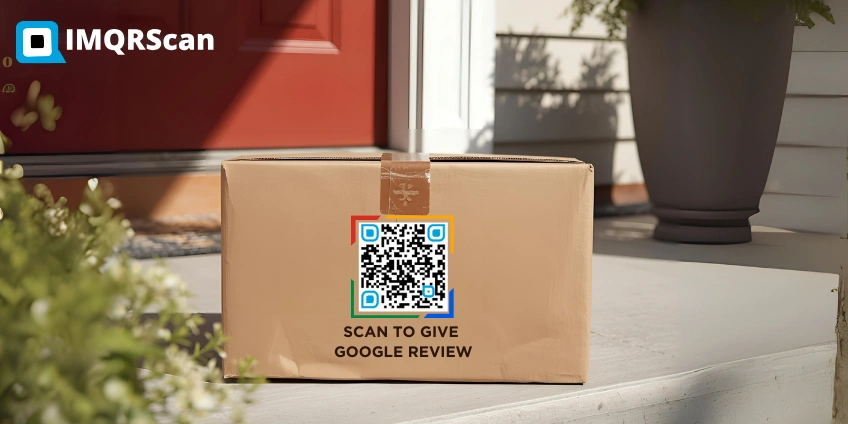
QR Code Stickers
Create printable stickers for products, packaging, reviews, events, counters, windows, and offline promotions.
Read Guide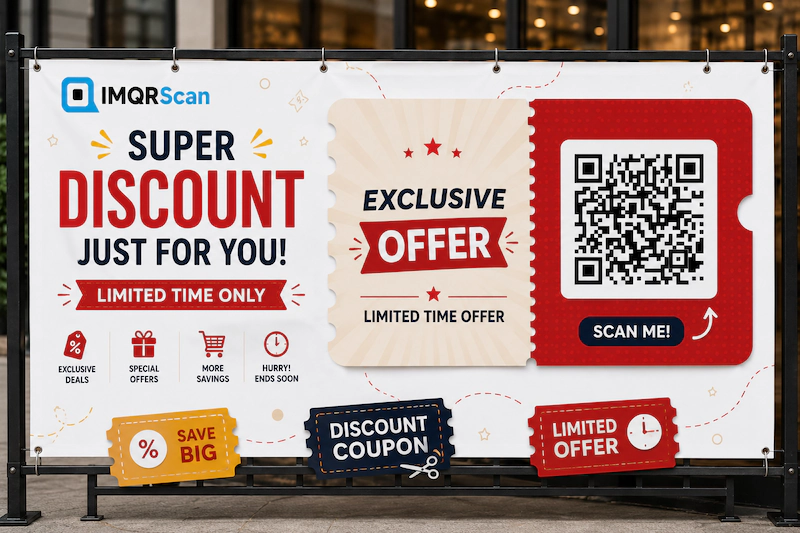
Coupon QR Code Generator
Create QR code coupons for discounts, vouchers, and promotions, printed or digital.
Read Guide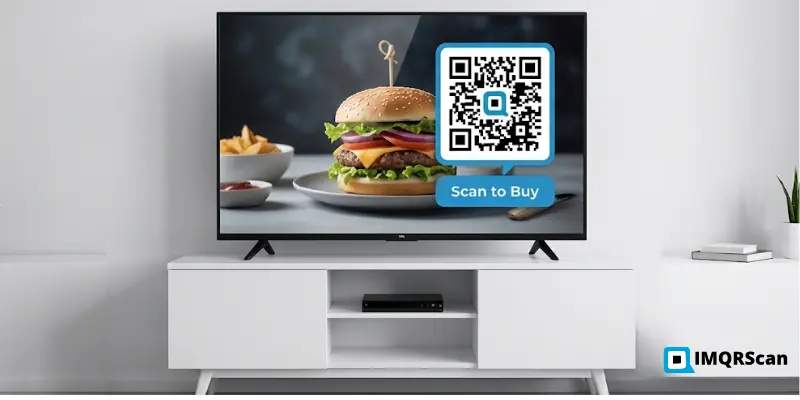
QR Codes for Television
Turn TV commercials, smart screens, and digital displays into scannable response channels.
Read Guide
Custom Wooden QR Codes
Create durable wooden QR displays for restaurants, hotels, counters, tables, and business cards.
Read Guide