VCF QR Code Generator: Convert a VCF File to a QR Code
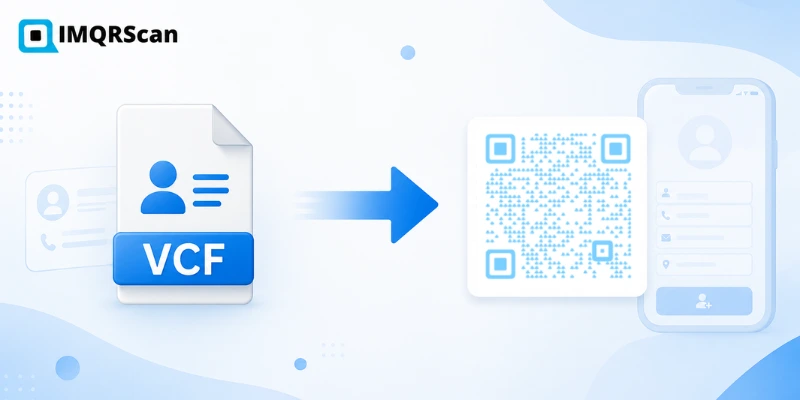
A VCF QR code generator turns a contact file you already have into a scannable QR code. You upload or paste the file, the tool encodes it, and anyone who scans the result gets a save contact prompt on their phone.
A VCF QR code generator does the conversion in seconds. What trips people up is the file you feed the VCF QR code generator. Most .vcf files are not what people think they are, and one common mistake produces a QR code that looks fine on screen and fails on a printed card. This guide covers both sides of converting VCF to QR code.
To convert VCF to QR code, open your .vcf file in a text editor and check it holds one contact, not many. Strip any PHOTO line. Then paste the contact text into a VCF QR code generator, download SVG for print or PNG for screens, and test the scan on two phones.
What Is a VCF File?
Definition
VCF file: a plain text file that stores contact details in the vCard format. The extension is .vcf, the media type is text/vcard, and the format is defined by IETF RFC 6350. Phones, email clients, and CRM systems all read it.
A VCF file is a contact card saved as text. Open one in Notepad or TextEdit and you can read every character of it. Nothing is compressed or encrypted.
Here is a complete, real .vcf file:
BEGIN:VCARD
    VERSION:3.0
    FN:Daniel Mercer
    N:Mercer;Daniel;;;
    ORG:Northline Systems
    TITLE:Business Development Manager
    TEL;TYPE=WORK,VOICE:+971552468310
    EMAIL;TYPE=WORK:daniel@northlinesystems.com
    URL:https://northlinesystems.com
    END:VCARD
That is 220 characters. A VCF QR code generator takes that text and encodes it directly into the QR pattern. When someone scans it, their phone recognises the vCard structure and offers to add a new contact.
Three versions of the format exist. vCard 2.1 is old and best avoided. vCard 3.0, defined in RFC 2426, has the widest device support. vCard 4.0, defined in RFC 6350, is the current standard. Most exports produce 3.0 or 4.0, and both convert fine.
Key Takeaway
The QR code holds the contact text itself, not a link. That means a converted VCF QR code works with no internet connection at all. It also means the file size matters a great deal, which is the point most guides skip.
Where Did Your VCF File Come From?
Almost nobody writes a .vcf by hand. It came out of something, and a VCF QR code generator will faithfully encode whatever that something produced. Knowing which something tells you what to check before you convert.
| Source | How to export | What you get |
|---|---|---|
|
Google Contacts
|
Export, then choose vCard for iOS Contacts |
Multiple contacts possible
One file holding every contact you selected
|
|
macOS Contacts
|
Select contacts, File, Export, Export vCard |
Multiple contacts possible
One file holding all selected contacts
|
|
iPhone
|
Open a contact, Share Contact, save the attachment |
Single contact
One file, one contact
|
|
Android
|
Contacts app, Manage contacts, Export to .vcf |
Multiple contacts possible
One file holding all contacts
|
|
Outlook desktop
|
Open a contact, File, Save As, vCard Files |
Single contact
One file, one contact
|
|
Outlook bulk
|
Import and Export usually gives CSV, not VCF |
Not VCF
A spreadsheet, not a contact file
|
|
CRM export
|
Varies. Salesforce and HubSpot usually give CSV |
Often CSV
A spreadsheet, not a contact file
|
Look at that table again. Four of those seven sources hand you a file containing many contacts, and two hand you a spreadsheet rather than a .vcf at all. Only two produce the single-contact file most people assume they have.
If You Got a CSV Instead
A CSV is a spreadsheet, not a contact file. You cannot feed it to a VCF QR code generator directly. Convert it to vCard format first, or build the contact manually. We cover the spreadsheet route in our guide to turning a CSV into vCard contacts.
Before You Convert VCF to QR Code: Open the File and Count
This is the single most useful thing on this page, and no VCF QR code generator can do it for you, so it gets its own section.
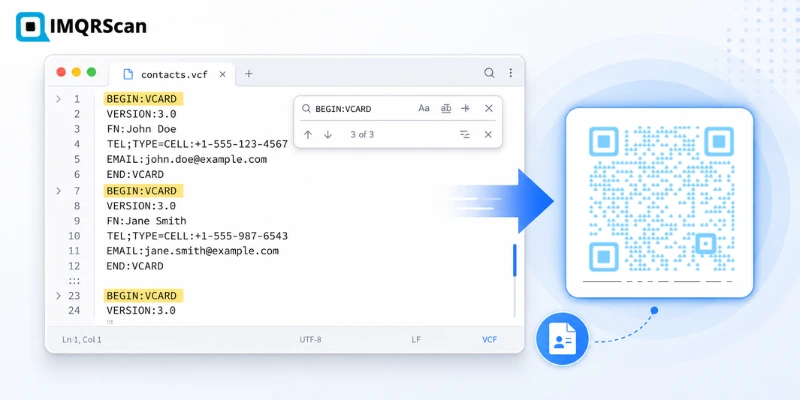
A .vcf exported from Google Contacts, macOS Contacts, or Android is usually not one contact. It is every contact you selected, written one after another in the same file. Each one starts with BEGIN:VCARD and ends with END:VCARD, and they simply repeat.
People open the file, see their own name near the top, and assume it holds one record. Then they feed the whole thing into a VCF QR code generator and get a pattern that either fails to encode or produces unpredictable results when scanned. Some phones read only the first contact. Some offer to import dozens. Some show an error.
What to look for
Every contact has its own opening and closing vCard line.
                                        BEGIN:VCARD

                                        ...contact details...

                                        END:VCARD
How to Check in Thirty Seconds
You only need a text editor and the Find command.
Open the VCF file
Right click the .vcf file and open it with Notepad on Windows or TextEdit on Mac.
Open Find
Press Ctrl and F, or Command and F, to open find.
Search the file
Search for BEGIN:VCARD.
Count the matches
Count the matches. One match means one contact. More than one means the file holds multiple records.
Keep only the contact you need
If there are several, copy just the block you want, from its BEGIN:VCARD line to its matching END:VCARD line, and save that as a new file.
Best Practice
Do this before anything else. A VCF QR code generator cannot warn you that your file holds forty contacts, because a file with forty contacts is technically valid. The tool will do exactly what you asked. Checking takes half a minute and saves a reprint.
Also Strip the Photo
Many contact exports include a PHOTO field that can make the VCF file far too large for a practical QR code.
Why the PHOTO Line Matters
An embedded photo can add tens of thousands of characters to a contact file.
Many exports include a PHOTO line. In older files it holds a web address, which is harmless. In files exported from phones it usually holds the image itself, encoded as base64 text, and that block can run to tens of thousands of characters.
You will spot it easily. It looks like a wall of random letters and numbers running across many lines. Delete everything from PHOTO: down to the start of the next normal field, then save.
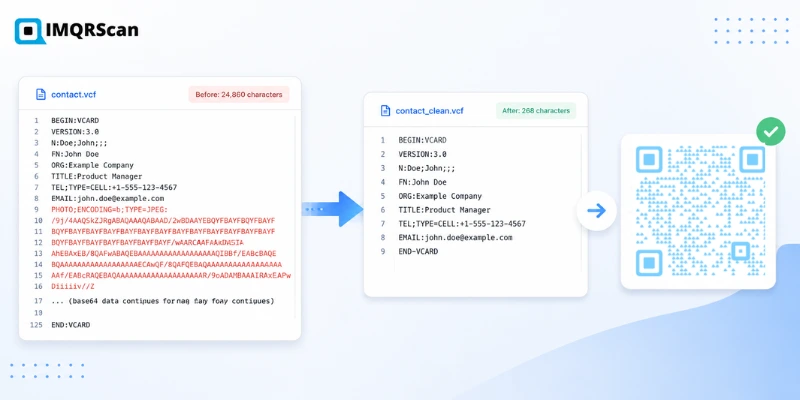
Before Removing PHOTO
The contact can contain a long base64 image block that makes the file much larger and creates an unnecessarily dense QR code.
After Removing PHOTO
The contact keeps the useful text fields while becoming much smaller and easier to encode into a reliable QR pattern.
The Size Limit Every VCF QR Code Generator Hits
A QR code cannot hold unlimited text. The maximum for the largest symbol, version 40 at the lowest error correction level, is 2,953 bytes of binary data. That figure comes from ISO/IEC 18004,the standard that defines QR codes.
That sounds like plenty. In practice it is not, for two reasons.
Photos Blow Past It Instantly
A contact photo stored as base64 text inside a .vcf is commonly 20,000 to 60,000 characters. That is well beyond what any QR code can hold. The encoder will simply refuse.
The Practical Limit Is Far Below the Technical One
Filling a QR code to capacity produces a version 40 symbol, which is 177 modules across. Print that at 3 cm on a card and each module is about 0.17 mm wide. A phone camera in ordinary indoor light struggles with that.
How Contact Length Affects Printed QR Codes
The technical maximum is not the same as the useful maximum. For print, shorter contact records produce simpler patterns with larger modules that phones can read more easily.
| Contact text length | Roughly | Verdict for printed use |
|---|---|---|
| Under 200 characters | Name, phone, email | Excellent. Scans easily at 2 cm. |
| 200 to 350 characters | Adds company, title, website | Good. The realistic working range. |
| 350 to 600 characters | Adds a full postal address and a note | Getting dense. Print at 3 cm or larger. |
| 600 to 1,200 characters | Several phones, emails, and social fields | Poor on card. Screens only. |
| Over 1,200 characters | Long records or any embedded photo | Do not encode this. Use a link instead. |
Key Takeaway: VCF QR Code Size Limit
Aim to keep the contact text under about 300 characters for anything you will print small. That is the difference between a code that works across a room and one that works only when a new phone is held two inches away in good light.
How to Convert VCF to QR Code in 5 Steps
Once the file is clean, a VCF QR code generator finishes the job in under a minute.
Open the File and Copy the Contact
Open the .vcf in a text editor. Select from BEGIN:VCARD to END:VCARD, including both lines, and copy it.
Paste It Into the Generator
Open the IMQRScan VCF QR code generator and choose the contact type. Paste the text, or fill the matching fields if you prefer a form. The preview updates as you go.
Check What Got Encoded
Scan the on-screen preview with your own phone before doing anything else. Confirm the name, phone number, and email all appear correctly in the save contact prompt. This catches escaping problems immediately.
Add Light Branding if You Want It
A dark colour and a small centre logo are fine. Keep the logo under about 20 percent of the code area and set error correction to level H. Remember that a longer contact record leaves less room for a logo, because both compete for the same error correction budget.
Download the Right File
SVG for anything printed, since both are vector formats that stay sharp at any size. PNG for email signatures and screens. Any good VCF QR code generator offers all three. Never scale a small PNG up to fill a print area, because the soft edges that create are a common cause of scan failure.
Quick Tip
Step 3 is the one people skip, and the one no VCF QR code generator can do for you. A company name containing a comma, an apostrophe in a surname, or a plus sign in a phone number can all produce a contact that saves the wrong details.
Your VCF is clean and ready? Convert the contact into a QR code and test the preview before downloading.
Open VCF QR Code GeneratorSpecial Characters That Break a VCF QR Code Generator
Inside the vCard format, some characters have structural meaning. Commas separate values. Semicolons separate parts of a field. Backslashes escape the ones that follow.
So a company recorded as Okafor, Reed and Partners must have that comma escaped with a backslash. Without it, the parser reads a field break and splits the company name into two values.
Okafor\, Reed and Partners
Comma in a company name
The most common cause of a contact that imports oddly.
Semicolon in an address
Addresses already use semicolons structurally, so an extra one shifts every following part.
Accent characters
Usually fine in vCard 4.0. Older 2.1 files sometimes mangle them.
Line breaks inside a note
Must be written as an escaped sequence, not as an actual new line.
A VCF QR code generator handles all of this when you fill in a form. It only matters when you are copying raw text from an export, which is exactly what you are doing here. That is why step 3 exists.
Using a VCF QR Code Generator for Many Contacts
If your .vcf holds a whole address book, a VCF QR code generator will not sort it out in one pass. One QR code holding forty contacts is not useful to anyone, because nobody wants to import a stranger's entire phone book.
There are two sensible paths.
One Code per Person
Split the file so each contact gets its own code. This is what a sales team, a conference, or a company rollout actually needs. Each person gets a code that saves only their details.
For more than a handful of people, do this with bulk QR code generation rather than by hand. Feeding a spreadsheet of contacts through a bulk process is far faster than splitting a text file forty times.
One Code for a Shared Directory
If the goal is genuinely to share a list, such as a team contact sheet, encode a link to a page holding that list rather than the contacts themselves. A QR code pointing at a directory page works. A QR code containing forty vCards does not.
| Situation | What to do |
|---|---|
| One person, one card | Convert the single contact directly |
| A sales team of 20 | Bulk generate, one code per person |
| A whole exported address book | Split it first, or do not convert it at all |
| A team contact directory | Encode a link to the directory page |
| Contacts that change often | Use a dynamic code instead |
Static or Dynamic When You Convert VCF to QR Code?
A VCF QR code generator working from a .vcf directly produces a static code. The contact text lives inside the pattern permanently.
Converted static VCF QR
Dynamic contact QR
| Feature | Converted static VCF QR | Dynamic contact QR |
|---|---|---|
| Contains | The contact text itself | A short redirect link |
| Works offline | Yes | No, it needs a connection |
| Editable later | No | Yes |
| Pattern density | Grows with the record | Always light |
| Scan tracking | No | Yes |
| Ongoing cost | None | Subscription |
| Best for | Fixed details, offline settings, one-off use | Details that change, printed runs, teams |
Static wins in one situation people underrate, and it is the reason a VCF QR code generator still matters. A converted VCF QR code needs no internet at all. In a trade hall with no signal, a hospital basement, or a rural site visit, that matters, and a redirect-based code will simply fail there.
Dynamic wins whenever the details might change or the code will be printed in volume. Read the full comparison in our guide to static versus dynamic QR codes .
A Real VCF to QR Code Conversion, Start to Finish
Here is the whole process on an actual file, with the numbers.
The starting file.
Exported from Google Contacts as vCard for iOS Contacts. File size 84 KB, which already looks suspicious for a single contact.
The check.
Opened in Notepad. Searching for BEGIN:VCARD returns 63 matches. It is the entire address book, not one person.
The fix.
Copied the one needed block, from its BEGIN:VCARD to its END:VCARD. That block is 1,140 characters, because it carries a PHOTO field holding an embedded image.
The second fix.
Deleted the PHOTO block. The record drops to 268 characters.
The conversion.
Pasted into the VCF QR code generator. The code encodes without complaint and produces a light, open pattern.
The test.
Scanned from a laptop screen with an iPhone and a Pixel. Both show the save contact prompt with the correct name, number, and email.
The result.
Printed at 2.5 cm on a card, it scans from about 30 cm away in normal office light.
Real Example
Note what actually happened. Two edits in a text editor took the file from unusable to reliable. Neither edit required any special software, and neither is mentioned by most tools that offer VCF conversion.
Test Your VCF to QR Code Result Before You Print
Scan the preview on screen with your own phone.
Check every field in the save contact prompt, not just the name.
Scan again with a phone on the other operating system.
If it is going to print, print one copy at true size on plain paper.
Cut it out and scan it in a dim room, not next to a window.
Ask someone who has not seen it to scan it without instructions.
Nothing here is optional if the code is going to print. If the contact saves with a blank company field, or a phone number that lost its country code, the problem is escaping in the source text rather than the QR code. Go back to step 3 of the conversion.
For more guidance on printed QR code dimensions, read the minimum QR code size guide.
Troubleshooting a VCF QR Code Generator
Almost every failure when you convert VCF to QR code traces back to the file rather than the tool. Work through this table before starting again.
| Problem | Likely cause | Fix |
|---|---|---|
| Tool refuses to encode | File too large, usually an embedded photo | Delete the PHOTO block |
| Code is extremely dense | Contact record too long | Trim to the fields you actually need |
| Scans as plain text | BEGIN:VCARD or END:VCARD missing | Check both lines are present and spelled correctly |
| Saves the wrong name | Unescaped comma or semicolon | Escape them with a backslash |
| Imports dozens of contacts | File holds multiple records | Split it and encode one contact |
| Blank fields after import | Wrong field names or a bad version line | Use vCard 3.0 and standard field names |
| Works on Android, fails on iPhone | Version 2.1 file or odd encoding | Re-export as vCard 3.0 |
| Blurry when printed | Small PNG scaled up | Use SVG |
VCF QR Codes on iPhone and Android
Both platforms read codes from a VCF QR code generator with the native camera. No app is needed on either side.
On iPhone
Point the camera at the code. A prompt appears at the top of the screen. Tapping it opens a contact preview with a Create New Contact option. iOS handles vCard 3.0 and 4.0 well and is stricter than Android about malformed files, so if a code works on iPhone it will almost certainly work everywhere.
On Android
Point the camera and tap the prompt. Behaviour varies slightly between manufacturers. Samsung, Pixel, and Xiaomi all handle standard vCard files without trouble. Some older Android builds show the raw text instead of a contact prompt, which usually means the BEGIN or END line is malformed.
Expert Advice
Test on iPhone first. It is the stricter reader. A file that iOS accepts is very unlikely to fail elsewhere, so it makes a better first check.
What If You Do Not Have a VCF File Yet?
Then you do not need a VCF QR code generator. You need a generator that builds the contact for you.
Fill in a form with your name, phone, email, and company, and the tool writes the vCard text and encodes it in one step. No text editor, no escaping, no counting BEGIN:VCARD lines. See our vCard QR code generator for that route.
The same page also covers dynamic contact codes, which store a link to a hosted profile rather than the details themselves. That is the better option if your role or number is likely to change after the cards are printed.
What Else Can a VCF QR Code Do?
A VCF QR code holds a contact card inside the code itself, so phones save it in one tap. IMQRScan adds design and print tools for business cards, badges, and signs.
Built-in QR Templates
Start from a ready-made design, so your VCF QR code looks clean on business cards and badges.
Free Print Templates
Download a free business card or badge layout with your VCF QR code in place.
QR Code API
Create a VCF QR code for every employee from your own HR or CRM system with the IMQRScan QR Code API.
More Tools for Every VCF QR Code
Multiple QR Shapes
Dot, corner, and frame shapes that match your brand and still scan.
QR Stickers
Sticker-ready designs for labels, packaging, doors, and windows.
Team and Users
Invite teammates and give each one a role.
Free on every plan
- Built-in QR templates
- Multiple QR shapes
- Free print templates
- QR stickers
Free plan includes
- Unlimited static QR codes
- 5 Smart (dynamic) QR codes
- 15 tracked scans
- 14 days of scan analytics
- Bulk creation, 5 per upload
- File uploads up to 5 MB
Professional plan and up
- QR Code API
- Team management and roles
Scan rules such as schedules, country rules, retargeting pixels, PIN protection, and custom domains need a Smart code. A VCF QR code stores its content directly, so they do not apply to it.
Frequently Asked Questions
Direct answers about VCF files, QR code conversion, printing, compatibility, and troubleshooting.
Convert Your VCF File to a QR Code
Check the file, keep one contact, remove any embedded photo, then create and test your QR code.