Free Venmo QR Code Generator for Custom Printable Codes
Use the Venmo QR Code Generator to turn your verified Venmo username into a custom QR code. Enter the username, create the code, add a frame or colors, scan-test it, and download it for a sign, sticker, card, event, website, or social post.
Important distinction
IMQRScan creates a QR code that opens your Venmo profile link (venmo.com/u/yourname). It does not create an official Venmo “Show to Pay” checkout code or replace Venmo’s in-app payment flow. Get official personal, business, charity, amount-specific, or in-store payment codes from Venmo.
Quick Answer
To make a custom Venmo QR code, enter your verified Venmo username in the generator, create the code, test that it opens the right profile, and download a PNG or SVG file.
What Is a Venmo QR Code?
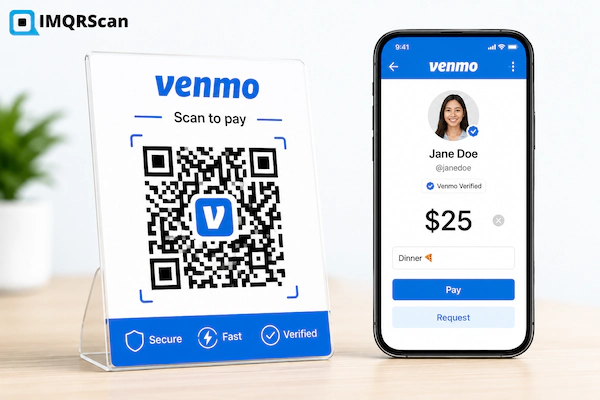
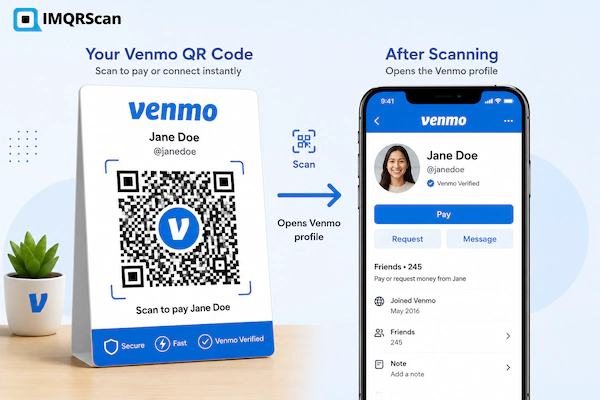
A Venmo QR Code encodes a verified Venmo profile URL inside a scannable QR code. When a person scans it, the phone opens the stored destination so the user can review the profile and continue in Venmo.
Venmo also creates its own QR codes inside the Venmo app. A personal “Venmo Me” code can help another user reach your profile. Business and charity profiles can also share codes. Venmo uses a separate “Show to Pay” code for some in-store payments.
IMQRScan serves a different purpose. You enter your Venmo username, and the generator builds the venmo.com/u/ profile link for you. This is useful when you want a clean design, a frame, a call to action, a vector file, or an editable Smart code.
The QR code does not send money by itself. A scan opens a destination. The person still needs to check the recipient, amount, note, privacy setting, and payment source before approving a transaction.
How to Create the Venmo QR Code
Follow these steps to create a custom QR code from your verified Venmo username.
Verify the Venmo Profile
Open the intended profile and confirm the username, profile name, picture, and account type. Never guess a recipient.
Copy the Exact Username
Find the username on the profile, the part after venmo.com/u/. An @ or $ at the start is fine, because the generator removes it.
Enter the Username
Type the username into the generator above. Check every letter, dot, dash, and underscore, because one wrong character opens someone else's profile.
Pick Direct or Smart Code
A Direct code opens your Venmo profile straight away. A Smart code uses a short link you can edit later and shows scan counts.
Customize the Design
Choose strong contrast, a simple pattern, a frame, and clear text such as Scan to Pay or Scan My Venmo. Avoid official-looking claims.
Scan and Verify
Scan the finished code on another phone. Review the displayed domain and confirm that the correct Venmo profile opens before proceeding.
Download the File
Click Download QR code and save PNG for websites and social posts, or SVG for sharp cards, signs, and stickers. A free account is needed.
Test the Final Placement
Print one sample at the real size. Scan it from the expected distance and lighting before ordering a large batch.
Quick Answer: Creating a Venmo QR Code
Verify the recipient, enter the Venmo username in the Venmo QR Code Generator, pick a Direct or Smart code, customize it, scan-test it, and download PNG or SVG.
Custom Profile QR Code vs Official Venmo QR Codes
These codes may look similar, but they serve different tasks. Choose the correct type before sharing or printing.
| QR code type | Created by | Main purpose | Best use | Important note |
|---|---|---|---|---|
| Custom profile QR code | IMQRScan from your Venmo username | Open a verified Venmo profile | Signs, stickers, cards, invitations, websites | Test the recipient profile before publishing |
| Venmo Me QR code | Venmo app | Help another Venmo user reach a profile | Personal, business, or charity sharing | Get it from the correct Venmo profile |
| Show to Pay QR code | Venmo app | Let a participating merchant scan the customer code | Supported in-store payment | Do not confuse it with Venmo Me |
| Merchant checkout QR code | Merchant, POS provider, or Venmo-supported flow | Start a supported store transaction | Participating retail checkout | Confirm the amount inside Venmo |
| Amount-specific business QR code | Venmo business profile | Open a business profile with a preset price | Fixed-price products, tickets, or services | Create it in the business profile |
How to Get a Venmo QR Code on a Computer
Many people search for a Venmo QR code on a computer because they want to design a sign, add a code to an invitation, or print a high-quality file. The easiest desktop method is to create a QR code from your verified Venmo username.
- Open the correct Venmo profile page in your desktop browser.
- Check the username and profile details.
- Copy the username, the part after venmo.com/u/.
- Type it into the IMQRScan generator.
- Create and customize the QR code.
- Scan it with your phone and verify the recipient.
- Download PNG or SVG based on your use.
Some official Venmo QR functions are easier to access through the mobile app. For example, the app displays personal and business profile codes and supports in-app payment actions. Use the app when you need a Venmo-generated code.
How to Print a Venmo QR Code
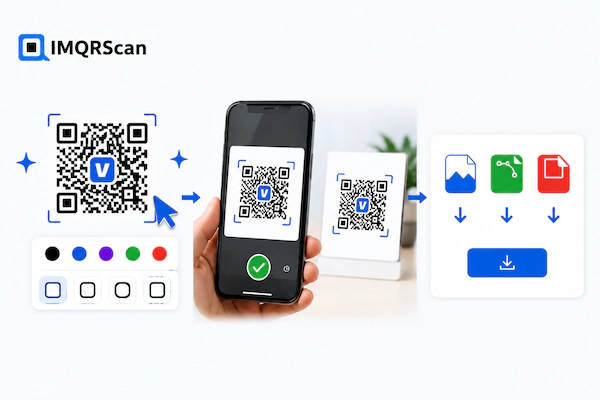
First decide whether you want to print the original code supplied by Venmo or a custom QR code that opens your verified Venmo profile. Both options can work, but the file quality and testing process matter.
Use these print settings:
- SVG: best for resizing, signs, banners, stickers, and professional printing
- PNG: good for home printing, documents, digital flyers, and social graphics
- Strong contrast: use a dark QR pattern on a light plain background
- Quiet zone: keep clear space around every side of the code
- Clear label: add text such as “Scan to Pay Wasim” or “Scan Our Venmo Profile”
- Recipient text: print the Venmo username below the code so users can check it
Recommended Venmo QR Code Print Sizes
| Placement | Suggested minimum size | Typical scan distance | Recommended format |
|---|---|---|---|
| Business card | 1 x 1 inch | Close range | SVG or high-resolution PNG |
| Invitation or graduation card | 1.2 x 1.2 inches | Close range | SVG or PNG |
| Table sign | 2 x 2 inches | 1 to 3 feet | SVG |
| Counter payment sign | 3 x 3 inches | 1 to 4 feet | SVG |
| Poster | 4 x 4 inches or larger | Several feet | SVG |
| Sticker or product label | 1 x 1 inch | Close range | SVG |
These are practical starting points, not fixed guarantees. Design, print quality, surface, lighting, camera, and scan distance can change the required size.
Where Can You Use a Venmo QR Code?
A clear Venmo profile QR code can reduce typing errors and make it easier for people to find the intended recipient.
Small Business Counter
Place a tested business-profile code near checkout with the business name and username clearly shown.
Graduation Announcements
Add a verified profile QR code for gifts while making the recipient name and purpose clear.
Weddings and Parties
Use a QR code for shared costs, gifts, group activities, or event funds with clear context.
Fundraisers
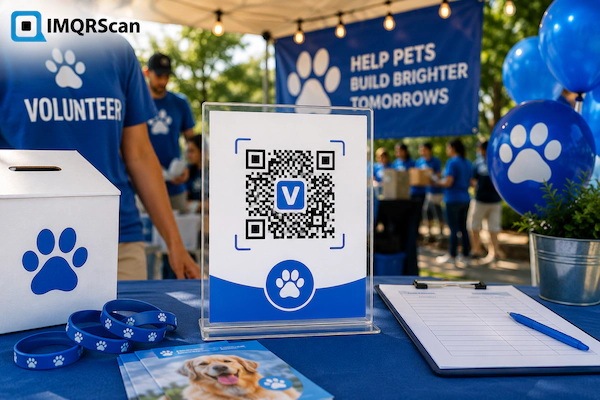
Use an eligible charity or approved recipient profile, explain the cause, and verify who receives the payment.
Business Cards
Add a compact QR code for tips, freelance work, services, or direct payments where appropriate.
Tip Signs
Display the worker or business name below the code so customers can confirm the correct account.
Markets and Pop-Ups
Use a durable printed sign and check the final payment confirmation before handing over goods.
Gift QR Codes
Place the code inside a card, gift box, or digital message with a short and honest explanation.
Real Example: A Custom Venmo QR Code Sign
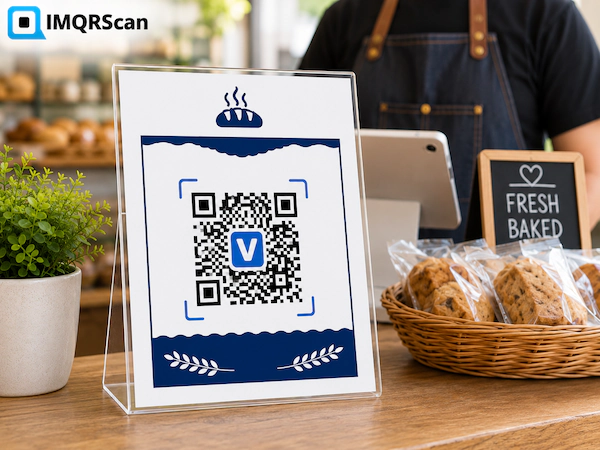
A weekend market seller accepts payments through a verified Venmo business profile. The seller wants a clean counter sign that matches the stall branding and is easy to scan.
The seller first opens the business profile and checks the displayed business name and username. Next, the seller enters the verified username in IMQRScan and creates a Smart code, an editable dynamic QR code.
- The seller adds a dark blue QR pattern on a white background.
- A small logo is added in the center without covering key QR modules.
- The frame says “Scan to Pay River Street Bakery.”
- The Venmo username is printed below the code.
- The code is downloaded as SVG for a sharp 5 x 7 inch sign.
- Two phones scan the test print from different angles.
- The seller confirms every customer payment in the Venmo app before completing the sale.
The Smart code also gives the seller flexibility. If the username changes, the seller can update the code without printing a new sign.
How to Use a Venmo QR Code Safely
A QR code makes a destination easier to open. It does not prove that the recipient, amount, seller, charity, event, or request is genuine.
Safer behavior
- Check the recipient name and username before paying.
- Confirm the amount and payment note inside Venmo.
- Use an official Venmo app or trusted Venmo website.
- Ask the recipient to confirm the profile when unsure.
- Keep payment privacy settings suitable for the transaction.
- Check the completed transaction before giving goods or services.
Risky behavior
- Paying a profile with a similar but different username.
- Entering a Venmo password after scanning an unknown code.
- Sharing one-time codes, PINs, or recovery details.
- Assuming a Venmo logo proves that a sign is genuine.
- Sending money before checking the final recipient.
- Using a personal profile for business activity without reviewing Venmo’s rules.
Static vs Dynamic Venmo QR Codes
A static Venmo QR code, called a Direct code in the generator, stores the profile link directly. It keeps working as long as the profile stays valid, but you cannot change the stored link after printing.
A dynamic QR code, called a Smart code, uses an editable short link. It is useful for a business, event, fundraiser, wedding, graduation, or long-term sign because you may need to update the username later, and it shows scan counts.
| Feature | Direct (static) | Smart (dynamic) |
|---|---|---|
| Change destination later | No | Yes |
| Keeps working | Yes, while the profile exists | While your plan is active |
| Scan analytics | No | Yes |
| Best for one fixed profile | Yes | Optional |
| Best for signs and campaigns | Only when the username is permanent | Recommended |
Common Venmo QR Code Mistakes
Using the wrong profile
A similar username can send people to the wrong recipient. Verify the profile before making the code.
Calling it an official payment code
A custom profile QR code opens a link. It is not the same as Venmo’s official in-app payment code.
Printing without a username
Show the recipient or business username below the code so users can perform a second check.
Using weak contrast
Light patterns, busy backgrounds, and missing clear space can make the code hard to scan.
Adding a large logo
A logo that covers too much of the pattern can damage the code and reduce scanning success.
Using a Direct code for a campaign
A Direct code cannot be changed if an account, event, or payment page changes. Use a Smart code instead.
Skipping the final payment check
A successful scan does not confirm the final recipient, amount, note, or completed transaction.
Ignoring platform rules
Businesses, sellers, charities, and fundraisers should follow the account and payment rules that apply to them.
Create the QR Code, Then Verify the Payment
The Venmo QR Code Generator helps you make a custom, printable QR code from your verified Venmo username. It is useful for signs, cards, stickers, events, gifts, tips, and online sharing.
- Use the correct Venmo username.
- State the recipient or business name near the code.
- Use Venmo for official Venmo Me and Show to Pay functions.
- Choose SVG for professional printing.
- Choose a Smart code when the destination may change.
- Scan-test the code and confirm each payment inside Venmo.
What Else Can a Venmo QR Code Do?
A Venmo QR code opens a payment to your Venmo profile. IMQRScan adds print files and scan rules for markets, events, and shared bills.
Free Print Templates
Download a free counter sign or table tent with your Venmo QR code and a pay with Venmo message.
QR Stickers
Print Venmo QR code stickers for tip jars, stalls, and service vans.
Schedule and Scan Limits
Collect payments for a team trip or fundraiser only until the closing date.
More Tools for Every Venmo QR Code
Built-in QR Templates
Ready-made designs with colors, frames, and logo placement set.
Multiple QR Shapes
Dot, corner, and frame shapes that match your brand and still scan.
Country Rules
Send each country to a different destination from one code.
Retargeting Pixels
Meta, GA4, Google Ads, TikTok, and LinkedIn pixels on every scan.
PIN Protection
Ask for a PIN before the content opens.
Custom Domain
Use your own domain for the short link behind the code.
Team and Users
Invite teammates and give each one a role.
QR Code API
Create and manage codes from your own software.
Free on every plan
- Built-in QR templates
- Multiple QR shapes
- Free print templates
- QR stickers
Free plan includes
- Unlimited static QR codes
- 5 Smart (dynamic) QR codes
- 15 tracked scans
- 14 days of scan analytics
- Bulk creation, 5 per upload
- File uploads up to 5 MB
Professional plan and up
- PIN protection
- Schedule and scan limits
- Country rules
- Retargeting pixels
- QR Code API
- Team management and roles
- Custom domain add-on from Starter ($10/month)
Venmo QR Code Generator FAQs
Clear answers about creating, finding, downloading, printing, sharing, and using Venmo QR codes.
Create a Custom QR Code for Your Venmo Profile
Enter your verified Venmo username, customize the design, scan-test the destination, and download a clear file for digital or print use.
Create QR CodeExplore Related Payment QR Code Tools
Payment QR Code Generator
Create a payment QR code for checkout links, invoices, donations, tips, and customer payments.
Open toolPayPal QR Code Generator
Turn your PayPal.Me name into a custom PayPal QR code, with an optional amount, for sharing and printing.
Open toolCash App QR Code Generator
Create a custom QR code for a verified Cash App profile for payments, tips, and events.
Open toolBrazil PIX QR Code Generator
Generate a PIX payment QR code for fast bank transfers, invoices, stores, and business payments.
Open tool