QR Code Business Card: The Smart Way to Get Scanned
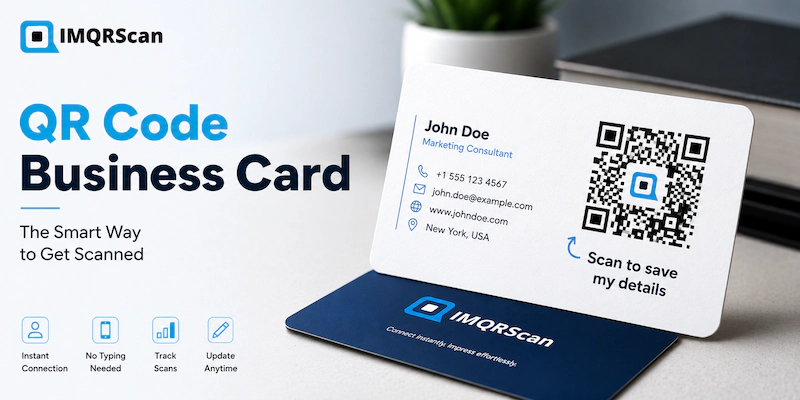
A QR code business card is a printed card with a scannable square that opens your website, contact details, portfolio, or booking page. Someone points a phone camera at it, taps once, and they have you. No typing. No spelling your name twice in a loud room.
Quick Answer
A QR code business card is a normal printed card with a QR code on it. To make one, pick your destination link, generate the QR code, place it on the back of the card at 2 x 2 cm or larger, add a short line like "Scan to save my details", and test it on two phones before you print.
What This Guide Covers
- What Is a QR Code Business Card?
- Why Put a QR Code on a Business Card?
- What Can a QR Code Business Card Link To?
- How to Create a QR Code Business Card in 5 Steps
- Static or Dynamic QR Code Business Card?
- What Size Should a QR Code Be on a Business Card?
- Where to Place the QR Code on a Business Card
- QR Code Business Card Design Ideas
- Real QR Code Business Card Examples
- How to Test a Business Card QR Code Before Printing
- Common QR Code Business Card Mistakes
- Track What Your QR Code Business Card Does
- Quick Answers About the QR Code Business Card
- Frequently Asked Questions
- How This Guide Is Maintained
That simple idea is why so many people are now adding a QR code to a business card. But most cards fail for boring reasons. The code is too small. The contrast is too low. Nobody tested it before ordering 500 copies. This guide covers the parts that actually decide whether your QR code business card works.
What Is a QR Code Business Card?
Definition
QR code business card: a printed business card that carries a Quick Response code linking to a digital destination such as a website, contact file, portfolio, or landing page. The QR code format was created by Denso Wave in 1994 and is defined by the ISO/IEC 18004 standard.
A QR code business card looks like any other card. The difference is the small square of black and white blocks printed on it. Those blocks store data. A phone camera reads them and turns them into an action.
The action depends on what you encoded. It might open a web page. It might save a contact. It might start a WhatsApp chat or open a map.
Here is the important part. The QR code does not store your whole website. It stores a short instruction. The phone follows that instruction. This is why a business card with a QR code can point to a huge page while the printed square stays small and simple.
How the Scan Actually Works
- The camera app finds the three big squares in the corners. Those are position markers.
- It reads the pattern between them and decodes the data.
- It shows a tap prompt on screen, usually at the top or bottom.
- The person taps and lands on your destination.
Modern phones do this without any app. Native camera scanning arrived on iPhone with iOS 11 in 2017 and on Android around version 9. That change is the real reason QR codes on business cards became normal. Before that, people needed a separate scanner app, and most did not have one.
Apple also explains how QR codes can be scanned directly with the iPhone camera in its QR code camera guidance .
Key Takeaway
A QR code business card only works if the person can scan it in the real world. Real world means bad lighting, a busy hand, a phone held at an angle, and about three seconds of patience. Design for that, not for your monitor.
Why Put a QR Code on a Business Card?
Paper cards have one weakness. The details on them stay on paper. Most people take a card, put it in a pocket, and never type it into their phone.
A business card with QR code fixes that gap. It moves the details from paper to phone in one tap, while the person still remembers who you are.
The Practical Benefits
- Faster saving. One scan beats typing a long email address by hand.
- Fewer typos. No more calls to a number with a missing digit.
- More space. A QR code business card stays clean because the extra detail lives online.
- More than contact info. A QR code on a business card can open a portfolio, price list, booking calendar, or product catalogue.
- Measurable. With a dynamic code, you can see how many scans your cards actually get.
- Editable. Change your job title or phone number without reprinting, if you use a dynamic code.
That last point is the one people underrate. Job titles change. Phone numbers change. Companies rebrand. A static card is frozen the moment it leaves the printer. A dynamic QR code business card is not.
Expert Advice
Do not add a QR code just because it looks modern. Add it because there is something worth opening. A code that leads to a bare homepage is a wasted scan. A code that leads to your booking page, your portfolio, or a save-contact button earns its place.
What Can a QR Code Business Card Link To?
This is the decision that matters most, and it is the one people skip. Pick the destination for your QR code business card first. Everything else follows from it.
| Destination | Best for | What happens on scan |
|---|---|---|
| Contact file (vCard) | Anyone who wants to be saved | Phone offers to add a new contact |
| Website or landing page | Businesses and services | Opens your page in the browser |
| Portfolio or gallery | Designers, photographers, architects | Opens your work samples |
| Booking calendar | Consultants, coaches, clinics | Opens a page to book a slot |
| WhatsApp chat | Sales, local services, retail | Opens a chat with a message ready |
| Product catalogue | Sales reps and distributors | Opens a browsable product list |
| Google review page | Restaurants, salons, trades | Opens the review box directly |
| Multi link page | Creators and people with several profiles | Opens a menu of your links |
You can also point a card at your professional profile. If that is your plan, our guide to a LinkedIn QR code covers the profile side in detail.
If you want the scan to save your full contact details plus a photo, buttons, and social links, that is a digital business card. It sits behind the same printed square. You can build one with the vCard Plus QR code generator.
Best Practice
Pick one main action per card. A QR code business card that tries to do five things does none of them well. If you truly need several links, use one code that opens a small menu page instead of printing several codes.
How to Create a QR Code Business Card in 5 Steps
Making a QR code business card takes a few minutes. The care goes into steps four and five, which is where most cards go wrong.
Step 1: Choose the Destination
Decide what the scan should do. Save a contact, open a booking page, or show a portfolio. Write it down in one sentence. If you cannot, you are not ready to make the code yet.
Step 2: Generate the Code
Paste your link or contact details into a generator and create the code. Choose a dynamic code if there is any chance the details will change later. Choose static only if the link is permanent and you do not need scan data.
Step 3: Add Light Branding
Set the code colour to a dark brand shade. Add a small logo in the middle if you want. Keep the logo under about 20 percent of the code area so the pattern stays readable. Higher error correction helps here, which we cover below.
If you want more control over colours, frames, shapes, logos, and QR styling, see how to brand a QR code.
Step 4: Download the Right File
Download SVG or PDF for print. These are vector files, so they stay sharp at any size. PNG is fine for email signatures and screens, but a small PNG stretched onto a card gets fuzzy edges, and fuzzy edges are the number one cause of scan failure on printed cards.
Step 5: Place It, Test It, Then Print It
Drop the code into your card layout, print one test copy on paper at true size, and scan it with two different phones. Only then send the file to the printer.
Quick Tip
File format quick rule: SVG or PDF for anything printed. PNG for anything on a screen. Never scale a small PNG up to fill a print area.
Static or Dynamic: Which QR Code Business Card Should You Make?
This choice cannot be undone after printing, so every QR code business card deserves a minute of thought here.
A static code stores the data inside the pattern itself. Once printed, it is fixed forever. A dynamic code stores a short redirect link. The pattern stays the same, but you can change where it points.
| Feature | Static QR code | Dynamic QR code |
|---|---|---|
| Edit after printing | No, you must reprint | Yes, change the destination anytime |
| Scan tracking | No | Yes, by date, device, and location |
| Pattern density | Denser with more data | Always light and easy to scan |
| Works offline once scanned | Yes for contact files | Needs internet to redirect |
| Ongoing cost | None | Usually a subscription |
| Best use | One off events, fixed links | Business cards, sales teams, campaigns |
There is one more practical difference people miss. A static contact card holds every field inside the pattern, so the pattern gets dense. A dense pattern at 2 cm on a business card is much harder for an older phone to read. A dynamic code holds a short link, so the pattern stays light. On a small printed card, that lighter pattern scans faster and from further away.
Key Takeaway
For a business card, dynamic wins in almost every case. Cards last for years. Job titles do not. Read the full comparison in our guide to static versus dynamic QR codes.
What Size Should a QR Code Be on a Business Card?
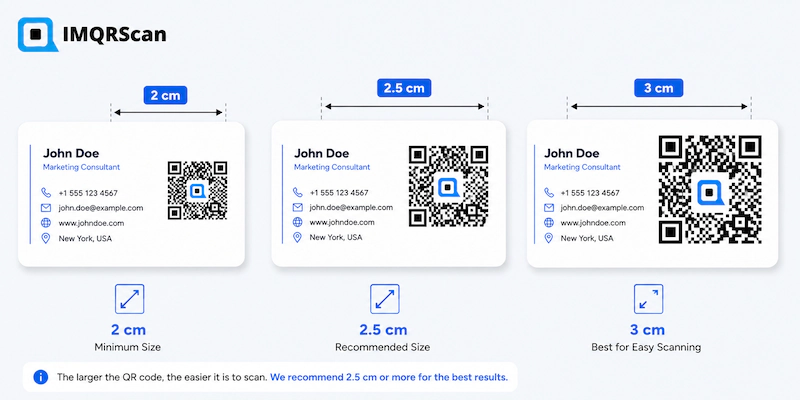
The minimum safe size for a QR code on a business card is 2 x 2 cm, which is about 0.8 x 0.8 inches. Below that, scan reliability drops sharply on older phones and in poor light.
If you have the room, 2.5 cm gives a noticeable improvement. It is one of the cheapest upgrades you can make to a card.
| Card element | Recommended size | Notes |
|---|---|---|
| Absolute minimum | 2.0 x 2.0 cm | Works on modern phones in good light |
| Recommended | 2.5 x 2.5 cm | Better in dim rooms and on older phones |
| Comfortable | 3.0 x 3.0 cm | Best choice if the card back is mostly free |
| Quiet zone | 4 mm clear on all sides | Part of the spec, not decoration |
| Print resolution | 300 DPI or vector | Vector is safer |
The Quiet Zone Is Not Optional
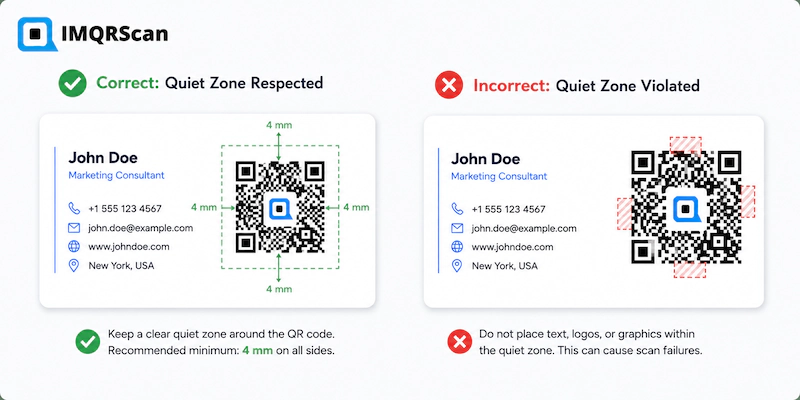
The quiet zone is the plain margin around the code. The specification calls for a border equal to four modules, which is roughly 4 mm at business card scale. Scanners use that empty space to find where the code starts and ends.
Designers often crop the quiet zone to fit a tight layout, or run a coloured band right up to the edge of the pattern. That single choice breaks more cards than anything else. Leave the margin clear.
Best Practice
Print a plain paper test at exactly the size you plan to use. Cut it out. Hold it at arm's length in a normal room, not next to a window. If it does not scan in three seconds, make the code bigger.
For more detail, read our minimum QR code size guide.
Where to Place the QR Code on a Business Card
Placement on a QR code business card changes how many people actually scan. The back of the card is the default answer, and there is a good reason for it.
Back of the Card
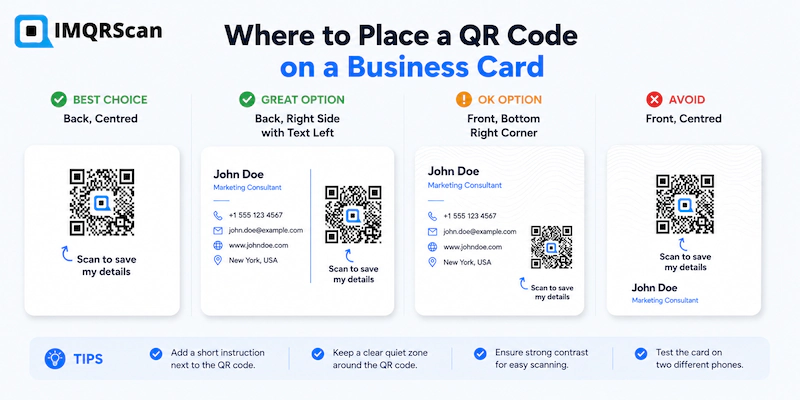
Most cards are printed with a busy front and an empty back. Putting the QR code alone on the back gives it space, clean margins, and a clear reason for the person to flip the card over. It is the strongest option for a business card with a QR code.
Front, Bottom Corner
This works when the back is already used for something else, such as an appointment reminder or a loyalty stamp grid. Keep the code away from the trim edge. Printers cut with a small tolerance, and a code that sits too close to the edge can lose part of its quiet zone.
Front, Centre
Only for minimal card designs where the code is the main feature. It is bold and it works, but it leaves little room for your name and role, so most people should not start here.
| Placement | Scan rate | Best when |
|---|---|---|
| Back, centred | Highest | The back is otherwise empty |
| Back, right side with text left | High | You want a call to action beside the code |
| Front, bottom right corner | Medium | Both sides are already designed |
| Front, centred | Medium to high | Minimal card, code is the hero |
| Across a fold or edge | Very low | Never do this |
Always Add a Short Instruction
A bare square tells people nothing. A short line below or beside it lifts scans a lot because it removes the guesswork. Good options:
- Scan to save my details
- Scan to see my work
- Scan to book a call
- Scan for the full menu
- Scan to message me on WhatsApp
Be specific. "Scan me" tells people nothing about what they get, and a vague promise is easy to ignore when someone is holding four cards and a coffee.
QR Code Business Card Design Ideas That Still Scan
You can brand a QR code. You just cannot brand it past the point where it stops working. Here is what is safe.
Colour
The pattern must be much darker than the background. Dark navy, deep green, black, and charcoal all work well. Light grey on white looks elegant on screen and fails in a dim restaurant. Never invert the code so the pattern is lighter than the background, because many scanners will not read it.
Logo in the Centre
A small centre logo is fine. Keep it under roughly 20 percent of the code area and set error correction to level H. Level H can rebuild the code even when about 30 percent of the pattern is covered or damaged. That headroom is exactly what a logo eats into.
Shapes and Rounded Dots
Rounded dots and custom corner eyes look good and usually still scan. Test them anyway. The more you change the shape, the more you rely on error correction to cover for it, and you may already be spending that budget on your logo.
Frames
A simple frame with a call to action is one of the best design upgrades available. It groups the code and the instruction into one object that the eye reads as a single unit.
Finish and Material
Matte and satin finishes scan far better than gloss. Gloss reflects overhead lighting, and the glare washes out the pattern exactly when someone is trying to scan across a table. If your card must be gloss, ask the printer for a matte spot finish over the code area.
Key Takeaway
Dark pattern, light background, clear margin, matte finish, 2.5 cm or larger, and a short instruction. Get those six right and your QR code business card will work almost everywhere.
Real QR Code Business Card Examples
Here are four QR code business card setups that work, with the reasoning behind each one.
Example 1: A QR Code Business Card Built for Bookings
Front: name, role, one line about what she does. Back: a 2.5 cm code centred, with "Scan to book a 20 minute call" underneath. The code opens a booking page with three open slots visible. The point is that the scan leads to an action, not to an about page.
Example 2: The Photographer Who Needs to Show Work
Front: a single image bleeding to the edges, with a name in the corner. Back: white, a 3 cm code, and the words "Scan to see the full gallery". A photographer's card cannot carry a portfolio, so the code does the job the paper cannot.
Example 3: The Field Sales Rep With a Changing Patch
Front: standard company card. Back: a dynamic code linking to a product catalogue. When the product line updates, the rep changes the destination and every card already in the field points to the new catalogue. Nothing gets reprinted. This is the case where a dynamic QR code business card pays for itself.
Example 4: The Restaurant Owner Collecting Reviews
Front: restaurant branding. Back: a code linking straight to the Google review box, with "Scan to leave a review" beneath it. The card goes out with the bill. The scan skips the search step, and that shortcut is the whole reason it works.
Real Example
Notice the pattern across all four. Every card sends the scan to one specific action, and every card says out loud what that action is. Those two habits matter more than the design.
How to Test a Business Card QR Code Before Printing
Never order a print run from a screen preview. Screens are backlit and perfectly lit. A QR code business card lives in far dimmer places than your monitor.
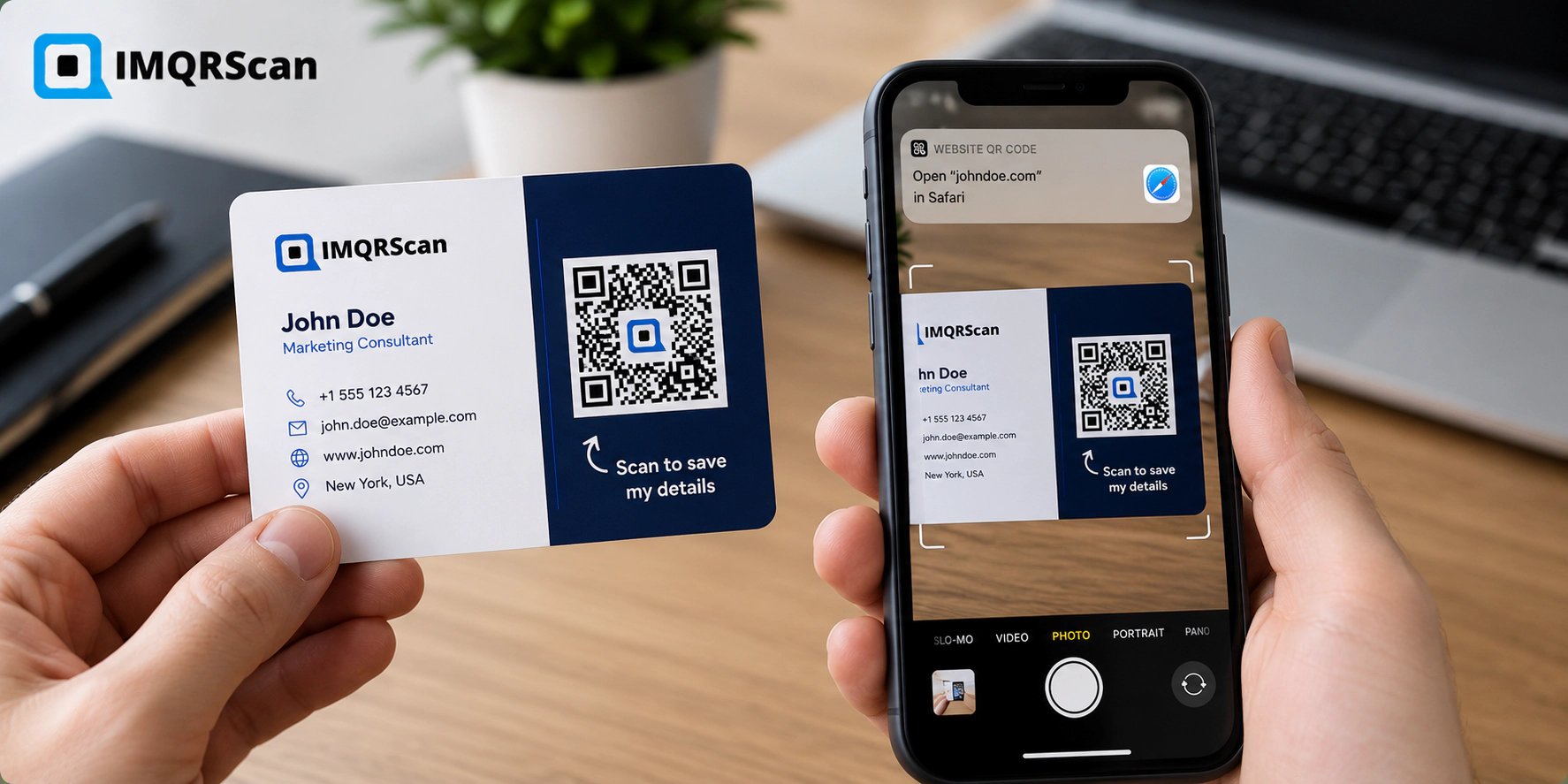
- Export the card layout as a PDF at final size.
- Print one copy on plain paper. Do not scale it to fit the page.
- Cut it out so the code sits on a small piece of paper, like a real card.
- Scan it with an iPhone using the native camera app.
- Scan it with an Android phone as well. Borrow one if you have to.
- Try it in a dim room and under a bright overhead light.
- Confirm the link opens the correct page, not a redirect chain or an error.
- Ask one person who has never seen the card to scan it without instructions.
That last step is the one that finds real problems. If someone hesitates, or turns the card over looking for a clue, your instruction line is not doing its job.
Warning
Test the exact file you are sending to the printer. A code that scans in your design software may still fail after the file is flattened, converted, or resized by the print shop. Re-test the final proof if the printer sends one.
Common QR Code Business Card Mistakes to Avoid
- Printing below 2 cm. The single most common failure on a QR code business card.
- Cropping the quiet zone. Decorative borders that touch the pattern break scans.
- Low contrast. Pale grey codes look modern and scan badly.
- Gloss laminate. Glare under indoor lighting causes silent failures.
- Oversized logo. A big centre logo eats the error correction budget.
- Static codes for details that change. A new phone number means a whole new print run.
- No instruction line. People will not guess what your code does.
- A destination that is not mobile friendly. Every scan arrives on a phone. If your page needs pinching and zooming, the scan is wasted.
- Never testing on Android. iPhone-only testing hides real problems.
- Placing the code over a fold or too near the trim line. Print tolerances will cut into it.
The mobile friendly point deserves emphasis. Every single visitor from a QR code business card is on a phone. If your landing page loads slowly or opens a desktop layout, you have solved the paper problem and created a new one.
After You Print: Track What Your QR Code Business Card Does
If you use dynamic code, you can see what your cards are doing. That data answers questions people usually guess at.
- How many scans came in during the week of a trade show
- Which day of an event produced the most scans
- Whether people scan at the moment they receive the card or days later
- Which city or region the scans came from
- Whether iPhone or Android dominates your audience
The most useful number is usually the timing. If most scans happen days after an event, your card is doing its job as a reminder, and the destination should be built for someone who has half forgotten who you are. Put your photo and a one line reminder at the top.
You can review this in the QR Code scan tracking dashboard.
Quick Answers About the QR Code Business Card
Does a QR Code Business Card Actually Work?
Yes, when they are printed at 2 cm or larger with strong contrast and a clear instruction. Modern phones scan them with the native camera and no app. Most failures come from print size and design choices, not from the technology.
Are QR Codes on Business Cards Still Popular?
Yes. Native camera scanning on iPhone and Android removed the need for a separate app, and that change made QR codes on business cards a normal part of print design rather than a novelty.
Can I Make a QR Code Business Card for Free?
You can create a free static QR code for a business card. Dynamic codes, which allow editing after printing and scan tracking, usually sit behind a paid plan. IMQRScan plans start at 2.99 US dollars per month.
Do People Need an App to Scan a Business Card QR Code?
No. The native camera on iOS 11 and later and on Android 9 and later reads QR codes automatically. The person just opens the camera, points it at the card, and taps the prompt that appears.
Should the QR Code Go on the Front or Back of a Business Card?
The back is best in most cases. It gives the code clear space, a clean margin, and a natural reason to flip the card. Use the front bottom corner only when the back is already designed.
Frequently Asked Questions About QR Code Business Cards
Answers about creating, sizing, placing, printing, testing, editing, and tracking QR codes for business cards.