How to Put a LinkedIn QR Code on a Business Card
By IMQRScan Editorial Team · Last reviewed July 2026
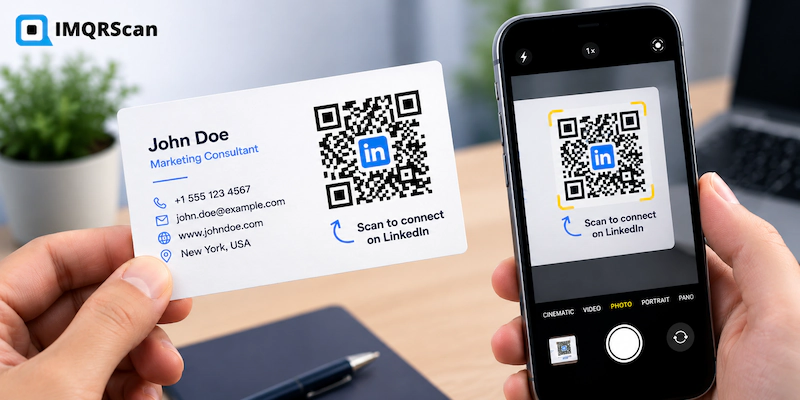
Putting a LinkedIn QR code on business card designs is the fastest way to turn a handshake into a connection. Someone scans the card, your profile opens, and they can connect before they have even put the card away.
Quick Answer
To add a LinkedIn QR code on business card designs, first clean up your custom LinkedIn URL and update your headline and photo. Then create a QR code from your public profile link, place it on the back of the card, and add a line such as "Scan to connect on LinkedIn".
What This Guide Covers
- Three Ways to Put LinkedIn on a Business Card
- How to Write Your LinkedIn Address on a Business Card
- Can You Use the LinkedIn Logo on a Business Card?
- Fix Your Profile Before You Print
- What Happens in the Five Seconds After the Scan
- Where the LinkedIn QR Code Should Sit
- Call to Action Wording
- The Job Change Problem
- LinkedIn QR Code or Contact Details?
- Real LinkedIn QR Code Business Card Examples
- Students and Job Seekers
- What to Do After Someone Scans
- Digital Alternatives to a Printed Card
- Mistakes to Avoid
- Quick Answers
- Frequently Asked Questions
LinkedIn QR Code
Need to create or manage the QR code itself? Use the dedicated LinkedIn QR code page.
LinkedIn QR CodeUseful Next Reads
But the code itself is the easy part. What decides whether it works is what happens in the five seconds after the scan. This guide covers the LinkedIn side of the job: getting your profile ready, choosing between a code and a written link, and writing the one line of text that makes people actually scan.
Definition
LinkedIn QR code business card: a printed business card carrying a scannable code that opens your LinkedIn profile. The code stores your public profile web address, so it works on any phone camera and never needs the other person to have your details typed in.
Three Ways to Put LinkedIn on a Business Card
A QR code is not the only option, and it is not always the right one. Here are the three approaches people actually use.
1. A LinkedIn QR Code
A scannable square that opens your profile. A LinkedIn QR code on business card stock works best when you want the person to act right there, in the room, while they still remember your face.
2. A Written LinkedIn Address
Your profile link printed as text. Best when the card will be read later at a desk, or when it goes to an audience that does not scan much.
3. The LinkedIn Name and Your Handle
A small icon or the word LinkedIn followed by your handle. Best on very minimal cards where a code would dominate the layout.
| Approach | Effort for the reader | Best for | Weakness |
|---|---|---|---|
| LinkedIn QR code | One scan, one tap | Events, conferences, sales meetings | Needs 2 cm of card space |
| Written address | Typing by hand | Formal industries, older audiences | Typos and forgotten cards |
| Name and handle only | Searching manually | Minimal card designs | Easy to search the wrong person |
| QR plus written address | Either one | Mixed audiences and safest option | Uses the most space |
How to Write Your LinkedIn Address on a Business Card
If you are printing the link as text instead of a LinkedIn QR code on business card designs, format matters. A long link with random characters looks messy and is painful to type.
Set a Custom URL First
New LinkedIn accounts get a link with random letters and numbers at the end. You can change that in your profile settings, usually under a public profile or edit URL option. Pick your name, and add a middle initial or a number if your name is taken.
Do this before you send anything to a printer. It makes the written version short and it makes the QR pattern lighter, which helps it scan from further away.
Choose a Format
| Format on the card | Looks like | When to use it |
|---|---|---|
| Short path only | linkedin.com/in/yourname | Most cards, cleanest option |
| Icon plus handle | in icon + yourname | Minimal designs with limited space |
| Full address | https://www.linkedin.com/in/yourname | Rarely needed, takes too much room |
| Label plus handle | LinkedIn: yourname | Alongside other social handles |
Drop the https and the www. Everyone knows how to reach a website. Those characters only eat space and make the line harder to read at small point sizes.
Can You Use the LinkedIn Logo on a Business Card?
This comes up constantly with every LinkedIn QR code business card, so here is the honest answer. LinkedIn is owned by Microsoft and its brand assets are trademarked. LinkedIn publishes brand guidelines that set out how their marks may be used.
In practice, small use of the icon next to your handle is common on business cards. But there are two things worth knowing before you do it.
- It can imply endorsement. A prominent LinkedIn mark on a card can suggest LinkedIn is connected to your business. It is not.
- It is not required. A short line of text does the same job with no risk at all.
If you want the visual shorthand, keep the icon small and use it as a label beside your handle, not as a design feature. If you are printing company material at volume, check the current LinkedIn brand guidelines first.
What About a LinkedIn Logo Inside the QR Code?
Some people put the LinkedIn mark in the centre of the code. We suggest using your own logo or initials instead. It avoids the trademark question entirely, and it builds your brand rather than someone else's. The code opens LinkedIn either way.
Fix Your Profile Before You Print
This is the section most guides skip, and it is the one that changes results. A LinkedIn QR code on business card stock is a promise. It promises that the profile at the other end is worth opening.
Once a LinkedIn QR code business card is printed, you cannot take that back. So spend twenty minutes here first.
The Pre-Print Checklist
- Custom URL set. Short, readable, your name.
- Profile photo. Clear, recent, face filling most of the frame. This is the first thing a scanner sees.
- Headline rewritten. Not just your job title. Say what you do and who you do it for.
- Banner image. The default blue background says nobody is home. A simple branded banner takes ten minutes.
- About section. Three short paragraphs. Written for a stranger, not a recruiter algorithm.
- Featured section. Pin your best work, a case study, or a booking link at the top.
- Contact info filled in. Add your email or website so the person can reach you without connecting first.
- Profile set to public. Check it in a private browser window. If it asks a stranger to sign in, your card is broken.
What Happens in the Five Seconds After the Scan
Think about the moment. Someone has your LinkedIn QR code business card. They scan. Their phone opens your profile. They are standing in a hallway, holding a coffee, with about five seconds of attention.
In those five seconds they see three things, in this order.
- Your photo. They match it to the face in front of them.
- Your headline. They decide if you are worth following.
- Your current role. They place you in a category.
That is it. Nobody reads your About section standing up. So make sure those three elements do the work.
Write a Headline for the Scanner, Not the Search Engine
A headline stuffed with keywords reads badly to a human who just met you. A headline that says plainly what you do reads well to both.
| Weak | Better |
|---|---|
| Senior Manager at a well known company | I help retail brands cut delivery costs. 12 years in the supply chain. |
| Marketing Professional, SEO, PPC, Content, Growth, B2B | Marketing lead for B2B software companies. I mostly fix pipelines that are stalled. |
Where the LinkedIn QR Code on Business Card Layouts Should Sit
The back of the card, centred, is the strongest position. It gives the code a clean background and a clear reason for the person to flip the card over.
Two placement details are specific to a LinkedIn QR code on business card layouts and worth calling out.
Keep It Away From Other Codes
If your card already has a code for your website or a payment link, do not add a second one. Two codes on one card create a decision, and a decision costs you the scan. Pick the one destination that matters most.
Do Not Label It as a Generic Code
A code marked only "Scan me" gives no reason to act. A code marked "Scan to connect on LinkedIn" tells the person exactly what they get, and LinkedIn is a destination most professionals already trust. Say the name.
For full guidance on sizing, contrast, quiet zones, and print testing that applies to any printed code, see our main guide to the QR code business card .
Call to Action Wording That Actually Gets Scans
One short line beside or beneath a LinkedIn QR code on business card designs does most of the work. Here are lines that work, and why.
| Wording | Works because | Best for |
|---|---|---|
| Scan to connect on LinkedIn | Names the platform and the action | General networking, safest default |
| Let us stay in touch on LinkedIn | Warm, low pressure | Conferences and long conversations |
| Scan to see my work | Promises value, not just a connection | Designers, consultants, freelancers |
| Scan to view my profile and projects | Sets an expectation of substance | Students and graduates |
| Scan me | It does not, avoid it | Nothing |
Keep it to five or six words. The Sentence case reads faster than capitals. Place it directly under the code, close enough that the eye reads them as one object.
The Job Change Problem Nobody Plans For
This is the risk that catches people out, and it is specific to a LinkedIn QR code business card.
A basic LinkedIn QR code on business card stock stores your profile link permanently in the printed pattern. That is fine, until one of two things happens.
- You change your custom LinkedIn URL. Every printed card now points at an address that no longer exists.
- You change jobs. Your profile still works, but your card lists an old company beside a code that opens a profile showing a new one.
The first one breaks the card completely. The second one just looks careless, but it looks careless at the exact moment you are trying to make an impression.
How to Avoid Both
- Set your custom LinkedIn URL and then never change it. Treat it as permanent.
- Use a dynamic QR code , which stores a redirect you can update. If your link ever changes, you point the code at the new address and every printed card keeps working.
- Order smaller print runs. Two hundred cards a year beats a thousand cards you will not use after a role change.
LinkedIn QR Code on Business Card or Full Contact Details?
A LinkedIn QR code on business card designs and a contact-saving code do different jobs. Choosing the wrong one is a common mistake.
| LinkedIn QR code | Contact card QR code | |
|---|---|---|
| Opens | Your LinkedIn profile | A save contact prompt or profile page |
| Gives them | Your background and network | Your phone, email and links |
| Best moment | They want to know who you are | They want to reach you |
| Ongoing value | You stay in their feed | You are in their phone book |
| Needs a LinkedIn account | Yes, to connect | No |
A simple rule. If you want to be remembered and followed, use LinkedIn. If you want to be called next Tuesday, use contact details. Sales roles usually want the second one, which is what a digital business card QR code handles.
Some people run both, using a LinkedIn code on personal networking cards and a contact code on client-facing cards. That works well as long as one card only ever carries one code.
Real LinkedIn QR Code Business Card Examples
The Final Year Student
Card front: name, degree, university, graduation year. Card back: a LinkedIn QR code on business card stock with "Scan to view my profile and projects". The profile has a Featured section pinned with two university projects and a portfolio link. Recruiters at a careers fair collect dozens of cards. This one gives them something to look at on the train home.
The Sales Representative
Card front: company branding, name, role, direct line. Card back: a business card with LinkedIn QR code and the line "Let us stay in touch on LinkedIn". The phone number handles the deal. The code handles the relationship after the deal. Two different jobs, and both are on the card.
The Recruiter at a Hiring Event
This LinkedIn QR code business card carries a company page code rather than a personal profile, with "Scan to see our open roles". Candidates follow the page and see every new job posted. One card, ongoing reach.
The Conference Speaker
The back of this LinkedIn QR code business card has the words "Scan to connect, mention the talk". That last instruction is doing real work. It tells people what to write in the connection request, which means the speaker can remember who they were.
A LinkedIn QR Code Business Card for Students and Job Seekers
A LinkedIn QR code on business card stock works better for students than most of them expect. Very few graduates hand out a card, so the ones who do stand out.
- Put your graduation year on the front. It answers the first question a recruiter has.
- Pin projects in your Featured section before you print. That is the whole reason the code is there.
- Turn on the open to work setting so recruiters see it when they land.
- Use a plain photo. A phone photo against a plain wall in good light beats a cropped party picture.
- Keep the card simple. Name, course, university, email, and a code on the back is enough.
If you are handing cards out at a careers fair, write one word on the back with a pen after each conversation. Later that evening, that word is how you personalise the connection request. A generic request from a stranger gets ignored. A request that mentions the actual conversation almost never does.
What to Do After Someone Scans Your Card
A LinkedIn QR code business card does its job at the scan. That is not the finish line, it is the start of a very short window.
- Send the connection request within 24 hours, while they still remember the conversation.
- Add one line to the request. Name the event and one thing you talked about.
- Do not pitch in the first message. You have their attention, not their permission.
- If they scanned but never connected, they may have been busy. A short message a week later is fine.
If you used a dynamic code, you can see how many scans came from an event and when they happened. That is useful for deciding whether a conference was worth attending, which is a question most people answer on feeling. You can check that in the scan tracking dashboard .
Digital Alternatives to a Printed Card
Sometimes you meet someone and your LinkedIn QR code business card is sitting on your desk at home. There are two decent fallbacks.
Save the Code to Your Photos
Mark it as a favourite so you can pull it up in two taps and let them scan your screen.
Apple Wallet
LinkedIn does not offer a Wallet pass, but some third party tools can turn a code image into one. For most people a favourited photo is faster.
Screen scanning works fine. Turn your brightness up, and avoid holding the phone at an angle, because the glass reflects overhead lights and that is what usually causes a failed scan.
LinkedIn QR Code Business Card Mistakes to Avoid
Printing Before Fixing the Profile
The code works, the profile disappoints.
A Private Profile
If a stranger hits a sign-in wall, the card is dead paper.
Changing Your Custom URL After Printing
This breaks every static code you printed.
Two Codes on One LinkedIn QR Code Business Card
People choose neither.
No Instruction Text
A bare square gets ignored.
The Default Banner Image
It reads as an unfinished profile.
Old Photo
If the face on screen does not match the face in the room, it creates a small doubt at the worst moment.
No Follow-Up
A scan without a connection request is a lead you paid to print and then threw away.
Quick Answers
How Do I Add a LinkedIn QR Code to a Business Card?
Set a custom LinkedIn URL, update your photo and headline, then create a linkedIn QR code from your public profile link . Place it on the back of the card with a line such as "Scan to connect on LinkedIn".
Should I Put My LinkedIn on a Business Card?
Yes, if you network professionally. It gives people a way to keep track of you after the meeting. Use a QR code for events and a written address for formal industries or older audiences.
How Do I Write My LinkedIn on a Business Card?
Write it as linkedin.com followed by /in/ and your custom handle. Drop the https and the www. Set a custom URL first so the address is short and free of random characters.
Can I Use the LinkedIn Logo on My Business Card?
The LinkedIn mark is trademarked and has brand guidelines. A small icon beside your handle is common, but a plain text label carries no risk. Use your own logo inside the QR code.
Is a LinkedIn QR Code Better Than a vCard QR Code on a Business Card?
They serve different goals. A LinkedIn QR code on business card designs builds the relationship and keeps you visible. A vCard code puts your phone and email straight into their contacts.
Frequently Asked Questions
Practical answers about using a LinkedIn QR code on a business card, profile preparation, written addresses, follow-up, and networking.