Personal QR Code: How to Create One for Personal Use
Last updated: November 2026 · Written & Reviewed by the IMQRScan Editorial Team
A personal QR code is a QR code you make for your own life, not a business. It can open your WiFi, a gift message, a lost-item note, a wedding RSVP or your social profiles with one scan.
Quick Answer
Pick what the scan should open, create a QR code for it, and add your own colors or a small photo. Keep private details off the code, test it with two phones, then print it as a sticker or tag.

Table of Contents
- What Is a Personal QR Code?
- Personal QR Code vs Business QR Codes
- What You Can Put in a Personal QR Code
- How to Create a Personal QR Code
- Static or Dynamic: Which Personal QR Code Should You Use?
- What Not to Put on a Personal QR Code
- Using QR Codes to Identify Personal Items
- Personalized QR Code Gifts, Stickers, Signs and Hoodies
- Personal QR Code Best Practices
- Personal QR Code Examples
- Frequently Asked Questions
Create Your Own QR Codes
Create QR codes for email, websites, business cards, WiFi, PDFs, and forms with IMQRScan.
Start FreeWhat Is a Personal QR Code?
Definition: A personal QR code is a QR code that a person creates for their own life rather than for a business. When someone scans it with a phone camera, it opens something personal, such as a WiFi network, a message, a photo album, a form or a profile.
The code itself is the same kind of QR code that shops and restaurants use. What makes it a personal QR code is the job it does. It might sit on a fridge, a suitcase, a birthday card, a wedding invitation or the back of a hoodie.
Most people need one of three things: to share something quickly, to make a gift more memorable, or to get a lost item back. Each of those needs a slightly different setup, which this guide explains.
Personal QR Code vs Business QR Codes
People often mix up a personal QR code with a digital business card. They overlap, but they solve different problems. Use this table to pick the right page for what you want to do.
| QR code | Main job | Best for |
|---|---|---|
| Personal QR code | Opens something personal: WiFi, a gift message, a lost-item note, an RSVP | Home, gifts, belongings, events, hobbies |
| vCard Plus QR code | Saves your contact details to a phone | Professionals sharing work contact details |
| QR code business card | Adds a scannable code to a printed business card | Networking and sales meetings |
| QR code pet tag | Helps a finder contact a pet owner | Dogs, cats and other pets |
If your goal is to hand out work contact details, a vCard Plus QR code is the better fit. For everything else in your personal life, keep reading.
What You Can Put in a Personal QR Code
A personal QR code can open almost anything that has a link or fits in a short piece of text. These are the most common personal uses, and the QR code type that suits each one.
| Personal use | What the scan opens | QR code type |
|---|---|---|
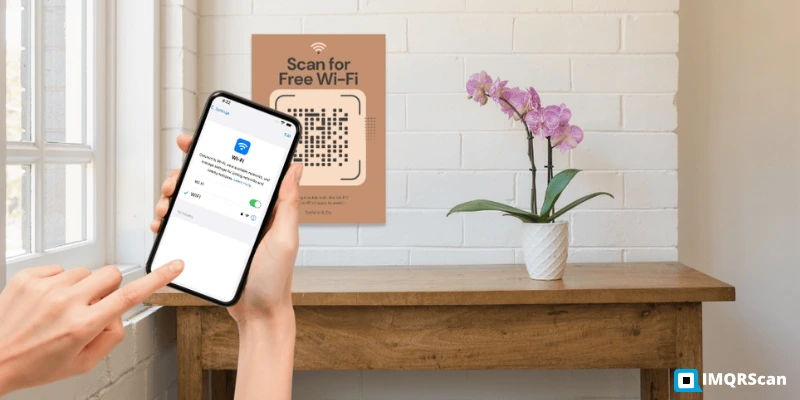
| Home WiFi for guests | Joins your network without typing the password | WiFi QR code |
| Gift message | A video, voice note or photo album | URL or YouTube QR code |
| Lost item label | A short If found note with a contact email | Dynamic URL QR code |
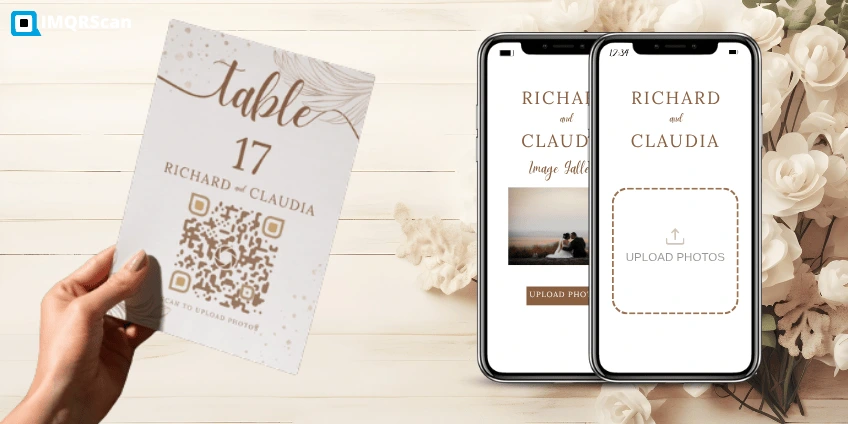
| Wedding or party invite | RSVP form, schedule and venue map | Event QR code |
| Your social profiles | One page with all your profile links | Social media QR code |
| Directions to your home or venue | Opens the location in Google Maps | Location QR code |
| A resume or portfolio | Your online CV or work samples | URL QR code |
Keep each personal QR code to one clear job. A code that tries to do everything usually confuses the person scanning it.
How to Create a Personal QR Code
You can create a personal QR code in a few minutes with a free QR code generator. These steps work for any personal use.
- Decide what the scan should open. Choose one job: a WiFi network, a gift video, an If found note, an RSVP form or your social profiles.
- Pick the right QR code type. Use WiFi for home internet, URL for a link, text for a short note, or a multi-link page for several profiles.
- Enter your content. Paste the link or type the details. Check spelling, because one wrong letter in a WiFi name or link stops it working.
- Personalize the design. Add your colors, a frame with a short call to action such as Scan me, and a small photo or initials if you like.
- Test with two phones. Scan it with an iPhone and an Android phone before you print, in normal light, from the distance people will use.
- Download and print. Download SVG for print and PNG for screens, then print it as a sticker, tag, card or label.

On IMQRScan, static QR codes are free with a free account, and the $0 Free plan also includes 5 smart (dynamic) QR codes, 15 tracked scans, 14 days of scan analytics, QR stickers and free print templates.
Static or Dynamic: Which Personal QR Code Should You Use?
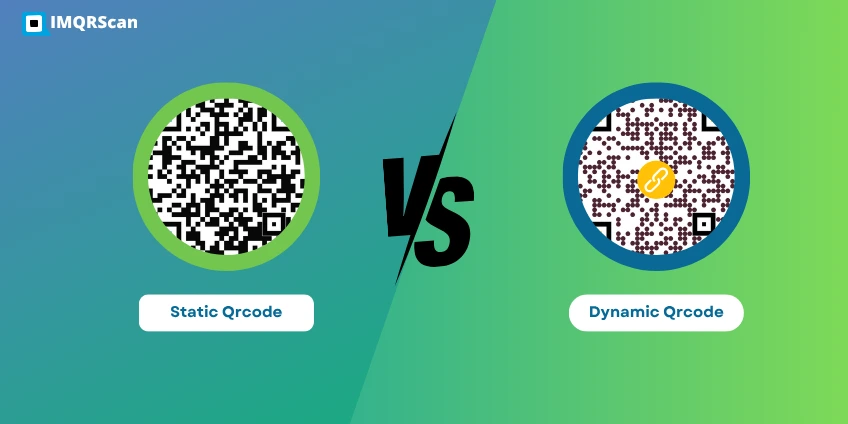
A static QR code stores its content inside the pattern, so it never changes and needs no service to keep working. A dynamic QR code stores a short link that you can point somewhere else later, and it counts scans.
| Personal use | Better choice | Why |
|---|---|---|
| Home WiFi sign | Static | The details rarely change, and it works with no service |
| Gift or keepsake meant to last years | Static | Nothing depends on an account staying active |
| Lost item labels | Dynamic | You can update the contact email without new stickers |
| Wedding or party invitations | Dynamic | You can change the venue link or add photos after the event |
| Social profile link | Dynamic | You can swap profiles or add new ones later |
For a deeper comparison, read static vs dynamic QR codes.
What Not to Put on a Personal QR Code
This is the part most guides skip. Anyone who scans a QR code can see what it holds, and a code stuck to a bag or a phone case can be scanned by a stranger. Treat every personal QR code as public.
Never put these on a personal QR code:
- Passwords for email, banking or apps (a WiFi QR code is the only safe exception, and only for a guest network)
- ID numbers, passport details or bank account numbers
- Your full home address, especially on keys or a bag
- Medical details beyond what a stranger needs in an emergency
Keys are the clearest example. A tag that shows your name and address next to your house keys tells a finder exactly which door they open. A lost-item note should give a way to contact you, such as an email address, and nothing that leads to your home.
Privacy matters to finders too. Lost-and-found services report that people are more willing to return an item when they can reply without sharing their own phone number. A short page with an email address works well for both sides.
Using QR Codes to Identify Personal Items
A personal QR code is a simple lost-and-found label. It needs no battery, costs nothing to print and works on any phone camera.
Real example: In September 2022, the tracker company Tile launched Lost and Found labels: small QR code stickers that open the owner's details when scanned, so a finder can get the item back without an app. You can build the same idea yourself with a dynamic QR code.
- Create a short page or note that says If found, please email this address, and add your email.
- Make a dynamic QR code that opens it, so you can change the email later.
- Print it as a small weatherproof sticker and add a line such as If found, scan me.
- Stick it on laptops, luggage, cameras, water bottles and kids' school bags.

For pets, a dedicated QR code pet tag works the same way and adds space for feeding or medical notes.
Personalized QR Code Gifts, Stickers, Signs and Hoodies
A personalized QR code on a physical product only works if it can still be scanned. Size, surface and contrast decide that. Use these as safe starting points, then test the real item.
| Product | Suggested minimum size | Tips |
|---|---|---|
| Personalized QR code sticker | 2.5 cm wide | Use matte vinyl for outdoor items; see QR code stickers |
| Gift tag or card | 2.5 to 3 cm | Add a line like Scan for your message |
| Personalized QR code sign | About one tenth of the scan distance | A sign read from 2 m needs a code about 20 cm wide |
| Personalized QR code hoodie or T-shirt | 5 cm or more | Print on a flat area and test after washing; see QR code T-shirts |
| Mugs and bottles | 3 cm or more | Curved surfaces need a larger code and a flat-facing side |

For more on sizing, read minimum QR code size and QR codes in print.
Personal QR Code Best Practices
- Give it one job. One code, one action, such as join WiFi or watch my message.
- Add a short call to action. Scan for the WiFi or If found, scan me tells people what happens.
- Keep strong contrast. Dark modules on a light background scan best, even with your own colors.
- Leave a quiet zone. Keep a clear margin around the code, free of text and borders.
- Test before printing. Scan it with an iPhone and an Android phone, in normal light.
- Use dynamic codes for anything you may update. Labels, invitations and social links change over time.
- Keep private details off the code. Share only what a stranger may safely see.
Personal QR Code Examples
These are common, practical ways people use a personal QR code. Each one keeps to a single job and shares only safe information.
- Guest WiFi card: a framed card in the living room with a WiFi QR code for a guest network.
- Birthday gift: a tag on the present that opens a short video from friends and family.
- Wedding invitation: a code that opens the RSVP form, schedule and venue map in one place.
- Travel luggage: a sticker that opens an If found note with an email address.
- Job application: a small code on a printed resume that opens an online portfolio.
- Memorial or family history: a plaque or photo frame that opens a page of stories and pictures.
Sources
Personal QR Code FAQs
Related QR Code Guides
Keep learning with more IMQRScan guides on this topic.
Event Photo Sharing QR Code
Easily upload event photos, create a shareable link, and turn it into a QR Code.
Read Guide
QR Code Design
Explore 5 creative QR code design ideas with real examples, colors, logos, frames, CTAs and print tips.
Read Guide