Google Gmail QR Code Sign In: What It Means & How to Scan It Safely
Seeing a QR code when signing in to Gmail or Google? Learn what Google Gmail QR code sign-in means, how to scan it, why it appears, and how to stay safe from fake QR login scams.
Last updated: May 2026 • Reviewed by the IMQRScan Trust & Safety editors
Quick Answer
The QR code on the Gmail sign-in screen is generated by your Google Account itself - not by IMQRScan or any third-party tool. This guide explains how the sign-in QR works, how to scan it safely, and how to avoid fake Google QR login scams.
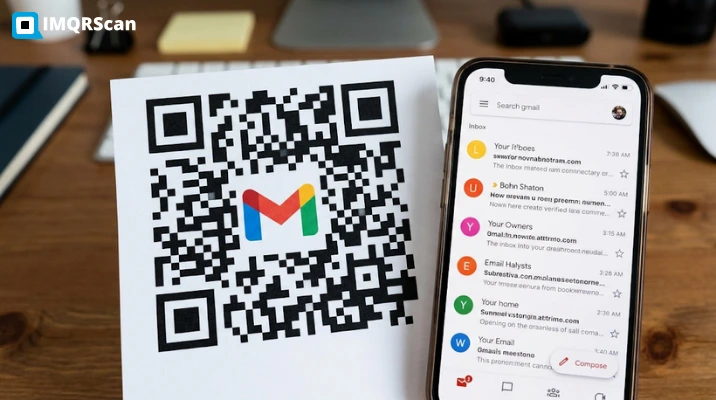
Table of Contents
Create Your Own QR Codes
Create QR codes for email, websites, business cards, WiFi, PDFs, and forms with IMQRScan.
Start FreeYou opened Gmail to check your inbox, and instead of the usual password box, Google showed you a QR code on the screen and asked you to "scan with your phone." If that felt strange, or worried you for a second, you are in the right place.
This guide explains exactly what the Google Gmail QR code sign-in is, why Google started showing it, how to scan it without getting locked out, and how to spot the fake versions that scammers send through phishing emails. You will also see how it differs from the QR code Google Authenticator uses for two-factor authentication, and what to do when the QR simply will not load on your screen.
A clarification before we begin
The QR code on the Gmail sign-in screen is generated by your Google Account itself - not by IMQRScan or any third-party tool. We are a QR code generator for things you create, like emails, websites, and business cards. This article is purely a help guide so you can sign in safely.
Create safe QR codes for your own business
Gmail sign-in QR codes are created by Google, but if you need to create your own QR codes for websites, email, PDFs, WiFi, business cards, forms, or marketing campaigns, you can use IMQRScan’s QR Code Generator.
For campaigns where you want to edit the destination later or track scan activity, use our Dynamic QR Code Generator. For simple permanent links, you can use the Static QR Code Generator.
What is Google Gmail QR code sign-in?
Google Gmail QR code sign-in is a passwordless login method. Instead of typing your email address and password into the browser, Google displays a QR code on the desktop sign-in page. You open the camera or the Gmail app on a phone where you are already signed into your Google Account, point it at the QR, and confirm the prompt. Google verifies that the same person owns both devices, and your desktop session is signed in within seconds.
Behind the scenes, the QR encodes a short, single-use, time-limited URL that links the desktop browser session to your authenticated phone. The phone effectively says, "yes, this is me," and Google issues a session token to the desktop. The QR is designed to expire quickly, so if scanning does not work, refresh the code and try again.
This type of sign-in flow fits Google's broader move toward safer, phone-based and phishing-resistant authentication methods, including prompts, passkeys, and trusted-device confirmation.
Why does Google ask for a QR code when signing in?
There are a few different moments when Gmail or your Google Account will surface a QR code, and each one means something slightly different. Knowing which scenario you are in helps you respond correctly.
1. You are on a new or untrusted device
When you sign in from a public computer, a hotel kiosk, or a browser Google has never seen before, the system often prefers a QR challenge over typing your password. Typing a password into a strange machine is the single biggest cause of account compromise, so Google would rather your trusted phone do the verification.
2. You chose "Use your phone to sign in"
On the regular Gmail login page, there is a small option that says something like "Try another way" or "Use your phone." Selecting it triggers the QR code so the phone in your pocket does the heavy lifting.
3. You are setting up two-step verification
A different kind of QR appears when you go to Google Account → Security → 2-Step Verification → Authenticator app. This QR is meant to be scanned by Google Authenticator, Microsoft Authenticator, or 1Password; not the camera. We cover the difference further down.
4. You are linking Gmail to a new app or device
When you add Gmail to a smart TV, a console, or a third-party email client that does not support a normal sign-in flow, Google sometimes shows a QR code that opens a verification page on your phone. It is the same idea: confirm identity on a device you already trust.
If you are creating QR codes for your own website, landing page, or sign-up page, a URL QR Code Generator is usually the best option. If you want to measure scans, devices, countries, and campaign performance, IMQRScan also provides QR code tracking for dynamic QR codes.
How to scan the Gmail / Google sign-in QR code
The process is short, but the order of steps matters. Follow them in this sequence and you will avoid the most common mistakes.
- Make sure your phone is already signed into your Google Account. Open the Gmail app or Google app and confirm the right account is active in the top-right avatar.
- On your computer, go to gmail.com or accounts.google.com and choose the QR sign-in option (it is usually under "Try another way" if a password box appears first).
- Hold your phone up to the screen. On iPhone, the built-in Camera app works. On Android 9 and later, the native camera also reads QR codes. You do not need a third-party scanner.
- A banner will pop up on your phone, just tap it. It will open Gmail or Chrome and show a confirmation screen with the device name (for example, "Sign in to Chrome on Windows?").
- Review the device name carefully. If you do not recognize it, tap No, it's not me. If it looks correct, tap Yes, sign in.
- Your desktop browser will refresh and you will be inside Gmail. The whole flow normally takes under 20 seconds.
Always check the device name and approximate location on the confirmation prompt before you tap Yes. That single screen is the last line of defense between you and someone trying to hijack your session from another country.
Can't scan the Gmail QR code? Try these fixes
A surprising number of "Gmail not showing QR code" or "QR code won't scan" reports come down to the same handful of issues. Work through these in order before assuming something is broken.
The QR code is not appearing at all
- Refresh the page. The QR is generated client-side and a stalled script is the most common reason it never renders.
- Disable aggressive ad-blockers, privacy extensions, or strict Brave/Firefox shields just for accounts.google.com, they sometimes block the QR generation script.
- Switch off VPN. A few VPN exit nodes are flagged by Google's risk system, which then hides the QR option and falls back to password-only sign-in.
- Clear cookies for google.com and accounts.google.com, then reload.
- Try a different browser. Chrome, Edge, and Safari are best supported; very old Firefox builds occasionally fail to render the SVG.
The phone camera will not read the code
- Increase your screen brightness. Low brightness is the number-one cause of failed scans.
- Move the phone 6 to 12 inches from the screen. Too close and the camera cannot focus.
- Wipe the camera lens. Smudges scatter the contrast the scanner needs.
- Turn off any blue-light filter or dark-mode browser theme on the desktop. They reduce contrast on the QR.
- Make sure the QR has not expired. If more than 60 seconds have passed, click Refresh QR on the desktop.
"Couldn't verify it's you" error after scanning
- Confirm both devices are on the internet, the phone and the desktop need a live connection.
- Check that the Google Account on your phone is the same one you are trying to sign into on the desktop.
- If you have just changed your password, sign out of the Gmail app and sign back in once before retrying the QR.
Is Google Gmail QR code sign-in safe?
Yes, when the QR is shown by Google itself on accounts.google.com or gmail.com, it is one of the safer ways to sign in. The reason is simple: the QR replaces the password. Phishing pages can copy a login form and steal what you type, but they cannot fake a signed Google sign-in challenge that your already-trusted phone will accept.
Google's sign-in QR codes are also tied to short-lived tokens, encrypted in transit with TLS, and bound to the specific browser session that requested them. Even if someone managed to photograph the QR over your shoulder, they could not reuse it on their own machine. The original browser session is the only one that gets signed in.
How to avoid fake Google QR login scams
A scam pattern called "quishing" (QR phishing) has been growing fast. Reports tracked by industry research groups in 2024 and 2025 show QR-based phishing attempts climbing into the hundreds of thousands per month, with Gmail and Microsoft 365 login pages being the top brands impersonated. As scammers increasingly use AI-generated messages and manipulated content to strengthen impersonation attempts, AI fraud detection tools can provide an additional layer of verification. Here is how to make sure you never fall for one.
Always start the sign-in yourself
A real Gmail QR sign-in is something you initiate by going to gmail.com. You should never receive a QR code in an email, a text message, or a printed flyer that asks you to scan to "verify" or "reactivate" your Google Account. Google does not work that way.
Inspect the URL on your phone before tapping confirm
Once you scan a QR with your phone, look at the URL bar that opens. A genuine Google sign-in URL starts with accounts.google.com. Anything ending in .ru, .top, .xyz, .info, or a long string of numbers is a phishing page dressed up to look real.
Watch for urgency in the surrounding message
Phishing QRs almost always come wrapped in urgency: "Your account will be deleted in 24 hours," "Suspicious login from Russia," "Confirm now or lose access." Real Google notifications use calm, neutral language and link you back to security.google.com from inside the Gmail app.
Never scan a QR code from a printed letter claiming to be Google
Postal-mail scams are increasing, where a paper letter on Google-branded letterhead asks the recipient to scan a QR to "secure" their account. Google does not send physical mail to verify your account. Shred the letter.
In 2024, the FBI's Internet Crime Complaint Center issued a public alert about QR phishing campaigns targeting Gmail and Microsoft accounts, after seeing victims lose access to inboxes, banking sessions, and crypto wallets within minutes of scanning a malicious QR. The fix in every case was the same: only scan QR codes you initiated yourself, and verify the URL before tapping confirm.
Gmail QR code vs Google Authenticator QR code
A lot of confusion comes from the fact that Google uses QR codes for two completely different jobs. They look almost identical on screen, but they do opposite things. Here is the side-by-side breakdown.
| Feature | Gmail Sign-in QR | Authenticator QR |
|---|---|---|
| Purpose | Log into Gmail on a phone using a desktop QR | Set up 2-factor authentication |
| When you see it | Sign-in screen on accounts.google.com | Inside Google Account → Security → 2-Step Verification |
| What it does | Skips typing your email & password | Adds your account to Google/Microsoft Authenticator |
| Scanned with | Gmail or Google app on your phone | Authenticator app |
| Generate a code? | No, it logs you in directly | Yes, produces 6-digit rotating codes |
| One-time use? | Yes, refreshes every minute | Single setup, used long-term |
Quick tips for staying signed in safely
- Add a passkey to your Google Account. Once you do, the QR sign-in becomes even faster and resistant to almost every form of phishing.
- Keep a backup authenticator method enabled, a recovery phone number or a printed set of backup codes in case you lose the device that scans the QR.
- Review the "Devices" section in your Google Account every few months. Sign out of anything you no longer use.
- On shared computers, always sign out and clear cookies after using the QR sign-in. The QR removes the password risk but not a forgotten session.
Create your own QR codes with IMQRScan
Use IMQRScan to create branded, editable, and trackable QR codes for websites, email, reviews, business cards, PDFs, WiFi, menus, and marketing campaigns.
Popular tools: URL QR Code, Email QR Code, vCard QR Code, File Upload QR Code, WiFi QR Code, and Google Review QR Code.
A note from IMQRScan
We are a free QR code generator, not part of Google. We wrote this guide because so many of our visitors arrive after Googling things like "Gmail QR code won't scan" or "is the Gmail QR sign-in safe." If you came here for that, we hope this cleared it up.
When you do need to create your own QR codes for an email address, a website, a digital business card, a WiFi network, a PDF, or a contact form, IMQRScan is built for exactly that. Try our Email QR Code Generator, or the URL QR Code Generator every code is customizable and safe to share.
About this article
Written and fact-checked by the IMQRScan editorial team, practitioners who build QR-based products for email, links, business cards, WiFi, and forms. We verified every claim about Google's sign-in flow against Google's official Help Center, the IETF's OAuth and FIDO specifications, and public security advisories from the FBI IC3 and Anti-Phishing Working Group. This page is reviewed every quarter and updated when Google changes its sign-in UX.
For official account security instructions, visit Google Account Help, FIDO Alliance, and FBI IC3.
Frequently Asked Questions
Related QR Code Guides
Continue learning how QR codes work, how to use them in advertising, best QR code use cases, and how to track QR code scans.
How Does a QR Code Work?
Learn how QR codes store data, how scanners read them, and why they work across phones, apps, and devices.
Read Guide
QR Code Advertising
See how businesses use QR codes in ads, flyers, posters, packaging, and offline-to-online marketing campaigns.
Read Guide
QR Code Best Uses
Explore the best ways to use QR codes for menus, reviews, payments, events, business cards, PDFs, and promotions.
Read Guide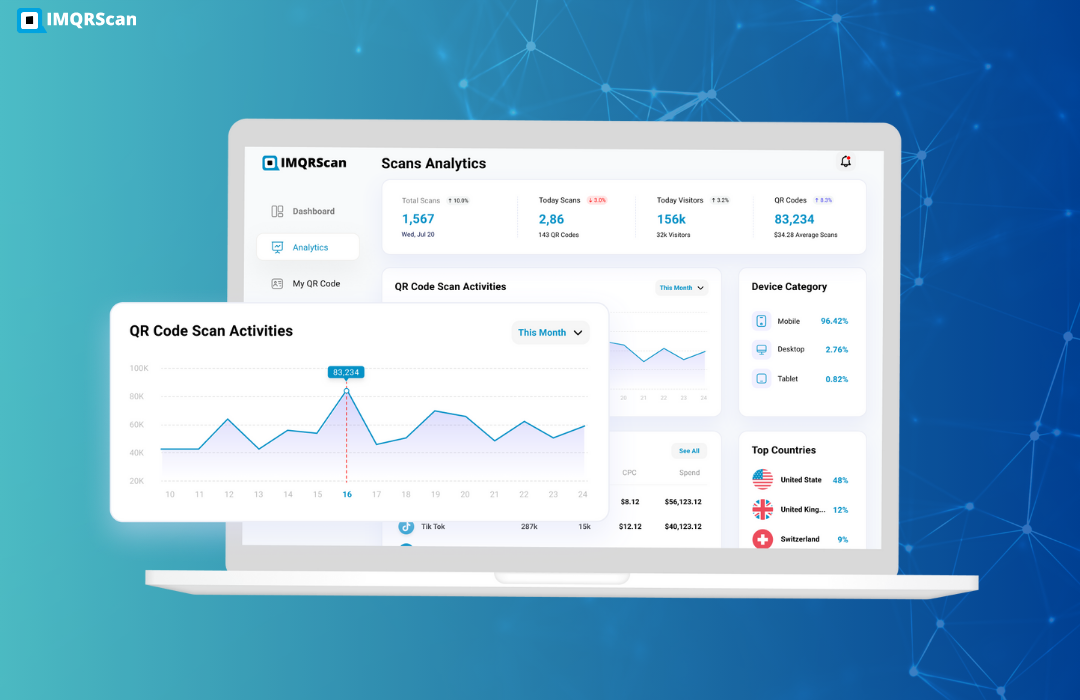
How to Track QR Code Scans
Learn how QR code tracking works and how to measure scans, locations, devices, time, and campaign performance.
Read Guide