How to Generate a QR Code for a WhatsApp Group
Sharing a WhatsApp group link over text or email works when the person is already on their phone and motivated. But what about the people in the room at your event, the attendees picking up a flyer at your booth, or the customers reading a notice on your counter? Pasting a long invite URL somewhere they have to manually open is a friction point that loses half the room.
Quick answer
Open your WhatsApp group, go to Group Info, tap Invite via link, and copy the invite URL. Paste that link into IMQRScan's WhatsApp QR Code Generator, customize the design, and download. Anyone who scans the code lands on the group join screen.
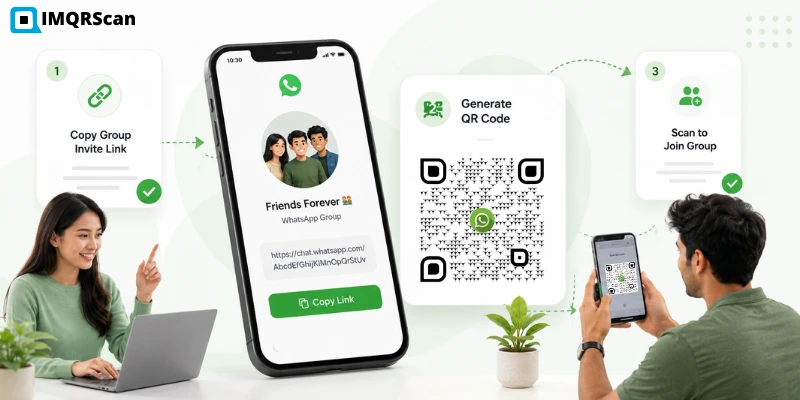
Table of Contents
Create WhatsApp Group QR
Paste your group invite link, customize the design, and download a QR code for print or digital sharing.
Open WhatsApp QR GeneratorA QR code on a printed card or a screen removes that. One scan and the join screen appears. This guide goes through exactly how to get the group invite link out of WhatsApp, turn it into a QR code, and use it without accidentally handing your group open access to strangers.
What Is a WhatsApp Group QR Code?
It is a scannable image that holds your WhatsApp group invite link. When someone points their phone camera at the code, WhatsApp opens directly on the group join screen, your group name, icon, and description are visible, and they can join with one tap.
WhatsApp itself generates a basic QR code inside the app for group invites. That built-in code cannot be customized, no logo, no colors, no frame, and it does not include scan tracking. IMQRScan takes the same invite link and produces a QR code that can be branded, printed at any size, and optionally tracked.
The two versions are functionally identical. The difference is what you can do with the resulting code.
How WhatsApp Group QR Codes Work
A WhatsApp group invite link is a URL in this format:
https://chat.whatsapp.com/XXXXXXXXXXXXXXXXXXX
That URL is what the QR code holds. When scanned, it opens in WhatsApp, if installed, or in a browser that prompts the installation. The person sees the group name and the current number of members before they decide to join.
Two things worth knowing before you generate the code:
Anyone with the link can join
WhatsApp group invite links are not password-protected. If the QR code is placed in a public location, a poster, a window sticker, or a social media post, any person who scans it can join the group. Consider whether that is the right setting for your use case.
The link can be revoked
Group admins can reset the invite link at any time. If the link changes, the QR code becomes invalid and anyone scanning it will hit an error. This is covered in detail in the safety section below.
How to Get Your WhatsApp Group Invite Link
The invite link lives inside the group settings. These steps work for both personal WhatsApp and WhatsApp Business.
Open Your WhatsApp Group
Open WhatsApp and navigate to the group you want to create a QR code for. Tap the group name at the top of the chat screen to open the group information page.
Tap Group Info
On the group information page, scroll down until you see the Invite via link option. On some Android devices this appears directly in the group info menu. On iPhone it may be under a participants or settings section depending on your WhatsApp version.
Select Invite via Link
Tap Invite via link. A screen appears showing the full group invite URL, along with options to share via WhatsApp, copy the link, share the link, or view a QR code in-app.
Copy the Group Invite Link
Tap Copy link. The full invite URL is now in your clipboard. Do not use the in-app QR code option if you want a branded, customisable code, the in-app version cannot be edited or tracked. Copy the link and move to the next section.
How to Generate a QR Code for a WhatsApp Group
Paste the WhatsApp Group Link Into IMQRScan
Open the WhatsApp QR Code Generator and paste the group invite link into the URL input field. A live preview of the QR code appears immediately. No account required at this stage.
Confirm the link is the full invite URL, it should start with chat.whatsapp.com. If you accidentally copied something else from your clipboard, the preview will still generate a code, but it will not lead to your group.
Customize Your Group QR Code
The default code is functional black-and-white. For anything going on in printed material, an event poster, a counter card, or a class handout, a few minutes of customization makes it recognizably yours:
- Add your group icon or organisation logo to sit in the centre of the code
- Change the module colour to your brand colour, keeping it dark enough to scan on the background you are printing on
- Add a frame with a short label. “Scan to join our WhatsApp group” is clear and removes any ambiguity about what the scan does
- Download as SVG for all print use, it scales to any size without blurring
For more design ideas, see the WhatsApp QR code with logo guide.
Download and Test the QR code
Before distributing anything, scan the code yourself. WhatsApp should open directly on your group join screen. If it takes you to a browser instead, the WhatsApp app may not be set as the default handler on that device, try on a second phone.
If you are printing the code, test the printed version specifically. Some glossy surfaces create glare that affects scanning. Test under the same lighting conditions the code will actually be used in.
Ready to generate?
Open the WhatsApp QR Code Generator, paste your group invite link, customize the design, and download in under two minutes.
Open WhatsApp QR Code GeneratorWhere to Use WhatsApp Group QR Codes
Events and Communities
A QR code on an event program, a name badge, or a screen at the entrance lets attendees join a group chat for the event while they are physically present. It is far more effective than asking people to find the link in an email they may or may not have opened.
Classes and Training Groups
Gyms, yoga studios, language schools, and corporate training programs often use a WhatsApp group for class updates, schedule changes, and reminders. A QR code on the studio door, the class timetable, or a welcome card lets new members join immediately rather than having to ask someone for the link.
Customer Support Groups
Some businesses run a WhatsApp group for customers of a specific product or service, for community support, tips, or updates. A QR code on the product packaging, on a receipt, or in the onboarding materials gives customers a direct route to the group at the point of purchase.
Business and Sales Groups
A QR code on a business card or a printed leave-behind can invite a potential client or partner into a WhatsApp group for a project, a product launch, or a network. More personal than a LinkedIn connection, and it opens a line of communication that most people actually read.
Clubs and Local Communities
Sports teams, neighborhood groups, hobby clubs, and local community organizations frequently communicate over WhatsApp. A QR code on a notice board, a club flyer, or a poster at the venue means new members can join the group on the spot rather than waiting for someone to add them manually.
For business use cases beyond groups, read WhatsApp QR Codes for Business.
WhatsApp Group QR Code Safety Tips
This section matters more for WhatsApp group codes than for most other QR types. A group invite link is an open door, the QR code is just a faster way to reach it. Before printing or sharing the code, think about who will realistically see it.
Anyone who scans a WhatsApp group QR code can join the group. There is no approval step unless the group has admin approval enabled. If you place a QR code in a genuinely public location, on a street poster, in a social media post, or on a broadly distributed flyer, be prepared for people outside your intended audience to join.
Practical steps to keep the group manageable:
- Enable admin approval for large or sensitive groups. In group settings, turn on admin approval for new members. People who scan the QR code will be placed in a pending list rather than joining immediately. An admin reviews each request.
- Revoke the link if the group gets spammed or misused. Go back to Group info, Invite via link, and tap the reset link. The old link and the QR code using it immediately stops working. Generate a new code from the new link for trusted distribution.
- Use a dynamic QR code if the group is long-running. A dynamic QR code lets you update the destination URL from your dashboard if the link is ever revoked and reset. Printed copies continue working, you just update where they redirect rather than reprinting.
- Do not post the QR code on publicly indexed pages. A QR code image on a public website can be scanned by bots and crawlers in the same way a plain URL can. If the group is private or invite-only in spirit, keep the QR code in contexts where you control who sees it.
- Set group rules on the welcome message. Use the group description or a pinned message to explain the group's purpose and rules. New members who joined via QR code have no prior context, a brief welcome message fills that gap.
Static vs Dynamic Group QR Codes
The choice between static and dynamic matters more for WhatsApp group codes than for almost any other QR type, specifically because group invite links get reset.
Static code: the invite link is permanently encoded into the pattern. If the link is revoked and reset, the QR code immediately becomes useless. Every printed copy needs to be replaced with a new code. For a flyer printed in a small batch that you hand out personally, a static code is acceptable. For anything printed in volume or placed on semi-permanent displays, it is a risk.
Dynamic code: holds a short redirect you control from your IMQRScan dashboard. If the group link is reset, update the destination in your dashboard, the printed code starts routing to the new link within minutes. No reprint needed.
| Situation | Best choice | Why |
|---|---|---|
| Small batch of handouts, short event | Static-free | Low volume, one-time use, easy to reprint if needed |
| Printed on counter cards or class rosters | Dynamic | These stay in circulation for weeks or months |
| Posted in a public or semi-public location | Dynamic + admin approval | Protects group from unwanted joins and survives link resets |
| Large print run, packaging, branded materials | Dynamic | Link resets would require full reprint without it |
| One-time personal group | Static-free | Minimal risk, no ongoing management needed |
Dynamic group QR codes can also include QR code tracking, which helps you understand which placements drive members, such as event posters, classroom handouts, or customer onboarding materials.
Create Your WhatsApp Group QR Code
Copy your group invite link from WhatsApp, paste it into IMQRScan, customize, and download. Free, no account needed for a basic code.
Sign up free to use a dynamic code, so if the group invite link is ever reset, you update the destination from your dashboard rather than reprinting everything.
FAQs About WhatsApp Group QR Codes
Clear answers about creating, sharing, revoking, tracking, and safely using WhatsApp group QR codes.
Need a branded QR code for your WhatsApp group?
Create WhatsApp Group QR CodeRelated WhatsApp QR Code Guides
Continue with WhatsApp QR codes, business use cases, dynamic QR codes, tracking, and social media QR code tools.
WhatsApp QR Code Generator
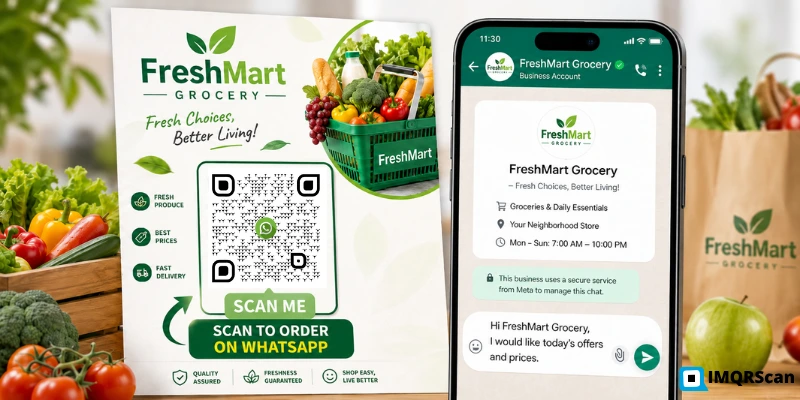
Create a QR code for your WhatsApp number, chat link, group invite, or pre-filled message.
Open Tool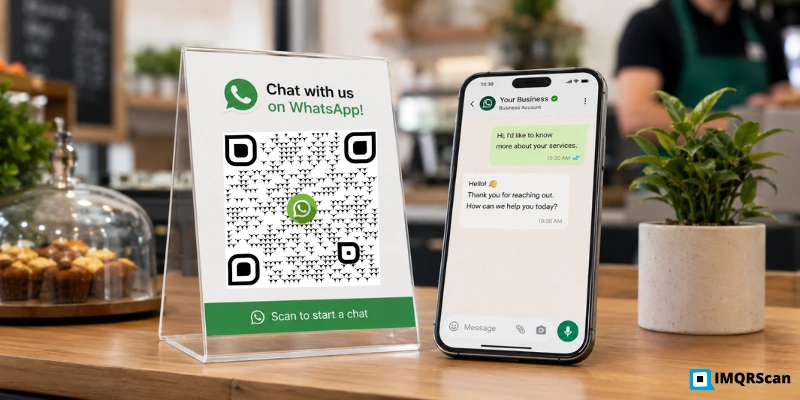
WhatsApp QR Codes for Business
See how businesses use WhatsApp QR codes for support, sales, bookings, menus, and campaigns.
Read Guide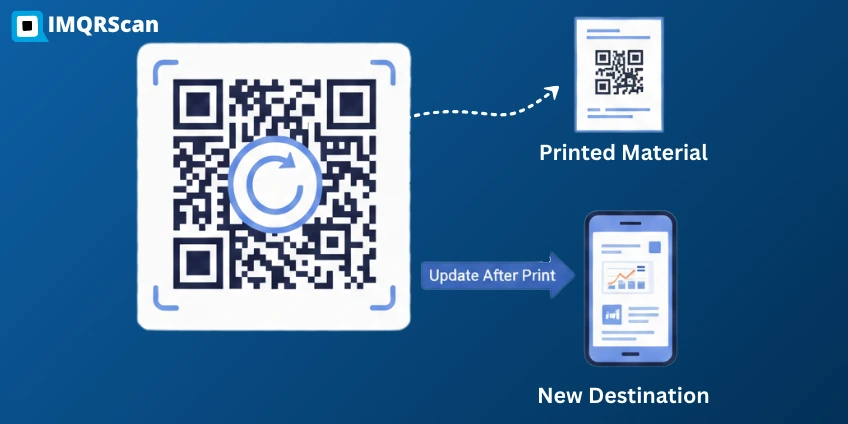
Dynamic QR Code Generator
Create editable QR codes that can be updated later without reprinting your materials.
Open Tool
Social Media QR Code
Create one QR code that connects people to your social profiles, communities, and online channels.
Read Guide