WhatsApp QR Code Generator with Logo
Learn how to create a WhatsApp QR code with logo, brand colors, frames, and print-ready design. Add a WhatsApp logo and download your QR code for free.
Quick Answer
Yes, you can add a WhatsApp logo to a QR code. With IMQRScan, you can create a WhatsApp QR code, upload your logo or select the WhatsApp icon, customize colors and frames, then download the final QR code in PNG, SVG, or PDF.
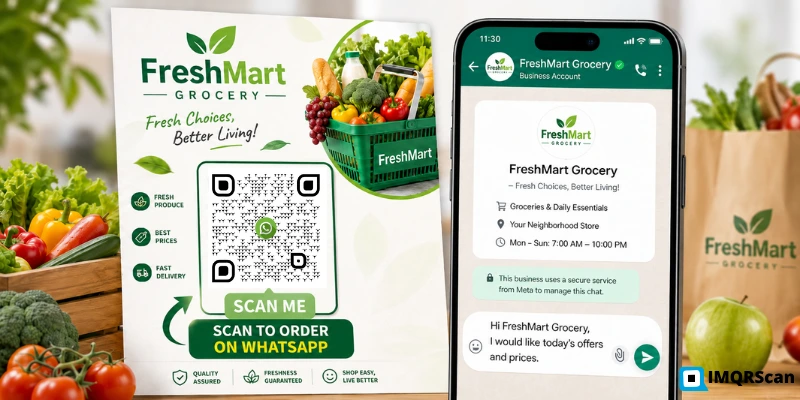
WhatsApp QR code with logo, WhatsApp icon centred, high contrast, clean white background on a Flyer.
Table of Contents
Create WhatsApp QR with Logo
Generate a WhatsApp QR code, add a logo, customize colors, and download a print-ready file.
Create WhatsApp QR CodeA plain black-and-white QR code works fine technically. But if it is sitting on a business card, a table tent, or a product box, a plain code could belong to anyone. Add your logo, or the WhatsApp logo, and it instantly signals to the person scanning it what they are about to open. That context matters. It gets more scans.
This guide covers how to add a logo to a WhatsApp QR code, what design choices actually affect scannability, which CTA text performs best in practice, and what mistakes businesses make most often when printing these codes.
Key Takeaways
- A WhatsApp logo gives users instant context before they scan.
- The safest logo placement is the centre of the QR code.
- Keep the logo around 20 to 25 percent of the code area for best reliability.
- Use dark dots on a light background for strong scan contrast.
- Download SVG for print and PNG for digital use.
Can You Add a Logo to a WhatsApp QR Code?
Yes. IMQRScan lets you upload any logo, including your business logo, the WhatsApp icon, or both combined, to sit in the centre of the QR code. The code remains fully scannable because IMQRScan uses high error correction, which reserves part of the code's data capacity to compensate for the area covered by the logo.
QR codes are more forgiving than most people think. The standard supports a high level of error correction, so a carefully placed centre logo can still scan reliably when the code has enough contrast, enough quiet zone, and the corner markers remain clear.
The WhatsApp logo is particularly useful because it gives scanners instant recognition of the destination. For supporting social content, a meme creator can also help businesses create quick, recognizable visuals that make campaigns more engaging. Someone looking at a QR code on a shop counter does not know where it goes until they see a label or a logo. The green WhatsApp icon communicates that immediately.
Why Use a WhatsApp Logo on Your QR Code?
The honest reason is that unbranded QR codes get ignored more than branded ones. When someone sees a plain black square on a leaflet or a table card, there is a moment of hesitation. What is this? Where does it go? Should I scan it? A logo removes that hesitation because it answers the question before they even decide to scan.
Specifically for WhatsApp QR codes, the logo does a second job: it sets expectations. A customer who scans a QR code with the WhatsApp icon already knows they are about to open a chat. They are mentally prepared for that interaction. That preparation increases the likelihood of them sending a message once they arrive.
Brand recognition
Your logo in the code reinforces your brand at every touchpoint. Anyone who scans it or even sees it associates the code with your business.
Platform signal
The WhatsApp icon immediately communicates the destination. Users understand that scanning will open a WhatsApp chat.
Professional design
Printed materials with a branded QR code look designed. Plain codes often look like an afterthought.
More scan intent
Codes with context, including a logo and a short label, usually receive more scans than anonymous codes placed in the same location.
How to Create a WhatsApp QR Code with Logo
You can create a WhatsApp QR code with logo in four simple steps. No design background is required.
Create Your WhatsApp QR Code
Go to IMQRScan's WhatsApp QR Code Generator and enter your WhatsApp number in international format. The tool generates your WhatsApp chat link automatically and shows a live preview of the QR code.
At this stage, you can also add a pre-filled message. This is the text that appears in the chat input when someone opens the conversation. A message like "Hi, I would like to enquire about your services" reduces the effort of starting a conversation and tends to get more replies.
Upload or Select a WhatsApp Logo
In the customization panel, look for the logo upload option. You have two choices:
- Your own business logo: PNG or SVG works best. A transparent background keeps it clean against the QR pattern.
- The WhatsApp icon: IMQRScan includes common platform logos you can select directly without uploading. Pick the WhatsApp green icon if you want immediate platform recognition.
Choose Colors and Frame
Two things matter at this stage: colors and frame text.
If you want more control over the appearance of your code, use our QR code generator with customization to change QR colors, dot styles, corner patterns, frames, logos, backgrounds, and other design elements while keeping the code easy to scan.
- Colors: The foreground dots should remain darker than the background. WhatsApp green as an accent can work well, but the most universally scannable combination is still dark dots on a white or near-white background.
- Frame: A QR code frame adds a visual boundary and a short call to action. Keep the text to five or six words maximum. More than that competes with the code itself for attention.
Download and Test the QR Code
IMQRScan gives you multiple download formats:
- SVG: Best for print. It stays sharp on business cards, posters, stickers, and packaging.
- PNG: Best for digital use, including email signatures, social media, websites, and presentations.
- PDF: Useful when you want a print-ready file for a designer or print shop.
WhatsApp QR Code Design Tips
Most QR code design problems come from the same few mistakes. These are the design rules worth checking before you finalize the QR code.
Keep Enough Contrast
The camera needs to see a clear difference between the dark dots and the light background. When that contrast drops, because of a mid-tone foreground colour, a slightly coloured background, or a busy design behind the code, the scanner starts to struggle.
Dark navy, dark green, dark red, or black as the dot colour on a white or near-white background all work well. Avoid anything where someone could squint at the code and have difficulty telling the dark areas from the light ones.
Do Not Cover Important QR Patterns
The three square markers in the corners of the QR code are how the scanner orients itself. They tell the camera which way the code is facing and where its edges are. If any of those three corner markers are covered, cut off, or obscured by a design element, the code will fail to scan regardless of how well the rest of it looks.
Keep any logo, watermark, or design element confined to the centre area. The corners are non-negotiable.
Use a Clear Frame and CTA
A QR code frame serves two purposes: it gives the code a visual boundary that makes it easier to locate on a busy printed surface, and it carries the call-to-action text that tells people what happens when they scan. Both matter more than they look like they should.
The frame label should be short enough to read in under two seconds. Six words is a comfortable upper limit. More than that and customers start skimming past it.
Test Before Printing
Two minutes of testing before printing 200 business cards or 500 receipts is obvious advice that a surprising number of people skip. Scan on your own phone first. Then on a different phone if you can. If the code is going on a glossy laminated surface or a window sticker, test on the actual material under real lighting, not just on screen.
Best CTA Text for WhatsApp QR Codes
The label is what turns a QR code from a pattern people notice into one they actually scan. Context drives action. These four options work across different business contexts:
Scan to Chat on WhatsApp
The most explicit option. It names the action and the platform in five words. Good for any placement where the audience might be unfamiliar with QR codes or might not recognise the WhatsApp logo on its own. Also the safest choice if you’re unsure which label will get the most scans, clarity usually wins.
✓ Best for: business cards, product packaging, flyers, window stickers, any placement where customers are a mixed audience
Message Us on WhatsApp
A softer, more conversational framing. It doesn’t instruct, it invites. Works particularly well for businesses with an existing customer relationshi: a salon, a restaurant, a local service business where the customer already knows who you are and just needs a way to reach you.
✓ Best for: table cards, receipts, appointment cards, any touchpoint where the customer is already in your space and engaged
Scan for Support
Purpose-specific and direct. Doesn’t need the word WhatsApp if the logo is doing that job. Works best on product packaging, shipping inserts, and invoices where the customer is specifically looking for a way to get help. Cuts straight to what’s available without needing to explain the broader purpose.
✓ Best for: packaging inserts, after-purchase materials, anything related to customer support or post-sale service
Chat with Us Now
The most action-forward option. ‘Now’ creates a sense of immediacy without being pushy. It works well in contexts where customers have a decision to make, walking past a shop, looking at a counter display, considering whether to scan. The ‘now’ tips the balance slightly toward acting rather than thinking about it.
✓ Best for: storefront stickers, event booth displays, counter cards at the point of sale, anywhere a customer is in the decision moment
WhatsApp QR Code with Logo for Business
For businesses, the logo isn’t just a visual preference, it’s a consistency signal. Every customer who encounters your QR code in print, on packaging, on a receipt, on a business card, and at your counter sees the same branded design. That repetition builds familiarity. It also helps if you’re running the code across multiple touchpoints. A branded code that looks consistent wherever it appears is easier to associate with your business than a plain code that looks different every time because it was generated separately in different sizes.
One practical note: If you are printing the code at scale across packaging, signage, and printed materials, a dynamic QR code is worth using. If your WhatsApp number changes, or if you want to use a different pre-filled message for a seasonal campaign, a dynamic code lets you update the destination from a dashboard without reprinting anything.
For more examples of where businesses can use WhatsApp QR codes, read WhatsApp QR Codes for Business.
Common Design Mistakes to Avoid
- Logo too large. Anything that covers more than 30% of the code risks degrading scannability, especially on lower-quality print finishes or in lower-contrast lighting. Keep it centred and proportionally modest.
- Low contrast colours. Medium blue on white, dark grey on light grey, brand colours that are too close in value to the background, all of these cause intermittent scanning failures. Test the contrast specifically under the lighting conditions the code will live in.
- Printing PNG at large sizes. PNG files have a fixed resolution. A 500px PNG printed at 10 cm will pixelate badly and the scanner won’t be able to read the blurred dots. Download in SVG for any physical print material.
- Code printed too small. The minimum for anything scanned at arm’s length is 2.5 cm × 2.5 cm. Smaller than that and phone cameras begin to struggle, particularly on mid-range Android devices. If the code is going on a poster or signage viewed from further away, scale it up proportionally.
- Learn about minimum QR Code size guide.
- No quiet zone. The blank margin around the edge of the QR code, usually equal to four times the width of one module (one small square), is what tells the scanner where the code ends. If the design clips the code edge or places it directly against a dark border, the scanner can’t locate the boundary and the read fails.
- Not testing on print. Glossy lamination, textured surfaces, and window vinyl all behave differently from a flat matte card. What scans perfectly on screen or on a test print can fail on the actual material. Always run a physical test before the full print run.
- Learn about QR Code in print guide.
Create Your WhatsApp QR Code with Logo
Enter your WhatsApp number, upload your logo or select the WhatsApp icon, set your colors and frame label, then download a print-ready QR code.
Create WhatsApp QR Code with LogoFAQs About WhatsApp QR Codes with Logo
Practical answers about logo placement, QR size, download formats, and scan reliability.
Ready to create a branded WhatsApp QR code?
Open WhatsApp QR Code GeneratorRelated WhatsApp QR Code Guides
Continue with WhatsApp QR creation, group QR codes, troubleshooting, business use cases, and scanning guides.
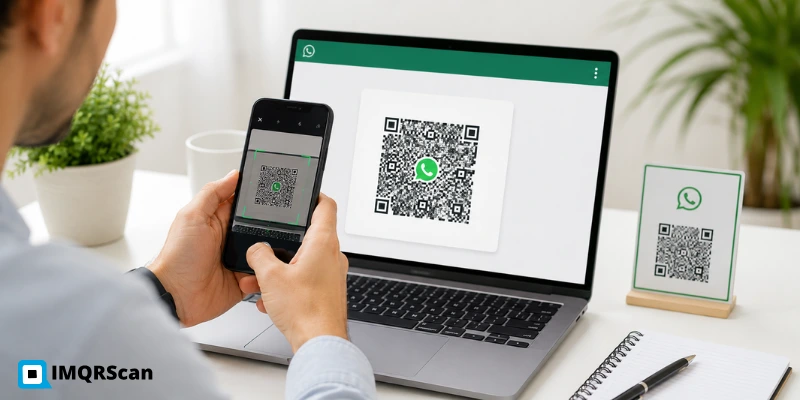
Scan a WhatsApp QR Code
Learn how to scan WhatsApp QR codes on iPhone, Android, Windows, and other devices.
Read Guide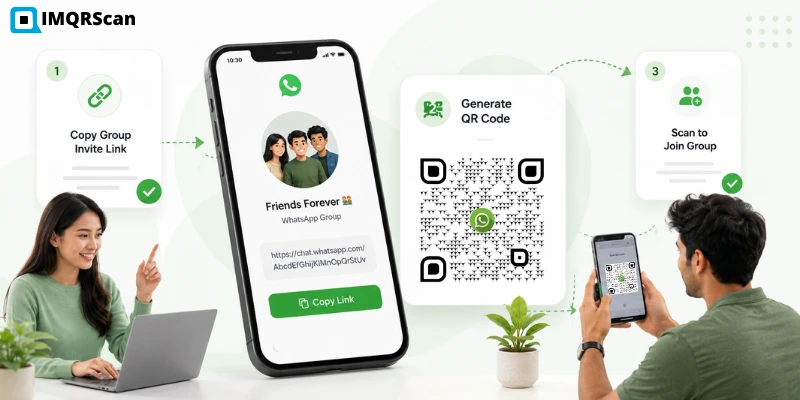
WhatsApp Group QR Code
Learn how to generate a QR code from a WhatsApp group invite link.
Read Guide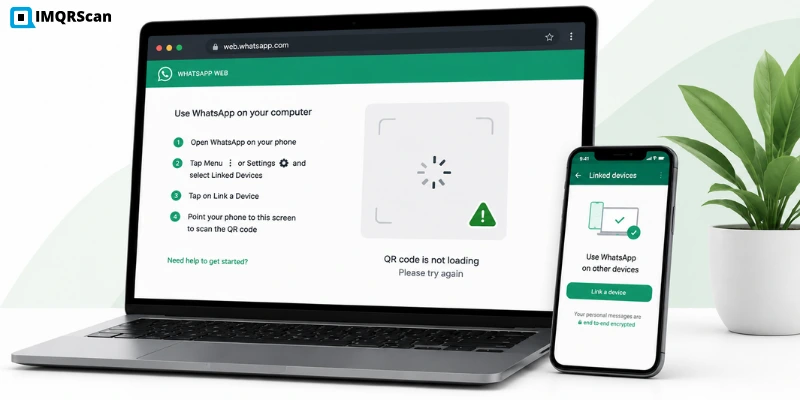
WhatsApp Web QR Not Generating
Fix WhatsApp Web QR code loading, scanning, browser, cache, and connection issues.
Read Guide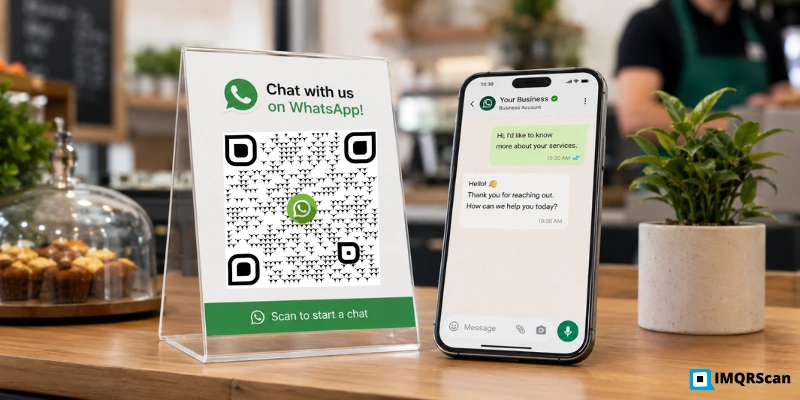
WhatsApp QR Codes for Business
See how businesses use WhatsApp QR codes for support, sales, bookings, menus, and campaigns.
Read Guide