How to Scan a WhatsApp QR Code on Any Device
WhatsApp QR codes do not all do the same thing. One type logs you into WhatsApp Web on a browser. Another adds a person to your contacts. A third opens a chat with a business when you scan a code on their packaging or website.
How you scan depends on both the device you are on and what the code is for. A laptop cannot scan a WhatsApp QR code the same way a phone can. An Android and an iPhone reach the scanner from different menus. And if the code is from a business rather than a contact, the process is different again.
This guide covers all three scanning contexts, all four device types, and what to do when the scan is not working.
Quick Answer
Scanning by context
WhatsApp Web login: open WhatsApp on your phone, tap the three-dot menu on Android or Settings on iPhone, go to Linked Devices, tap Link a Device, and point the camera at the QR code on web.whatsapp.com.
Adding a contact: open WhatsApp, tap the QR icon next to the search bar on Android or next to your name in Settings on iPhone, open the Scan tab, and point the camera at the person's QR code.
Business chat, click-to-chat code: open your phone's native camera app and point it at the QR code. No WhatsApp needed first. The phone camera opens the chat directly.
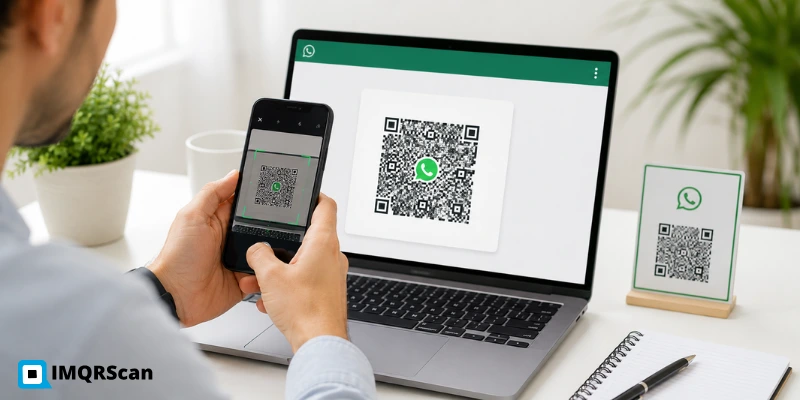
Table of Contents
Create WhatsApp QR Code
Create a WhatsApp QR code that customers can scan to message you directly.
Open WhatsApp QR GeneratorDevice Support Table
| Device | WhatsApp Web login | Add a contact | Business chat scan |
|---|---|---|---|
| Android phone | Yes, Linked Devices in WhatsApp | Yes, QR scanner in WhatsApp | Yes, native camera app |
| iPhone, iOS 11+ | Yes, Linked Devices in WhatsApp | Yes, QR scanner in WhatsApp Settings | Yes, native camera app |
| Windows laptop | No direct scan, use phone relay | No, WhatsApp Desktop login only | No, use phone or online decoder |
| Mac laptop | No direct scan, use phone relay | No, WhatsApp Desktop login only | No, use phone or online decoder |
| iPad / Tablet | Yes, if WhatsApp installed | Yes, if WhatsApp installed | Yes, native camera app |
| Chromebook | Limited, browser only | Not supported natively | Screenshot decoder method only |
How to Scan a WhatsApp QR Code on Android
Android
Step-by-step on Android, WhatsApp Web login
This is for logging into WhatsApp Web at web.whatsapp.com or the WhatsApp Desktop app. Your phone stays the main device, the browser or laptop just mirrors it.
Open WhatsApp on your Android phone
Make sure you have a working internet connection on your phone. WhatsApp Web will not pair if the phone is offline.
Tap the three-dot menu in the top right corner
Select Linked Devices from the dropdown menu.
Tap Link a Device
A camera viewfinder opens. This is the WhatsApp QR scanner, it is different from your phone's main camera app.
Point the camera at the QR code on web.whatsapp.com
Hold the phone 15 to 30 cm from the screen. Keep it still for two to three seconds. WhatsApp pairs automatically when it reads the code, no tap needed.
Scan to Add a Contact on Android
This is for adding someone who is showing you their personal WhatsApp QR code, not for WhatsApp Web login.
- Open WhatsApp and tap the QR code icon at the top right, next to the search bar
- The scanner switches to the Scan tab automatically
- Point the camera at the other person's WhatsApp QR code
- Their contact details appear, tap Add to contacts to save
The WhatsApp in-app scanner only works for contact QR codes and linked devices. If you are trying to scan a business QR code, a code that opens a chat, not adds a contact, use your phone's native camera app instead.
How to Scan a WhatsApp QR Code on iPhone
iPhone, iOS 11 and above
Step-by-step on iPhone, WhatsApp Web login
The steps on iPhone are slightly different from Android because the menu layout is different, but the mechanism is the same.
Open WhatsApp and tap Settings in the bottom right corner
Settings is the gear icon in the tab bar at the bottom of the screen.
Tap your name at the top of the Settings screen
This opens your profile. You will see a QR code icon next to your name on the right side.
Tap the QR code icon
Your personal WhatsApp QR code opens. Swipe to the Scan tab at the top to switch from showing your code to scanning someone else's.
For WhatsApp Web login, go to Linked Devices instead
Back in Settings, tap Linked Devices. Then tap Link a Device. The camera opens. Point it at the QR code on web.whatsapp.com.
Scan to Add a Contact on iPhone
- Open WhatsApp, Settings, tap your name, tap the QR icon
- Swipe right to the Scan tab
- Point the camera at the other person's WhatsApp QR code
- Their profile appears, tap Add to contacts
If you have an older iPhone running iOS 10 or below, the native camera does not support QR scanning. You would need to update iOS or use a third-party scanner app. iOS 11 and later handle it natively.
How to Scan a WhatsApp QR Code on Windows or a Laptop
Windows, Mac, and Laptops
Why a Laptop Cannot Scan Directly
A laptop cannot scan a WhatsApp QR code the same way a phone can. The WhatsApp webpage at web.whatsapp.com shows a QR code, but a laptop's webcam does not contain a WhatsApp scanner. Pointing your webcam at a piece of paper does nothing from WhatsApp Web's perspective.
This is the most common source of confusion in this keyword cluster. People assume the laptop's camera can scan the code on a card or a screen, the same way a phone does. It cannot, not for WhatsApp Web login. For a broader device guide, read our how to scan a QR code on computer guide.
There are two ways around this, depending on what you are trying to do.
Workaround: Scan with Your Phone, Link to Windows
If you want to use WhatsApp on your Windows laptop or Mac, download WhatsApp Desktop for Windows or Mac from the official WhatsApp website. When you open it for the first time, it shows a QR code. Use your phone, following the Android or iPhone steps above, to scan that QR code from the desktop app. The phone pairs with the desktop app, mirroring your WhatsApp account.
This is the only supported method for logging into WhatsApp on a laptop. The QR code in the desktop app is scanned by your phone, not by the laptop's camera.
Using Windows Camera or a Screenshot Decoder
If you have received a WhatsApp QR code as an image file and want to decode it on a Windows PC:
- Take a screenshot or save the QR code image
- Open a browser-based QR decoder, search for "QR code decoder online", and upload the image
- The decoder extracts the URL or text inside the code
This method decodes what is inside the code. It does not scan it into WhatsApp. If the code contains a wa.me link, you can copy that link and open it in a browser, which will prompt WhatsApp Desktop or redirect to the WhatsApp download page.
Scanning a WhatsApp Web QR code through an online decoder will not log you in. WhatsApp Web QR codes expire in about 20 seconds and are tied to a session. Decoding one in a third-party tool does not work for login. Only your WhatsApp phone app can scan that specific login QR.
If the WhatsApp Web code is not appearing or not loading, see our troubleshooting guide on WhatsApp Web QR code not generating.
How to Scan a WhatsApp QR Code on Other Devices, iPad, Tablet, Chromebook
iPad, Android Tablet, Chromebook
iPad: WhatsApp is available for iPad. If installed, the scanning process follows the same iPhone steps. If not installed, you can open a WhatsApp chat link, wa.me link, in Safari, and it will prompt you to install WhatsApp or open the link in a browser-based viewer.
Android tablet: WhatsApp works on Android tablets but is not officially optimized for larger screens. If WhatsApp is installed, follow the same Android phone steps above. The menus are in the same locations.
Chromebook: Chromebooks can run Android apps if the Google Play Store is enabled on the device. If WhatsApp is installed via Play Store, follow the Android steps. If only a browser is available, go to web.whatsapp.com and scan the QR code using your phone through the Linked Devices method.
Amazon Fire tablet: WhatsApp is not available on the Amazon Appstore. You would need to sideload the Android APK, which is outside standard support. For practical purposes, use a phone.
How to Scan a Business WhatsApp QR Code, Click-to-Chat
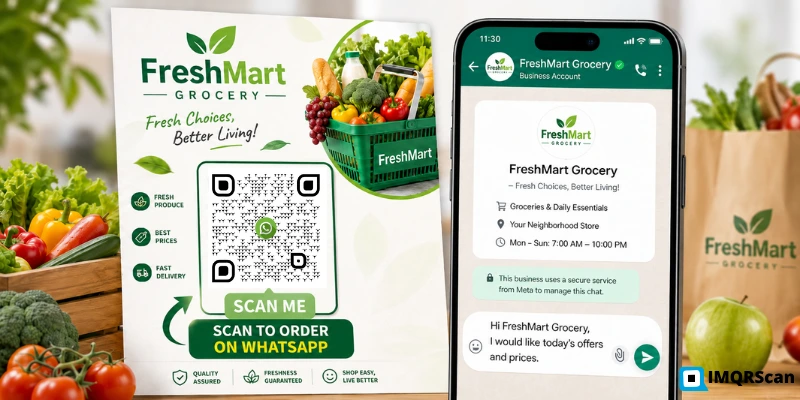
A business WhatsApp QR code is different from a login or contact code. It is a code printed on a product, a menu, a business card, or a poster that opens a chat with the business when scanned. No WhatsApp scanner needed. The phone's native camera handles it.
For business placement examples, read our guide on WhatsApp QR codes for business.
Using Your Phone Camera, No App Needed
- Open the native Camera app on your iPhone or Android phone
- Point it at the QR code on the business card, packaging, or screen
- Hold still for two to three seconds, a banner or notification appears at the top of the screen
- Tap the banner, WhatsApp opens with a chat to the business ready to go
No need to open WhatsApp first. No need to go into any menu. The native camera reads the QR code, and the phone handles the rest.
What Happens After You Scan It
When you scan a business WhatsApp QR code, one of two things happens depending on the code type:
- Plain number code: WhatsApp opens with a blank chat to the business number. You type your own message.
- Pre-filled message code: WhatsApp opens with a message already written in the chat box. You tap send, or edit the message first if needed.
The chat opens to the business's WhatsApp account. If it is a WhatsApp Business account, you will see the business name, category, and description at the top of the chat rather than just a phone number.
Where Is My Own WhatsApp QR Code?
Find Your Personal WhatsApp QR Code
Your own WhatsApp QR code is in your profile settings. On Android: tap the three-dot menu, Settings, tap your name, then tap the QR icon next to your name. On iPhone: tap Settings, tap your name, then tap the QR icon to the right of your name.
This QR code lets other WhatsApp users scan and add you as a contact. It does not link to a specific chat, it just identifies you.
Find Your WhatsApp Business QR Code
In the WhatsApp Business app: tap the three-dot menu, Business tools, Short link. Your business QR code is shown here. You can also go to Settings, tap your business name, then tap the QR icon.
This code, when scanned by a customer, opens a chat with your business. You can also find a shareable link version here, useful for putting in emails or on a website where a QR code cannot be scanned.
Troubleshooting: When a WhatsApp QR Code Does Not Scan
Run through this in order before assuming the code is broken.
- QR scanning is off on your phone. On iPhone: Settings, Camera, confirm Scan QR Codes is on. On Android: this is usually always on, but check the Camera app settings if nothing triggers.
- You are using the wrong scanner for the context. The WhatsApp in-app scanner only works for adding contacts and linking devices. For business QR codes, use the native camera app.
- The code has expired. WhatsApp Web login QR codes expire in about 20 seconds. Wait for the new code to appear and scan immediately.
- Camera is too close or too far. Keep the phone 15 to 30 cm from the code. Too close and it cannot focus. Too far and the pattern is too small to resolve.
- Screen glare. Reduce screen brightness or tilt the laptop screen slightly to redirect glare away from the phone camera.
- The code is printed too small. Under 2 cm on print is risky. Try moving closer or printing a larger copy.
- Phone has no internet. The scan itself does not need internet, but WhatsApp Web pairing does. Check that your phone is connected before scanning the login QR.
Create Your Own WhatsApp QR Code
If you want to create a QR code that lets people scan and message you on WhatsApp, that is a different tool from the scanner. The WhatsApp QR Code Generator takes your number or a wa.me link, lets you customize the design, and produces a downloadable code for print or digital use.
FAQs About Scanning WhatsApp QR Codes
Answers about scanning WhatsApp QR codes on Android, iPhone, Windows, laptop, camera apps, and WhatsApp Web.
Need a WhatsApp QR code that customers can scan to message you?
Create WhatsApp QR CodeRelated WhatsApp QR Code Guides
Continue with WhatsApp QR creation, group QR codes, business use cases, and WhatsApp Web troubleshooting.
WhatsApp QR Code Generator
Create a WhatsApp QR code for your number, chat link, group invite, or pre-filled message.
Open Tool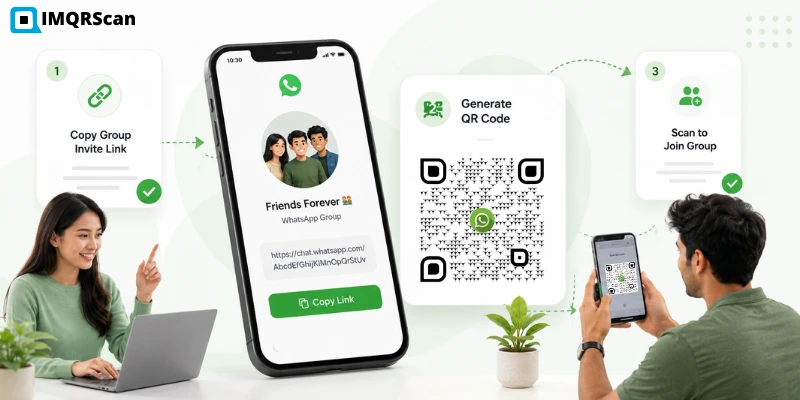
WhatsApp Group QR Code
Learn how to generate a QR code from a WhatsApp group invite link.
Read Guide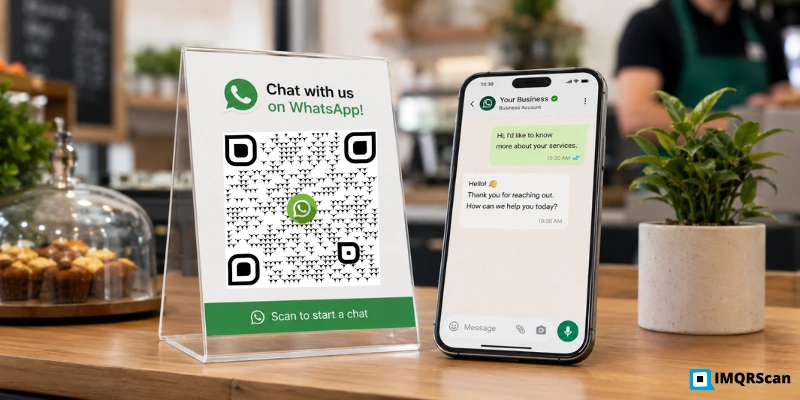
WhatsApp QR Codes for Business
See how businesses use WhatsApp QR codes for support, sales, bookings, menus, and campaigns.
Read Guide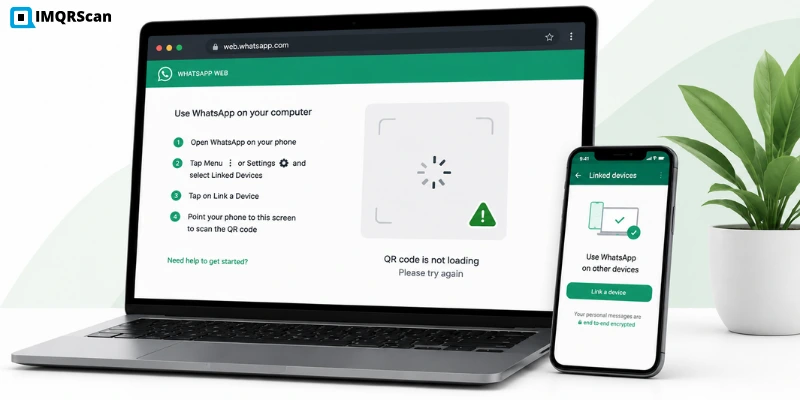
WhatsApp Web QR Not Generating
Fix WhatsApp Web QR loading, scanning, cache, browser, VPN, and connection issues.
Read Guide