WhatsApp Web QR Code Not Generating? How to Fix It
Learn why WhatsApp Web QR code is not generating, loading, or scanning, and how to fix browser, internet, cache, VPN, desktop app, and phone connection issues.
Quick Answer
If the WhatsApp Web QR code is not showing, try refreshing the page first. If that does not work, clear your browser cache, disable any VPN or proxy, try a different browser, or check that your phone has an active internet connection. Most WhatsApp Web QR loading failures come down to one of these five causes.
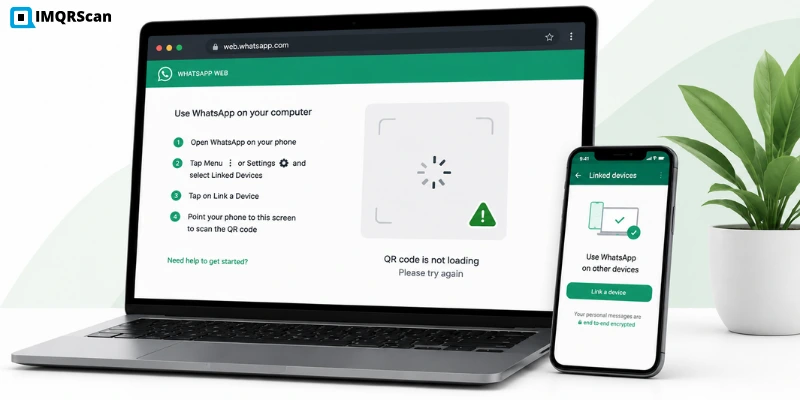
WhatsApp Web QR code not generating, loading, or scanning on desktop and browser.
Table of Contents
Troubleshooting first
This page is for fixing WhatsApp Web login QR issues. If you want to create a permanent WhatsApp contact QR code, use the generator link near the end.
The QR code on WhatsApp Web is supposed to appear automatically when you open web.whatsapp.com. When it does not, when the page loads but the QR either never appears, stays as a spinning loader, or disappears before you can scan it, it is almost always a browser, network, or phone connectivity issue, not a WhatsApp account problem.
This guide walks through every common cause with a specific fix for each one, covers the Chrome and WhatsApp Desktop scenarios separately, and explains the difference between a WhatsApp Web QR code, which is for logging in, and a WhatsApp contact or business QR code, which is for starting conversations.
Key Takeaways
- WhatsApp Web QR code problems usually come from browser cache, VPN, extensions, phone internet, or outdated software.
- A hard refresh is the fastest first fix because it requests a fresh QR code.
- Incognito mode helps identify whether cache or extensions are causing the issue.
- WhatsApp Web QR codes are temporary login tokens, not permanent contact QR codes.
- If you want a permanent QR code for WhatsApp chat, you need a WhatsApp QR code generator.
Why Is WhatsApp Web QR Code Not Generating?
Before trying any fix, it is worth understanding what is actually happening when the QR code fails. WhatsApp Web works by establishing a live connection between your browser and WhatsApp's servers. The QR code it generates is a one-time token. It is only valid for a short window, and it needs a working server connection to appear in the first place.
When that connection is broken, blocked, or delayed, the QR code either never loads or expires before it is displayed. The most common blockers are:
Browser cache conflict
Old cached data from a previous WhatsApp Web session can prevent the new QR from loading correctly.
VPN or proxy interference
WhatsApp's servers sometimes refuse connections that come through known VPN IP ranges. The page loads but the QR token request fails silently.
Browser extension blocking scripts
Ad blockers, privacy extensions, or script blockers can intercept the JavaScript that generates and displays the QR code.
Phone not connected to internet
WhatsApp Web does not work independently. It needs your phone to be online. If your phone lost its connection after you last used WhatsApp Web, the QR might generate on the browser side but fail when WhatsApp on your phone tries to sync.
Outdated browser
WhatsApp Web uses modern web APIs. A significantly outdated browser version may not support everything WhatsApp Web needs to function.
WhatsApp server issues
Occasionally, WhatsApp itself has a partial outage that affects web login specifically. If nothing else explains it, check a service status site like Downdetector to see if others are reporting the same problem.
Quick Fixes for WhatsApp Web QR Code Issues
Work through these in order. The first three resolve the problem in the majority of cases.
Refresh WhatsApp Web
Open web.whatsapp.com and do a hard refresh: Ctrl + Shift + R on Windows, Cmd + Shift + R on Mac. A regular refresh, such as F5 or Ctrl + R, sometimes serves the cached version. A hard refresh forces the browser to reload all assets fresh from the server.
If a QR code was partially loaded and then expired, a hard refresh clears that and requests a new one. This fixes the problem about a third of the time on its own.
Clear Browser Cache and Cookies
Cached data from previous WhatsApp Web sessions can create conflicts that prevent the QR from loading. Clearing the cache removes the old data and lets WhatsApp Web start fresh.
- Open your browser settings.
- Go to Privacy and Security, or History depending on your browser.
- Select Clear Browsing Data.
- Choose Cached images and files and Cookies and other site data.
- Set the time range to All time.
- Click Clear data, then reopen web.whatsapp.com.
Check Your Internet Connection
WhatsApp Web needs a stable connection on both the computer and the phone. A weak Wi-Fi signal on your laptop, or a phone that has dropped to a weak mobile data connection, can cause the QR to load incompletely or not at all.
Test the connection on both devices. If the phone is on Wi-Fi, try switching to mobile data. If the computer is on Wi-Fi, move closer to the router or try a wired connection. Sometimes the issue is as simple as a momentarily unstable connection.
Turn Off VPN or Proxy
This is one of the most common causes that people miss. If you are using a VPN on either the computer or the phone, WhatsApp's servers may be refusing the connection. The page itself loads because it is just HTML, but the real-time WebSocket connection that generates the QR code gets blocked.
Turn off the VPN completely, close the WhatsApp Web tab, and reopen web.whatsapp.com. If the QR code appears immediately, the VPN was the cause. You can usually re-enable the VPN after scanning the code, as the established session is more resilient than the initial connection.
Try Another Browser
If the QR is not loading in Chrome, try Firefox, Edge, or Safari. WhatsApp Web works in all major modern browsers. If the QR loads immediately in a different browser, the issue is specific to your primary browser, likely an extension, a settings change, or accumulated cache.
Update Your Browser
WhatsApp Web uses modern JavaScript and WebSocket APIs that older browser versions may not fully support. If your browser is significantly out of date, check for updates in the browser settings and install the latest version. On Chrome: Settings, Help, About Google Chrome. The browser checks for updates and installs them automatically.
Restart WhatsApp Desktop App
If you are using the WhatsApp Desktop app rather than the browser version, the fix is slightly different. Close the app completely. Make sure it is not running in the system tray in the background. Wait ten seconds, and reopen it. The QR code should be generate on launch.
If it still does not appear, check for app updates. Open the app menu and look for a Check for updates option. An outdated WhatsApp Desktop version is one of the more common causes of QR generation failures in the desktop app.
Check Your Phone Connection
WhatsApp Web does not work if your phone is offline. Open WhatsApp on your phone and check that messages are loading normally. If WhatsApp on the phone shows ‘Connecting...’ or ‘Waiting for this message’, the phone has lost its connection and WhatsApp Web will not work regardless of what the browser is doing.
Switch between Wi-Fi and mobile data on the phone. Restart WhatsApp on the phone. Once the phone's connection is restored, go back to web.whatsapp.com and refresh.
Try Incognito Mode
Open a private or incognito window and go to web.whatsapp.com. Incognito mode runs without extensions and without cached data from your regular browsing session. If the QR code appears in incognito but not in your normal browser window, the cause is either a browser extension or a specific cache or cookie conflict.
To identify which extension is the problem, disable them one at a time and test after each one. Ad blockers and privacy extensions are the most common culprits.
WhatsApp Web QR Code Not Loading on Chrome
Chrome-specific issues tend to fall into a few categories. Chrome's aggressive caching can hold onto old WhatsApp Web session data longer than other browsers, and Chrome extensions, particularly privacy-focused ones like uBlock Origin, Privacy Badger, or DuckDuckGo Privacy Essentials, sometimes block the scripts WhatsApp Web needs.
The fastest path in Chrome:
- Open an Incognito window with Ctrl + Shift + N.
- Go to web.whatsapp.com.
- If the QR appears, a Chrome extension is blocking it in your normal window. Go to chrome://extensions and disable extensions one at a time to find the issue.
- If the QR still does not appear in Incognito, clear Chrome's cache completely (Ctrl + Shift + Delete → All time → Cached images and files + Cookies).
- If that still fails, turn off any VPN, then retry.
WhatsApp Desktop Not Generating QR Code
The WhatsApp Desktop app behaves differently from the browser version and has its own set of failure modes.
- App is outdated. WhatsApp pushes mandatory updates that block older versions from connecting. Open the app menu and check for updates. If an update is available, install it before trying again.
- App is running in the background. If WhatsApp Desktop was minimized to the system tray rather than fully closed, reopening it sometimes shows a stale state rather than generating a new QR. Fully quit the app from the system tray, wait a moment, and relaunch.
- Windows Firewall or antivirus blocking the connection. Some security software blocks WhatsApp Desktop's network connections. Check your firewall settings and add WhatsApp Desktop as an allowed application if it is being blocked.
- Corrupted app data. In rare cases, WhatsApp Desktop's local data becomes corrupted and the app cannot complete the QR generation step. Uninstalling and reinstalling the app clears this. Your messages are stored on your phone, not the desktop app, so reinstalling does not lose any chat history.
WhatsApp QR Code Not Scanning on Phone
Sometimes the QR code generates correctly on the browser or desktop app, but the phone will not scan it. This is a different problem from the QR not generating at all.
- Open WhatsApp on the phone and go to Settings → Linked Devices → Link a Device. Do not try to scan it with the phone's regular camera app. WhatsApp Web QR codes must be scanned from inside the WhatsApp app.
- Make sure WhatsApp on the phone is updated. An outdated WhatsApp version may not support the current QR format. Check for updates in the App Store or Google Play.
- The QR code expires after about 20 seconds. If you are too slow, the QR code refreshes and shows a new one. Scan immediately after it appears.
- Poor lighting or phone camera focus. WhatsApp’s in-app scanner needs the QR code to be well-lit and in focus. Make sure the screen is at full brightness and the phone camera has locked focus on the code.
Difference Between WhatsApp Web QR Code and WhatsApp QR Code Generator
These two things are completely different, and the confusion between them is common enough to be worth a clear explanation.
| Feature | WhatsApp Web QR Code | WhatsApp QR Code Generator, IMQRScan |
|---|---|---|
| What it is | A one-time login token for linking your phone to WhatsApp Web or Desktop | A permanent scannable image containing your WhatsApp chat link |
| Who generates it | WhatsApp's servers automatically when you open web.whatsapp.com | You, using IMQRScan with your WhatsApp number or wa.me link |
| What happens when scanned | Links the browser or desktop app to your phone's WhatsApp account | Opens a WhatsApp chat with your number on the scanner's phone |
| Expires? | Yes, after a short time if not scanned | No, permanent, or until you change the link |
| Customizable? | No, plain white QR from WhatsApp | Yes, logo, colors, frame, and size |
| Used for | Logging into WhatsApp Web or Desktop | Business cards, packaging, marketing, and customer contact |
| Downloadable? | No | Yes, PNG, SVG, and PDF |
If you are on this page because WhatsApp Web's QR is not loading, the fixes above apply to you. If you are looking to create a WhatsApp QR code for a business card, a shop display, a product, or a marketing campaign, that is a different thing entirely, and it is what IMQRScan is built for.
When You Need a WhatsApp QR Code Generator
If your goal is not to log into WhatsApp Web but to create a QR code that lets people message you on WhatsApp, a QR code generator is what you are looking for.
Situations where this comes up:
- You want to print a QR code on your business card so new contacts can message you without saving your number.
- You run a restaurant or shop and want customers to reach you on WhatsApp from a table card or window sticker.
- You want to include a WhatsApp QR code on product packaging, a flyer, or a printed ad.
- You want the QR to open WhatsApp with a pre-filled message like "Hi, I would like to enquire about your services."
- You want to track how many people scanned the code and from which location.
All of this is separate from WhatsApp Web entirely. IMQRScan generates a WhatsApp chat link from your number, turns it into a custom-branded QR code, and lets you download it in PNG, SVG, or PDF for any use.
Create Your Own WhatsApp QR Code with IMQRScan
If the WhatsApp Web QR code issue brought you here but what you actually need is a permanent WhatsApp QR code for a business card, a shop display, or a marketing material, that is a different tool.
IMQRScan generates custom WhatsApp QR codes from your phone number or chat link. Add a pre-filled message, upload your logo, set your brand colors, and download in the format you need. No account required for a basic code.
Open WhatsApp QR Code GeneratorFAQs About WhatsApp Web QR Code Problems
Answers for WhatsApp Web QR code not showing, not loading, not scanning, or not generating on desktop.
Related WhatsApp QR Code Guides
Continue with WhatsApp QR creation, group QR codes, logo customization, tracking, and scanning guides.
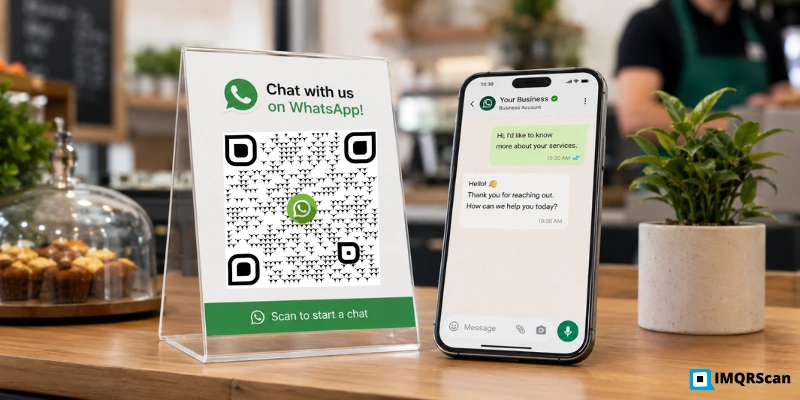
WhatsApp QR Codes for Business
See how businesses use WhatsApp QR codes for support, sales, bookings, menus, and campaigns.
Read Guide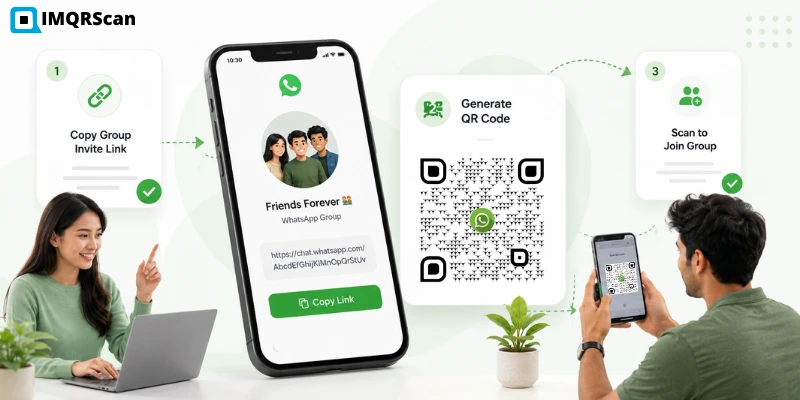
WhatsApp Group QR Code
Learn how to generate a QR code from a WhatsApp group invite link.
Read Guide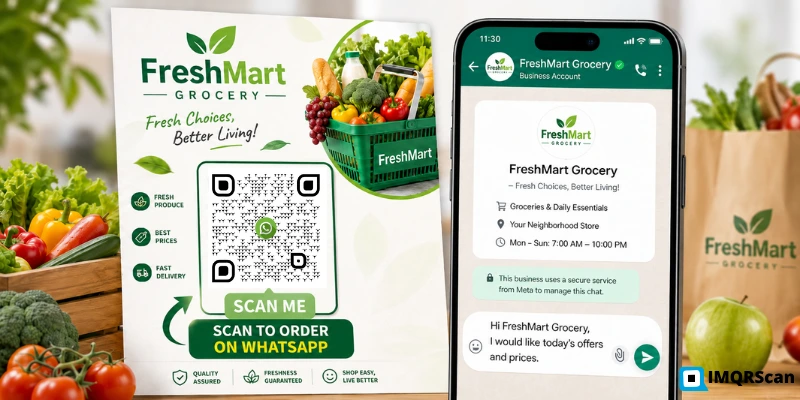
WhatsApp QR Code with Logo
Learn how to add a WhatsApp logo, brand colors, and frame text to your QR code.
Read Guide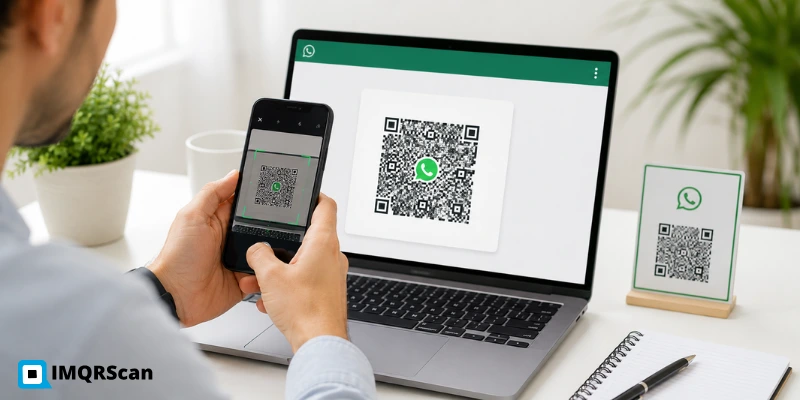
Scan a WhatsApp QR Code
Learn how to scan WhatsApp QR codes on iPhone, Android, Windows, and other devices.
Read Guide