How to Download an App Using a QR Code
Short answer: Point your phone camera at the QR code and hold it steady. A notification pops up, tap it. On iPhone, the App Store opens. On Android, Google Play opens. Hit Install. That’s it. No extra app needed on any phone made in the last few years.
Quick Answer
Open your phone camera, scan the QR code, tap the notification, and install the app from the App Store or Google Play.
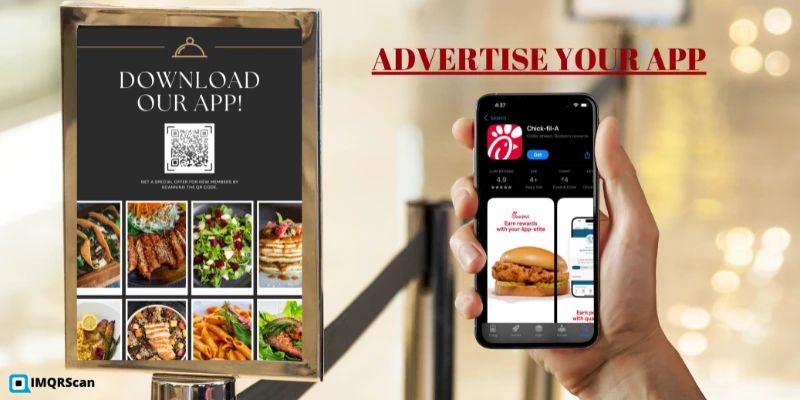
Table of Contents
Create App Download QR Code
For your own app, create one QR code for iPhone and Android users.
Open GeneratorMaybe you got a QR code from a colleague, or saw one on a flyer, or it came printed on a product box. The process looks straightforward until it doesn’t work, and then suddenly it’s not obvious at all why the camera isn’t doing anything, or why the wrong page opened, or why the store says the app isn’t available.
Below is the step-by-step for both iPhone and Android, including what to do when things go sideways.
What Is an App Download QR Code?
It’s a scannable image, that black-and-white pattern, that stores a web link pointing to an app page on the App Store or Google Play. When your phone reads it, the link opens and takes you to the app. Sometimes it goes directly to the right store, sometimes it passes through a smart-link page that figures out your device first.
Worth knowing: the app itself isn’t inside the QR code. The code is just a shortcut. The actual download and installation still goes through the App Store or Google Play exactly as it normally would, with all the same protections in place.
How to Download an App Using a QR Code on iPhone
iPhones have been able to read QR codes through the camera since iOS 11. That covers pretty much every iPhone people are still using today. Nothing to install, nothing to turn on by default.
Step 1: Open the Camera App
The standard Camera app, the one you’d use to take a photo. Not Instagram, not Snapchat, not any other camera inside a third-party app. Those sometimes pick up QR codes but they’re inconsistent about what they do with app store links specifically.
Step 2: Point the Camera at the QR Code
Hold the phone so the QR code sits roughly in the middle of the screen. No need to tap anything. The camera picks it up passively while you hold it steady.
Distance matters more than most people realise. Ten centimetres is usually too close, the camera can’t focus at that range. Pull back to about 20 to 30 cm. If nothing’s happening, that’s usually the first thing to adjust.
Step 3: Tap the App Store Link
A yellow banner appears at the top of the screen, it might say “Open in App Store” or just show the app name. Tap it. That takes you to the app’s page in the App Store.
Step 4: Install the App
You’re now on the app’s App Store page. Tap Get for a free app or the price for a paid one. Confirm with Face ID, Touch ID, or your Apple ID password. The app installs the same way as anything else from the store.
If the QR opens a webpage instead of going straight to the App Store, look for an “Open in App Store” or “Download on the App Store” button on that page. Smart-link services sometimes do this as an intermediate step.
How to Download an App Using a QR Code on Android
Android handles this the same way in principle, but there’s more variation between phone brands and older Android versions. On most phones, Samsung, Pixel, OnePlus, Xiaomi, the camera app recognises QR codes on its own. On older devices or certain custom Android builds, it might not.
Step 1: Open the Camera or Google Lens
Try the Camera app first. On Android 9 and newer, it usually detects QR codes automatically just by pointing it at one.
Camera not doing anything? Open the Google app, tap the small camera icon inside the search bar, and use that instead. That’s Google Lens. It comes pre-installed on most Android phones and it’s completely reliable for QR codes.
Step 2: Scan the QR Code
Same principle as iPhone, hold the phone steady, QR code centred in frame, give it a second. Most Android cameras show a small overlay or popup with the link details before you tap.
Step 3: Open Google Play
Tap the link. If the QR code contains a direct Google Play URL, the Play Store opens straight away. If there’s a smart-link page in between, look for a “Get it on Google Play” button.
Step 4: Install the App
Once you’re on the app’s Play Store page, hit Install. Accept the permissions it asks for. The app downloads in the background and shows up in your app drawer when it’s ready.
Which Phones Can Scan App QR Codes Natively
| Device | Native QR scanning? | Fallback option | Where it opens |
|---|---|---|---|
| iPhone (iOS 11+) | Yes, Camera app | Control Centre scanner | App Store directly |
| iPhone (iOS 10 or older) | No | QR scanner from App Store | App Store via redirect |
| Android 9+ | Yes, most camera apps | Google Lens, pre-installed | Google Play directly |
| Android 8 or older | Often no | Google Lens or scanner app | Google Play via browser |
| Samsung Galaxy (One UI) | Yes, Camera app | Bixby Vision on older models | Google Play directly |
| Pixel | Yes, Camera app | Google Lens | Google Play directly |
Do You Need a QR Code Scanner App?
Almost certainly not. If your phone is from the last four or five years, the camera already handles it. iPhone since iOS 11, Android since version 9, both work out of the box.
The only time a separate scanner app makes sense is on an older device that genuinely doesn’t support native QR scanning. In that case, look for a well-reviewed one in the App Store or Play Store. Anything free with a large number of recent ratings is usually fine. Skip anything that asks for permissions it doesn’t need, like access to contacts or your location.
Why the QR Code May Not Open the Right App Store
You scanned it, something opened, but it’s not where you expected. This is more common than it should be, and it comes down to a few specific things:
The code only links to one store
Some QR codes contain a direct App Store link built for iOS. Scan it on an Android phone and it opens in a browser instead of the Play Store, because that link format doesn’t mean anything to Android. If this happens, look for a separate Android version of the QR code or ask the company for the Play Store link.
A smart-link page is redirecting you
Plenty of businesses use redirect tools that detect your device type and send you to the right store. They mostly work, but sometimes the detection fails and you end up on a generic webpage. There’s usually a “Download on Android” or “Get it on Google Play” button somewhere on that page.
The app only exists on one platform
Not every app is available on both iOS and Android. If the QR scans fine but the store says it’s not available, the app might simply not exist for your device.
The link inside the QR code is stale
App store links don’t change often, but if the developer pulled the app or changed its store listing, the old code stops working. The person or company who sent you the code will need to generate a new one with the current link.
How Businesses Can Create App Download QR Codes
If you’re the one distributing the QR code rather than scanning one, the setup is simple. Grab your App Store or Google Play URL and run it through a QR code generator.
For something that works on both iPhone and Android from the same code, a smart app download QR code is the cleaner option, one code, two URLs, the generator handles the routing. IMQRScan lets you enter both store links so whoever scans it gets sent to the right place automatically.
Dynamic codes are worth it if there’s any chance the store URL might change later, or if you want to see how the code is performing, scan count, device types, location data.
For a creation walkthrough, You can also learn about dynamic QR codes and QR code tracking.
Create a QR Code for Your Own App
For developers and businesses looking to let users download their app by scanning a code, IMQRScan’s app download QR code generator creates one code that handles both iPhone and Android. Put in your App Store and Play Store links, design it how you want, download in PNG, SVG, or PDF.
App Download QR Code GeneratorFAQs About Downloading Apps with QR Codes
Practical answers about scanning QR codes, installing apps safely, and fixing common issues.
Need to create a QR code for your own app?
Open App Download QR Code GeneratorRelated App Download QR Code Guides
Continue with app QR creation, business use cases, troubleshooting, dynamic routing, and scanning guides.
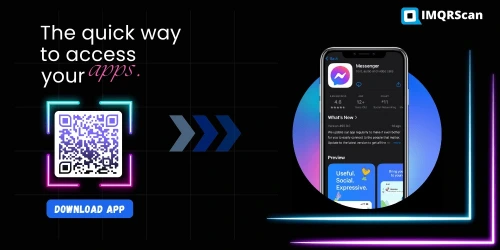
App Download QR Code Generator
Create a QR code for your App Store, Google Play, or smart app landing page.
Open Tool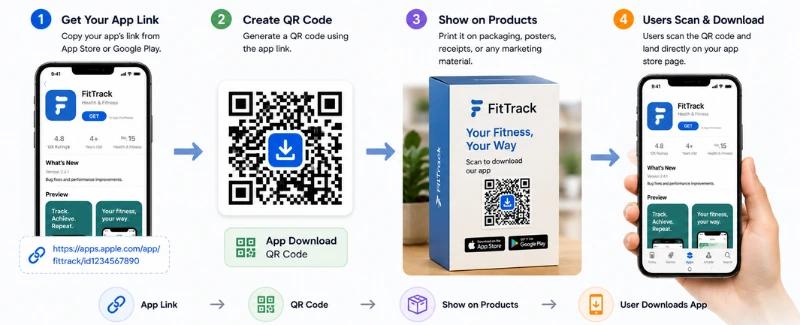
App Download QR Code Uses
Learn what app download QR codes are and how businesses use them on packaging, posters, receipts, and ads.
Read Guide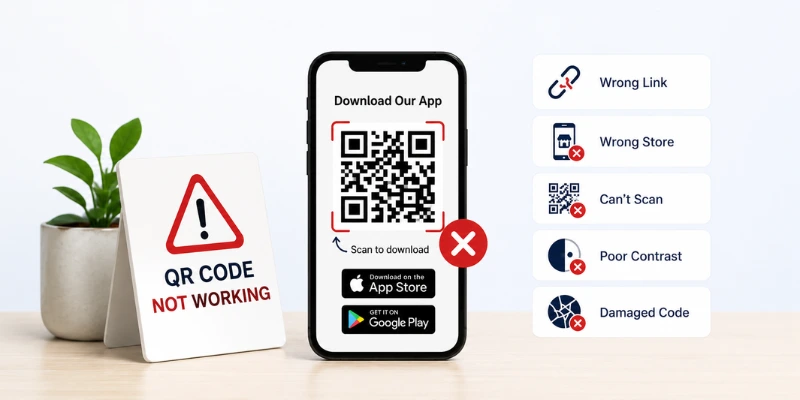
App QR Code Not Working
Fix app QR code issues like wrong store links, blurry print, poor contrast, broken URLs, and scan failures.
Read Guide
Download App Using QR Code
Learn how to scan an app QR code on iPhone or Android and safely install the app from the official store.
Read Guide