App Download QR Code Not Working? Common Problems and Fixes
An app download QR code failing is a particularly painful problem. It is usually discovered at the worst possible moment, at a product launch, at a trade show, or when a customer is holding freshly printed packaging and the code takes them nowhere useful.
Quick diagnosis
Open the URL from inside the QR code in a browser. If the App Store or Google Play listing loads, the link is fine, the problem is in the print or scan conditions. If the listing does not load or shows an error, the link itself has changed or was wrong from the start.
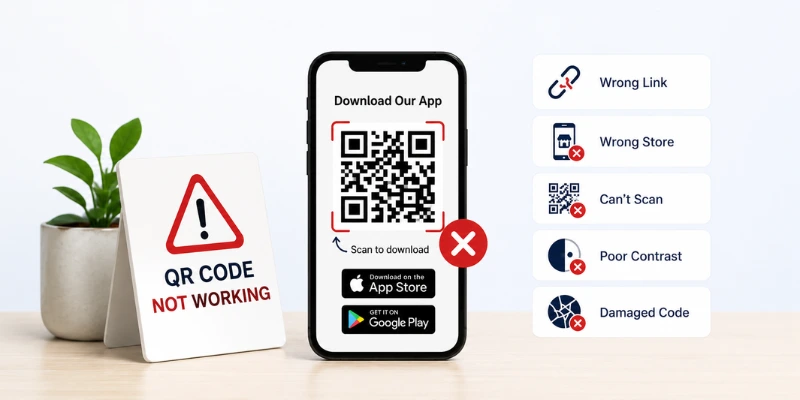
Table of Contents
- Why Your App Download QR Code Is Not Working
- The App Store or Google Play Link Is Wrong
- The QR Code Opens the Wrong Store
- The QR Code Is Too Small or Blurry
- The QR Code Has Poor Contrast
- The Printed QR Code Is Damaged
- The App Link Changed After Printing
- Static vs Dynamic QR Code Problems
- How to Test an App Download QR Code
- How to Fix an App Download QR Code
- FAQs
Generate a Working App Download QR Code
Paste the current App Store or Play Store link, download SVG, and test before printing.
Open GeneratorApp QR codes fail for different reasons than a standard URL code. The link structure is more complex; the destination, an app store listing, can change without warning, and one code often needs to work for both iOS and Android, two very different destinations. Any one of those factors can silently break a code that worked perfectly a week ago.
This guide goes through every common cause in turn, with a specific fix for each one.
Why Your App Download QR Code Is Not Working
App download QR codes can fail at three different points, and each has a different fix:
Wrong or changed link
The link inside the code is wrong or has changed. The code scans, a browser opens, and either nothing loads or the wrong page appears.
Camera cannot read it
The code cannot be read by the camera. The camera does not trigger at all usually a size, contrast, or print quality problem.
Wrong destination
The code scans but goes to the wrong place. It might open the App Store instead of Google Play, or take the user to a deleted listing, or redirect to a general store homepage rather than the specific app.
The sections below address each of these individually. Start with the quick diagnosis above, knowing whether the link itself is the problem or whether it is the physical code narrows down where to look.
The App Store or Google Play Link Is Wrong
Cause
The URL inside the QR code does not point to the correct app listing, either because it was mistyped, copied from the wrong page, or has changed since the code was generated.
App store links are longer and more specific than most URLs. A single character error, a missing letter in the bundle ID, a truncated Play Store URL, or a link copied from a search results page rather than the listing itself, produces a code that either leads to the wrong app or an error page.
The correct formats:
https://apps.apple.com/app/your-app-name/id123456789

https://play.google.com/store/apps/details?id=com.yourcompany.appname
Both of these need to be the full URL copied directly from the listing page, not from a search result, not from a developer console link, not from a shortened URL that may have expired.
Fix
Paste the URL from the QR code into a browser and confirm it opens the correct listing. If it does not, find the current listing URL on the App Store or Google Play, and use the App Download QR Code Generator to generate a new code with the corrected link.
The QR Code Opens the Wrong Store
Cause
The code links to the App Store but the scanner has an Android phone, or vice versa. The scanner reaches a store page they cannot use, and the app cannot be installed.
This is the most common issue for apps available on both iOS and Android. A single QR code can only hold one URL, so if you link it directly to the App Store, Android users are stuck, and vice versa.
There are three approaches that fix this:
Option 1
Create a page (your website, or with IMQRScan built-in feature) with an App Store badge and a Google Play badge. The scanner taps the correct one. One QR code, two destinations, works on every device.
Option 2
A dynamic QR code can be configured to automatically redirect iOS scanners to the App Store and Android scanners to Google Play, based on the device detected. No extra tap needed. Requires a dynamic code — cannot be done with a static code
Option 3
Two separate QR codes side by side, clearly labeled. Print one labeled "Download on App Store" and one labeled "Get it on Google Play." More surface area required, but zero technical setup.
Fix
If your app is dual-platform and you only have one code, regenerate it using the App Download QR Code Generator pointing to a landing page with both store links, or set up a dynamic QR code with OS-detection enabled.
The QR Code Is Too Small or Blurry
Cause
The camera cannot resolve the individual modules that make up the QR code pattern, either because the code is printed too small or because a low-resolution PNG was scaled up and printed blurred.
App QR codes are often placed in compact spaces, product packaging corners, receipt footers, and sticker labels. These are exactly the contexts where size becomes a problem.
Phone cameras need to see individual modules as distinct squares. Below 2 cm x 2 cm in print, most phone cameras begin to struggle. Below 1.5 cm, failure is likely on most devices.
The blurring issue is different from the size issue but produces similar results. A PNG file has a fixed pixel count. When a designer resizes it in a design tool, stretching a 200-pixel image to fill a 10-centimeter space, it prints as a soft, pixelated blur. The camera sees grey smudges instead of clean black-and-white modules.
Fix
Download the QR code as SVG from IMQRScan. SVG is a vector format, it scales to any size without losing sharpness. Replace the PNG in your design file with the SVG and reprint. Size the code at a minimum of 2 cm x 2 cm for packaging and receipt use and larger for anything placed more than arm's reach from the scanner. For a detailed guide, read how to fix a blurry QR code.
The QR Code Has Poor Contrast
Cause
The color combination between the QR code modules and the background reduces contrast below the threshold phone cameras need to read the pattern.
App QR codes are frequently designed to match brand guidelines, which sometimes means placing a light-colored code on a similarly light background or a colored code on a background that is close in brightness.
Common contrast mistakes:
- Light blue code on a white background
- Dark navy code on a dark charcoal background
- Gradient background that bleeds into the quiet zone around the code
- A large app icon logo in the centre covering more than 30% of the data area
Fix
Convert the code to greyscale in any image editor. If the modules and background look similar in greyscale, the contrast is insufficient. The reliable fix is a solid white backing plate behind the entire QR code area, regardless of what color the surrounding design uses. This guarantees contrast without requiring changes to the brand design. For transparent or custom background designs, see our Transparent QR Code guide.
The Printed QR Code Is Damaged
Cause
The physical print has been creased, scratched, wet, or partially obscured, and the damage falls on a critical part of the code pattern.
QR codes have built-in error correction, the same data is stored redundantly across the code, so up to 30% of the pattern can be damaged and the code will still scan. But beyond that threshold, or if the damage falls on the three corner finder patterns, the large squares in three corners of the code, the camera cannot orient itself and the scan fails.
Packaging QR codes are particularly vulnerable. A box corner that gets crushed, a label that peels at the edge, or a wet surface that causes ink to bleed can all take a working code to a broken one.
Fix
If the damage is on the packaging itself, the only fix is a reprint. For high-wear surfaces, such as labels on products that get wet or stickers on items that are regularly handled, consider printing at a larger size and using a higher error-correction level when generating the code. A larger code is more resilient because each module is physically bigger. You can also learn more about designing durable printed QR codes in our guide to using QR codes in print.
The App Link Changed After Printing
Cause
The app was updated, resubmitted, moved to a different developer account, or renamed, and the listing URL changed. The QR code still holds the old URL, which now leads to an error page or the wrong listing.
This is the most frustrating cause because it has nothing to do with the QR code itself. The code was correct when it was generated. Something on the app store side changed.
It happens more than most people expect:
- A developer transfers the app to a new account, the bundle ID or listing ID changes
- A major version update on the App Store causes Apple to change the listing URL format
- The app is renamed or rebranded, in some cases this generates a new listing
- A Play Store listing is deleted and republished, producing a new app ID
A static QR code has no way to recover from this. The printed copies are permanently broken. The only path forward is to generate a new code with the current URL and reprint, which, depending on the volume of printed material, is an expensive problem. A dynamic QR code would have allowed the destination URL to be updated in the dashboard without any reprint within minutes of discovering the link had changed.
Fix
Find the current listing URL on the App Store or Google Play. If you have a dynamic code, update the destination in your IMQRScan dashboard, all printed copies start routing to the new URL immediately. This is useful when you need to change its link after printing. If you have a static code, regenerate it using the App Download QR Code Generator with the new URL and reprint.
Static vs Dynamic QR Code Problems
App download codes are the strongest argument for dynamic QR codes of any QR type. App store listings change more often than websites, and the consequences of a broken app download code on packaging, a customer who cannot install the app you just told them to scan, are immediate and visible.
| Problem | Static QR Code | Dynamic QR Code |
|---|---|---|
| App listing URL changes | Code breaks permanently, must reprint | Update destination in the dashboard; no reprint |
| The wrong store opened | Must reprint with new URL or landing page | Update destination to landing page instantly |
| Want OS-detection redirects? | Not possible | Available, auto-routes iOS and Android |
| Track which placements drive downloads | Not possible | Scan analytics by date, location, device |
| Developer account transfer changes the URL | Code breaks permanently | Update destination in 60 seconds |
For any app download code going on packaging, printed material, or signage with a print run above a few hundred copies, a dynamic QR code pays for itself the first time the app listing URL changes.
How to Test an App Download QR Code
Testing takes five minutes and catches every problem listed above before anything is printed.
How to Fix an App Download QR Code
Once you have identified the cause, here is the fix path:
- Wrong or changed URL: Find the current listing URL, paste it into the App Download QR Code Generator, generate a new code, download it as an SVG, and reprint.
- Opens wrong store: Generate a new code pointing to a landing page with both store buttons, or use a dynamic QR code with OS detection.
- Too small or blurry: download SVG, replace PNG in your design file, reprint at 2 cm minimum.
- Low contrast: Add a solid white backing plate behind the code in your design file and reprint.
- Physical damage: reprint. For high-wear surfaces, increase the code size and error-correction level.
- If you have a dynamic code and the destination changed: log into your IMQRScan dashboard, find the code, and update the destination URL. No reprint. Done.
Generate a Working App Download QR Code
If the current code needs to be replaced, start fresh with the correct URL. Open the App Download QR Code Generator, paste the current App Store or Play Store link, download it as SVG, and test the printed version before committing to a full run.
Open App Download QR Code GeneratorFor the user-side scanning guide, see How to Download App Using QR Code.
FAQs About App Download QR Code Problems
Common fixes for App Store links, Google Play links, printed QR codes, and dynamic QR updates.
Need to replace a broken app QR code?
Generate a New App Download QR CodeRelated App Download QR Code Guides
Continue with app QR creation, business use cases, troubleshooting, dynamic routing, and scanning guides.
App Download QR Code Generator
Create a QR code for your App Store, Google Play, or smart app landing page.
Open Tool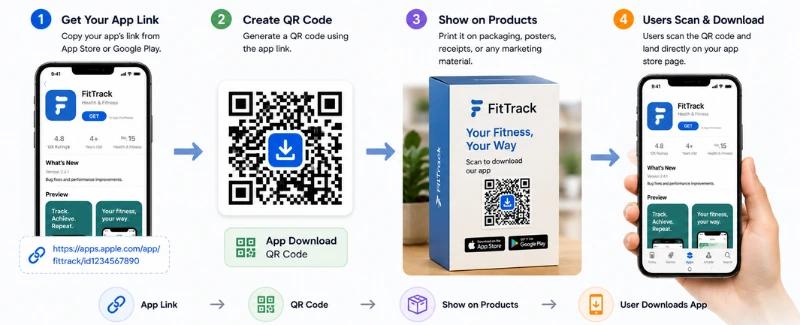
App Download QR Code Uses
Learn what app download QR codes are and how businesses use them on packaging, posters, receipts, and ads.
Read Guide
App QR Code Not Working
Fix app QR code issues like wrong store links, blurry print, poor contrast, broken URLs, and scan failures.
Read Guide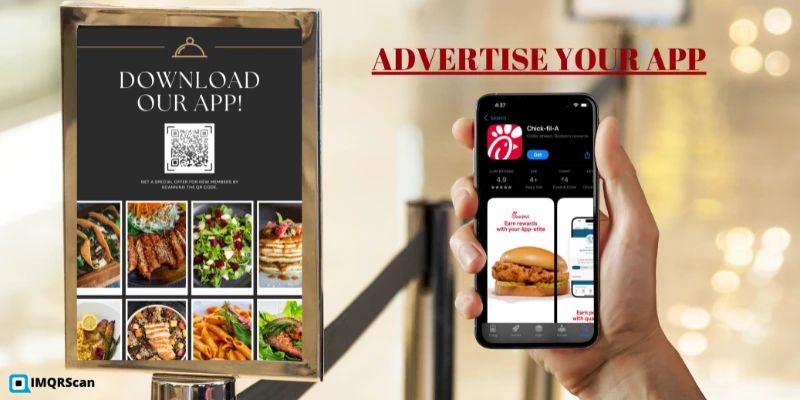
Download App Using QR Code
Learn how to scan an app QR code on iPhone or Android and safely install the app from the official store.
Read Guide